Pipeline, sequences and templates
Every enquiry on one board, the people who refer to you, follow-ups that go out on their own, and the emails your team sends most.
The CRM Pipeline
CRM Pipeline shows every open enquiry as a card in the stage it has reached. The tiles count the active pipeline, new enquiries this week, overdue follow-ups and those waitlisted. Filter by stream: independent living, residential aged care, in-home services, or venues and events. Each stream has its own stages. Residential aged care runs Enquiry, Contacted, ACAT Review, Tour / Assessment, Waitlisted, Room Offered, Admission and Resident; in-home services run Enquiry, Contacted, MAC / Funding Check, Intake Form, Waiting for Services, Care Partner Assigned and Active Client.
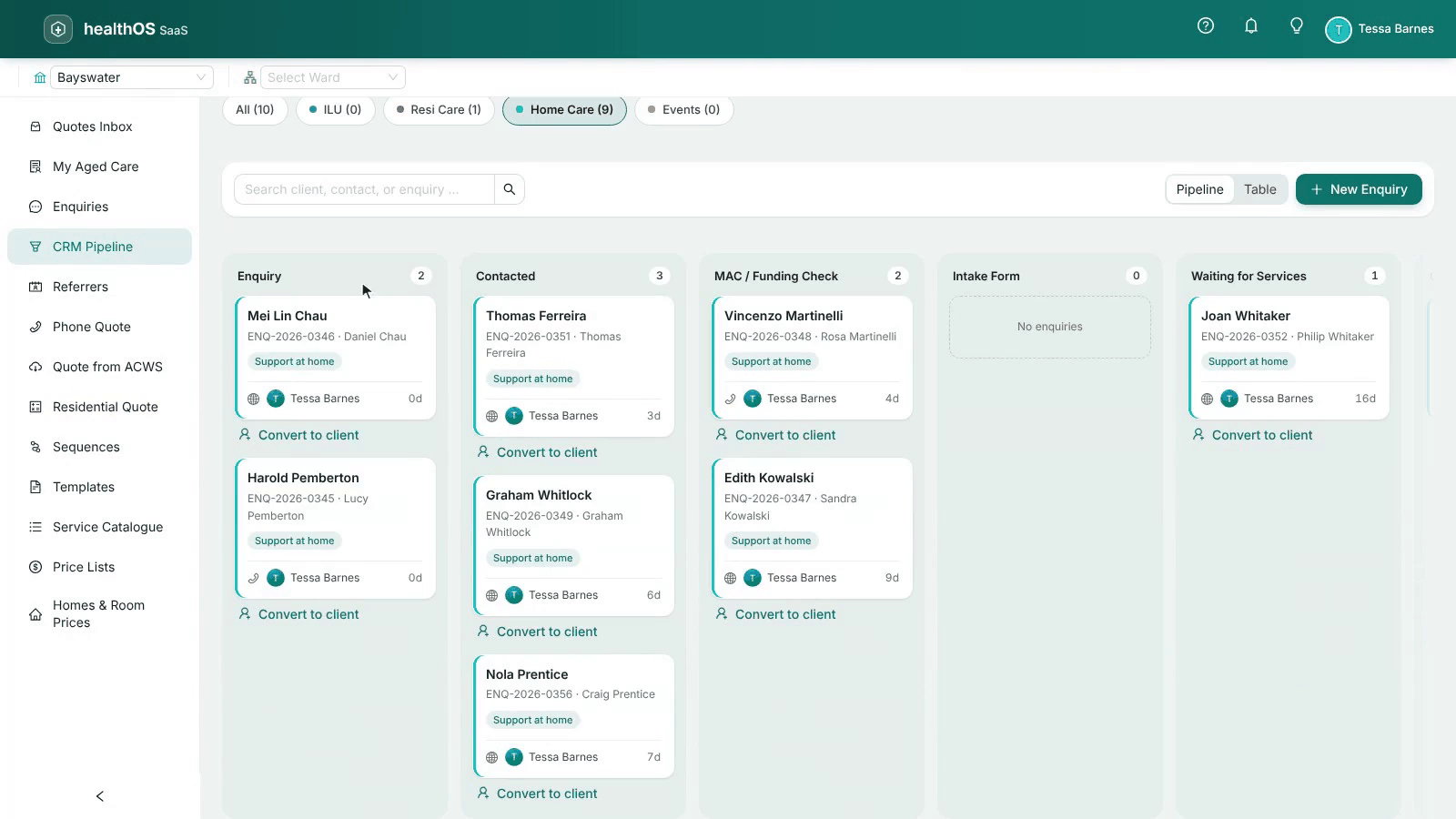
Each card shows who looks after the enquiry and how many days it has waited. Switch to Table for a list you can sort. New Enquiry adds one, and Check all for replies brings in the families’ replies to every enquiry at once (see Microsoft 365 mailboxes).
Working an enquiry
Open a card to see the enquiry: its contact, source, who it is assigned to, its funding and how long it has been in each stage.
- Progress Stage moves it on.
- Log Call records a phone call; a next follow-up date adds a task to the work queue for that day.
- Add Note keeps a note on it.
- Write email, Check for replies and Log an email work from your Microsoft 365 mailbox.
- Enrol in a sequence starts a follow-up series.
- Convert to client when an in-home services enquiry says yes.
- Export record downloads the enquiry, its quotes and its emails as one zip for your own care system. Delete enquiry removes it and everything on it, when the family asks: type its number to confirm.
Referrers
Referrers lists who sends you enquiries, and how many of them became clients. Add the assessors, hospitals and GPs who refer to you: each has a kind (My Aged Care assessor, hospital discharge, GP, family or other), contact details and notes. Open one to see its contacts and recent enquiries. Removing a referrer keeps each enquiry’s source; only the link is cleared.
Sequences
A sequence sends emails on its own, a step at a time: a follow-up two days after a quote, another a week later, and so on. In Purser a sequence is correspondence about the person’s enquiry.
Create it
Choose New sequence, name it, then add its steps: each a template and how long after the step before it goes.
Activate it
Choose Activate. To change the steps later, Pause it first.
Enrol enquiries
Nobody is enrolled automatically. Enrol an enquiry from the sequence, or with Enrol in a sequence on the enquiry.
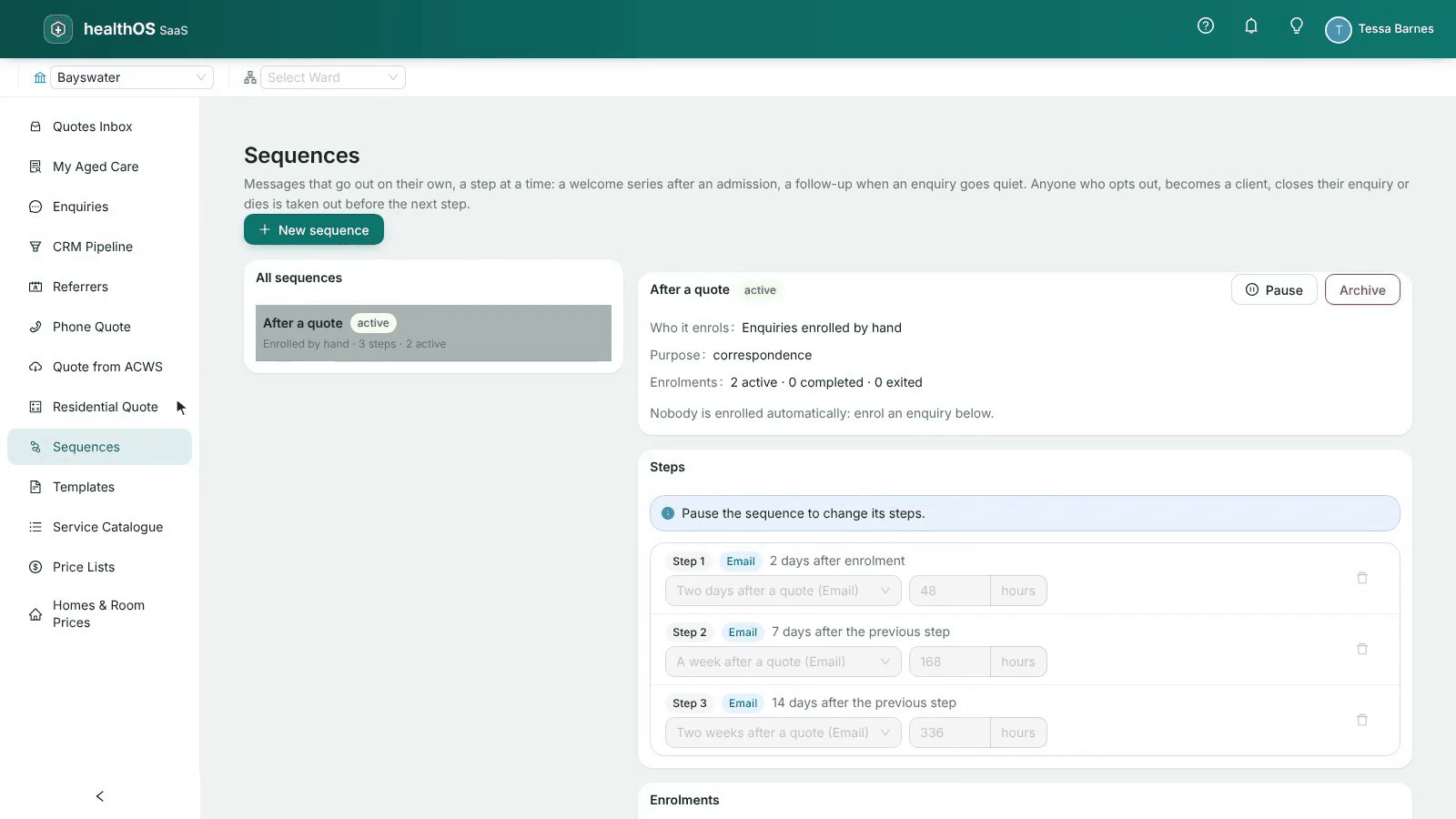
Anyone who opts out, becomes a client or closes their enquiry is taken out before the next step. The Enrolments list shows each person’s steps done and the next one due, and Exit takes someone out by hand.
Paused by itself. If the mailbox a sequence sends from is disconnected or Microsoft refuses it, the sequence pauses and shows why. Reconnect the mailbox, then Activate it again. Archive ends a sequence and takes everyone out of it.
Templates
Templates holds the emails your team sends most: a thank-you after a call, a quote follow-up. Each has a name, what it is used for, a subject line and its words, with merge fields that fill in from the enquiry, such as the person’s name. Keep clinical details out of subject lines: they show on lock screens and in shared inboxes. A template offered when sending is Active; a Draft is not offered yet.
When someone writes an email from a template, its words are filled in from the enquiry and can still be changed before it goes. The correspondence then says which template it came from, and whether it was edited. Messages already sent keep the version they used.
What is kept, and for how long
- An open enquiry is kept with everything on it, whatever your workspace’s retention period.
- Once admitted (Resident or Active Client), export the record. Its personal details go at the next nightly clean-up after the export, or once your retention period has passed since admission if nobody exports it.
- A lost or closed enquiry goes once your retention period has passed since it closed.
- On request, delete an enquiry at any time with Delete enquiry.
See Your personal data.
Still stuck? Email support@healthos.net.au