Sign-in and authentication
How people sign in, how long they stay signed in, and what happens when something looks wrong.
Where it is set
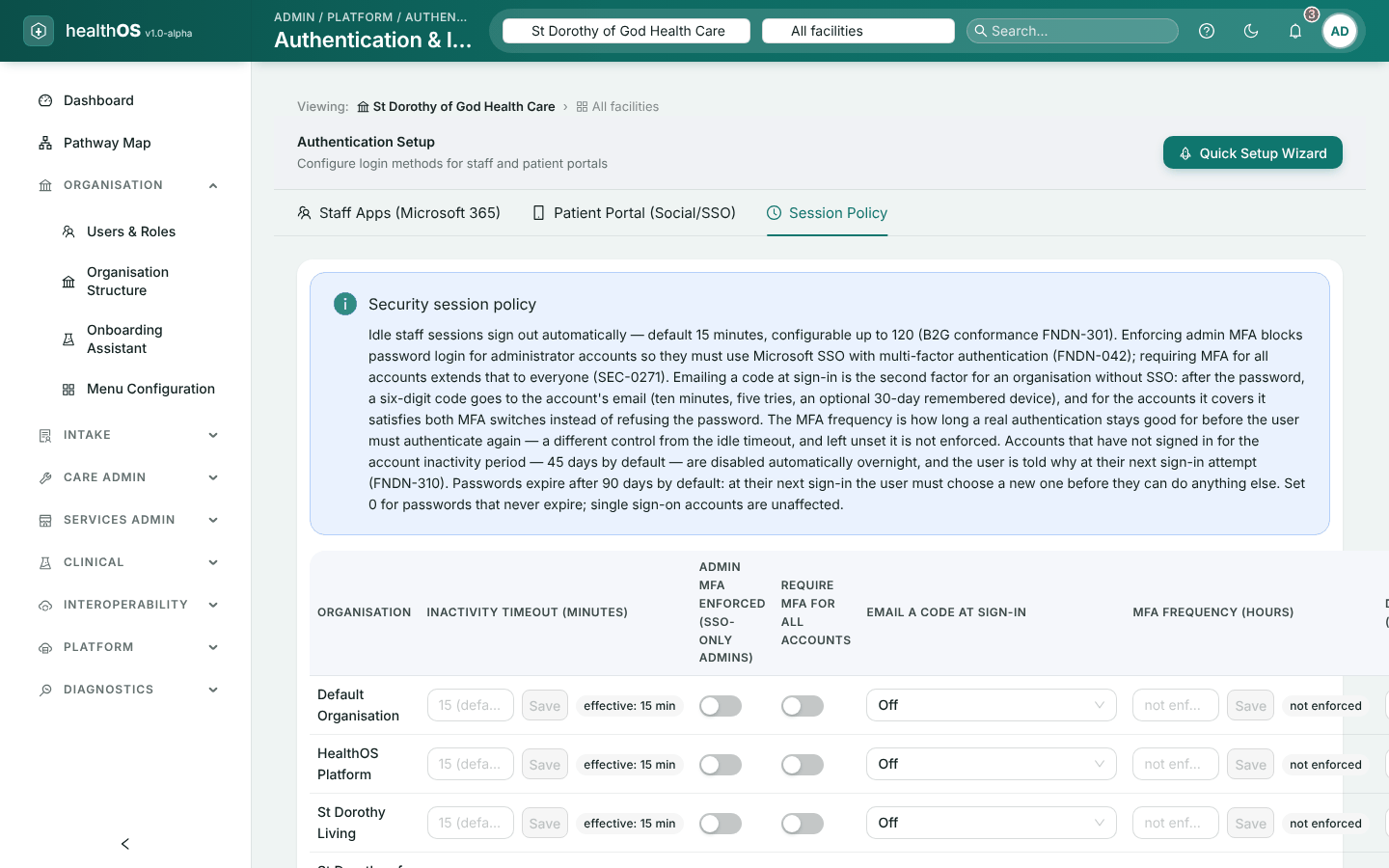
In the admin portal, open Platform › Authentication & Identity.
| Tab | Who | What |
|---|---|---|
| Session Policy | A system administrator or administrator, for their home organisation. A global administrator, for any. | Sign-out after inactivity, password age, two-step sign-in, dormant accounts |
| Staff Apps | Global administrator | Microsoft sign-in for staff and Entra provisioning |
| Patient Portal (Social/SSO) | Global administrator | How patients and families sign in to HealthOS Connections, and your organisation’s own SAML or OpenID Connect sign-in for staff |
Changes are recorded and apply from the next request.
Session policy
| Setting | Range | If you leave it unset |
|---|---|---|
| Sign out after inactivity | 1 to 120 minutes | 15 minutes |
| Maximum password age | 0 to 365 days (0 means never) | 90 days |
| Disable dormant accounts after | 1 to 365 days | 45 days |
| Require two-step sign-in for administrators | On or off | Off |
| Require two-step sign-in for everyone | On or off | Off |
| Ask for the second step again every | A number of hours | Not asked again |
| Emailed sign-in codes for | Nobody, administrators, administrators and GPMS submitters, or everyone | Nobody |
| Minimum credential level to submit to GPMS | CL1, CL2 or CL3 | No minimum |
Dormant accounts are checked every night. An account unused for the set period is disabled with the reason recorded. It is never deleted, and only an administrator can turn it back on.
Passwords and lockout
- Passphrases. At least four words and 15 characters.
- Lockout. Five wrong passwords lock an account for 15 minutes. Repeated attempts from one address are slowed down as well.
- Forced change. A password past its maximum age, or one an administrator set, must be changed before anything else can be done.
- Breached passwords. A new password that appears in a known data breach is refused. Passwords are checked again at sign-in at least every 30 days. If one is found in a breach, that person can only change their password, and your administrators are alerted. Only the first five characters of a scrambled form of the password are ever sent to the breach service, never the password itself.
Two-step sign-in
- Authenticator app. Each person enrols their own, entering their password to do so. An administrator can reset it.
- Emailed code. Six digits, valid for 10 minutes. A device can be remembered for 30 days.
- Microsoft sign-in. People who sign in with Microsoft use your organisation’s own Entra rules for the second step.
Microsoft sign-in for staff
Staff can sign in with their Microsoft work account. A global administrator turns it on from Staff Apps › Microsoft sign-in for staff:
Sign in as a Microsoft administrator
The wizard shows a code to enter at Microsoft, so HealthOS can register itself in your directory.
Let HealthOS finish the set-up
It issues and stores its own secret, which is never shown, and turns Microsoft sign-in on for the staff app. Password sign-in keeps working alongside it.
Choose who may sign in
Existing HealthOS users only, or create new accounts from the role mappings below.
Provisioning from Microsoft Entra
- Role mappings. Link an Entra group to a HealthOS role, optionally at one facility or ward.
- At first sign-in. The account is created with the roles its groups map to. With role sync on, roles are refreshed at each sign-in, and roles that no longer map can be removed. Someone in no mapped group, with no default role, is refused.
- Scheduled sync. Once a day by default, HealthOS adds the people and roles your groups imply, ahead of their first sign-in. It never removes anyone. Sync now runs it straight away. It needs the Microsoft Graph permissions
GroupMember.Read.AllandUser.Read.All, with admin consent. - Administrator roles are never provisioned. Give them by hand.
- History. Every provisioning decision is kept and can be reviewed.
Staff sign-in with SAML or OpenID Connect
Staff can also sign in to the clinician app through your organisation’s own identity provider, using SAML 2.0 or OpenID Connect. A global administrator sets it up on the Patient Portal (Social/SSO) tab, which holds the staff providers too.
Add the provider
Add a provider, choose SAML 2.0 or OpenID Connect, and set its app to Clinician App.
Exchange details
For SAML, enter your identity provider’s sign-in address and signing certificate, and its sign-out address if it has one. The form shows the HealthOS entity ID and reply address for your identity provider’s administrator to enter.
Choose the organisations
List the organisations whose staff it may sign in. A provider that lists none signs in nobody.
Turn it on
Enable it. Its button appears on the staff sign-in page.
- Which account opens. The person must already have a HealthOS account in one of the listed organisations, matched by email the first time and by their identity provider’s own ID after that. An inactive or locked account is refused, and global administrators always sign in with a password and second step instead.
- Signing out. With SAML, signing out of HealthOS also ends the session at your identity provider, and signing out at your identity provider ends every HealthOS session for that person. An identity provider that only accepts signed sign-out requests will refuse HealthOS’s; the HealthOS session still ends.
Patient and family sign-in
Patients and families can sign in to HealthOS Connections with Google, Apple or your organisation’s own OpenID Connect provider, as well as by email link. The list of providers applies to the whole site, so a global administrator manages it.
Still stuck? Email support@healthos.net.au