Integrations and AI
Connect HealthOS to the systems around it, choose your AI service, and decide who hears about what.
The connector Marketplace
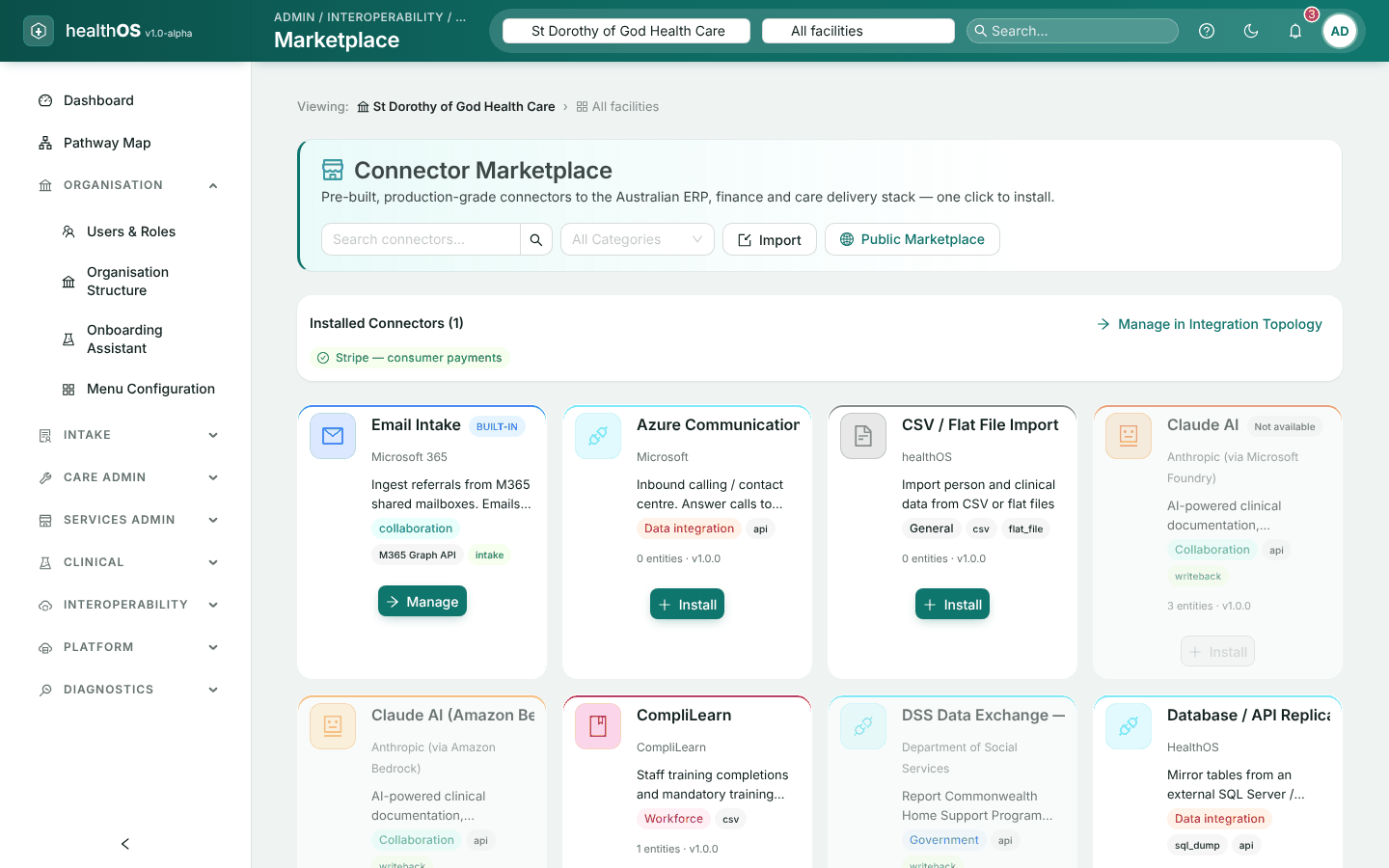
Connect HealthOS to other systems from Interoperability › Marketplace. Installing and configuring connectors needs a system administrator.
Install
Choose the connector’s card. Some can be installed more than once, for example one per file feed.
Configure
Fill in its set-up form. Secrets such as passwords and keys are encrypted as you save, and never shown again: leave a secret blank to keep the one already stored.
Test
Runs a real check against the other system and reports what it found.
Complete
The connector prepares itself, and the set-up is marked complete only if the configuration is accepted.
A greyed-out card says why. Either the connector is not available on your site, which your platform team can change, or your organisation is not licensed for it, which a global administrator can change.
Government services (PRODA, Medicare Online, ACWS, the HI Service, My Health Record and GPMS) each have their own guided set-up.
Secrets and outbound connections
- Where secrets are kept. Secrets you enter are encrypted in the database. Secrets HealthOS issues on your behalf, such as its Microsoft sign-in secret, are held in Azure Key Vault. Neither is ever displayed again.
- Every address is checked. HealthOS checks every address an administrator enters before connecting to it. Cloud metadata services and other reserved addresses are always refused, redirects are not followed, and the address is checked again at the moment of connection.
- Private addresses and plain http. In production, connections to private network addresses and plain
http://are refused unless your site’s operator allows them, for example for a system reached over a VPN.
Integration flows
| Screen | Use |
|---|---|
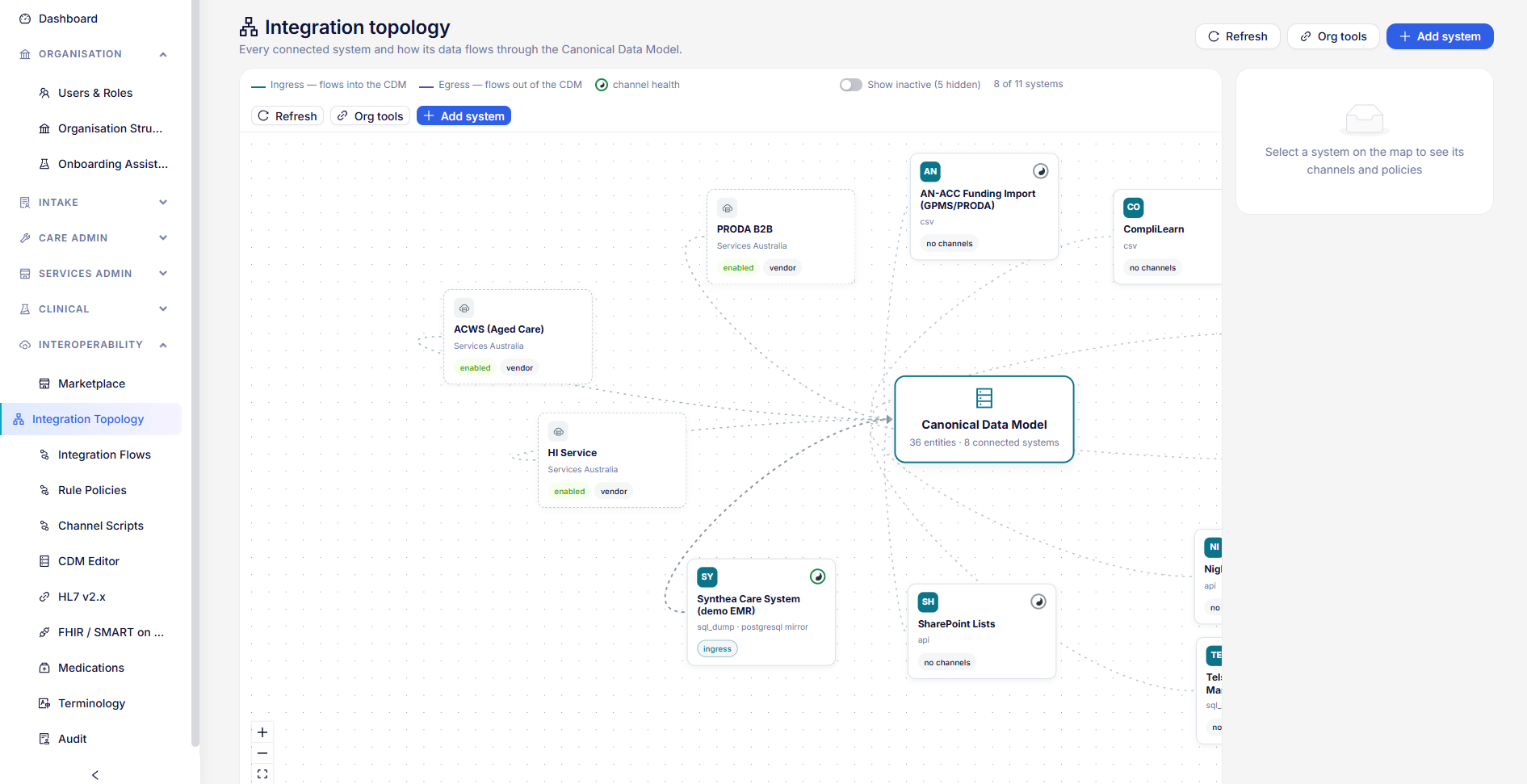
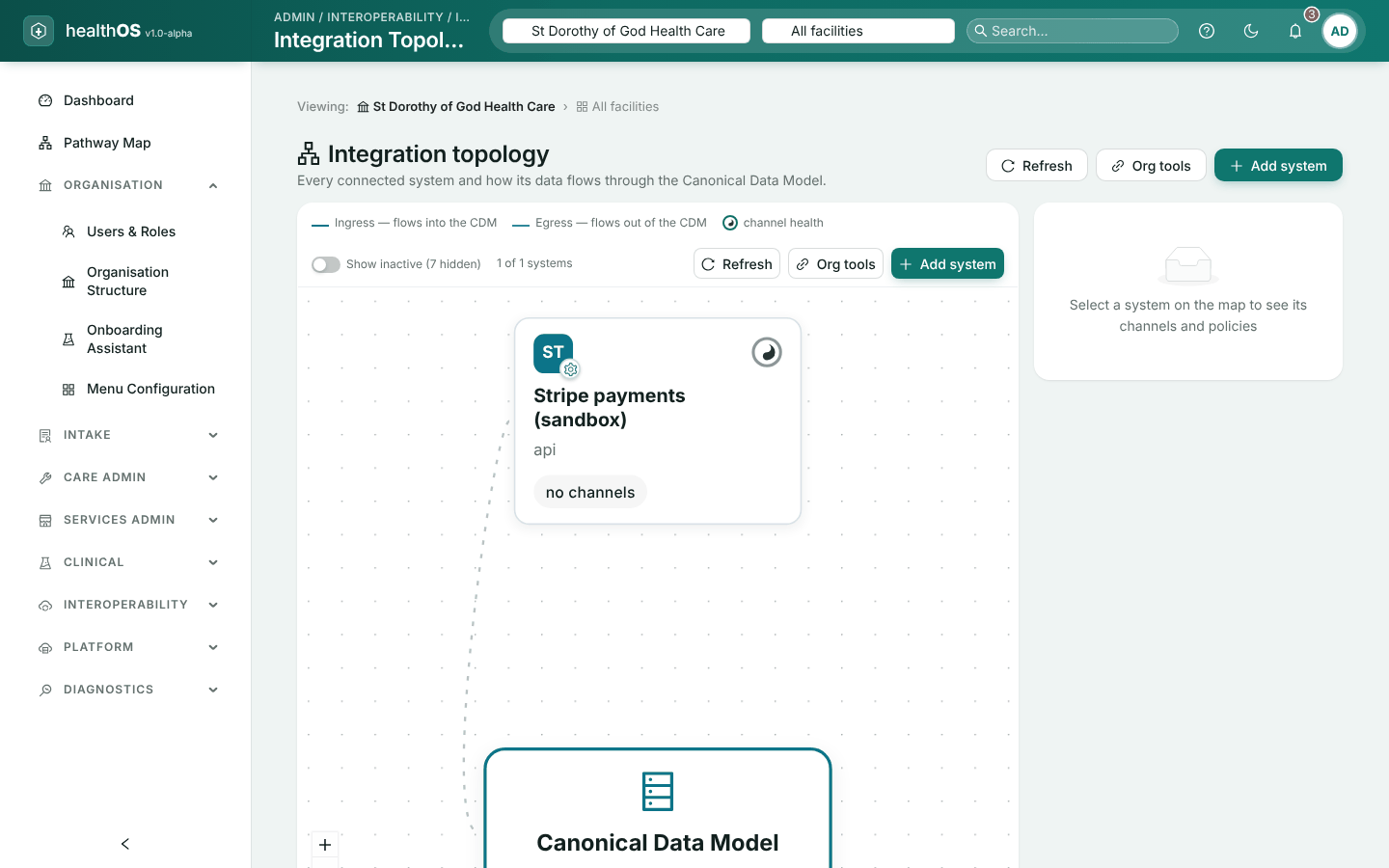
| Integration Topology | A map of every connected system, and the way in to each connector’s settings |
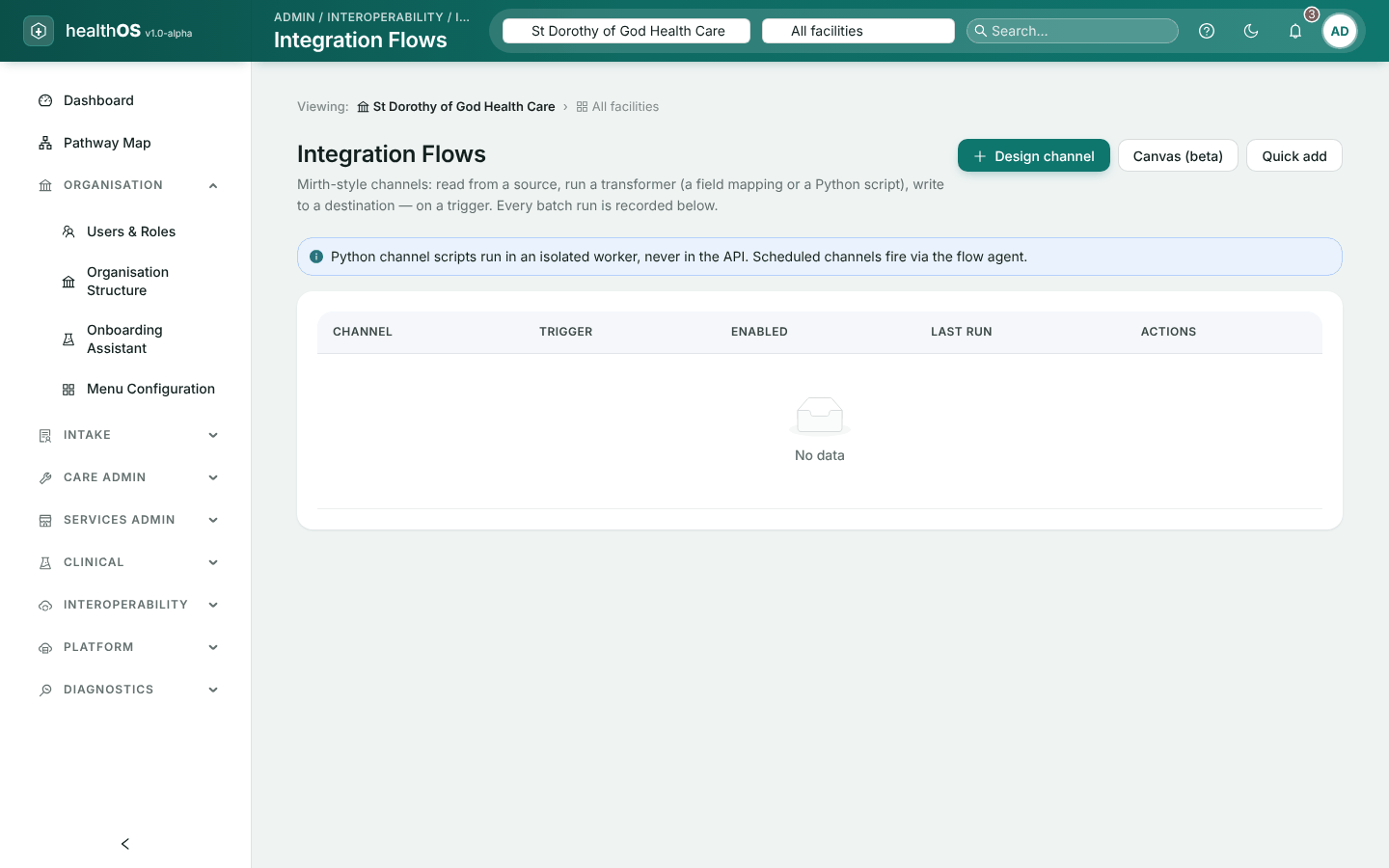
| Integration Flows | Each channel’s runs: run now, history, and deliver or discard held messages. Also the flow builder. |
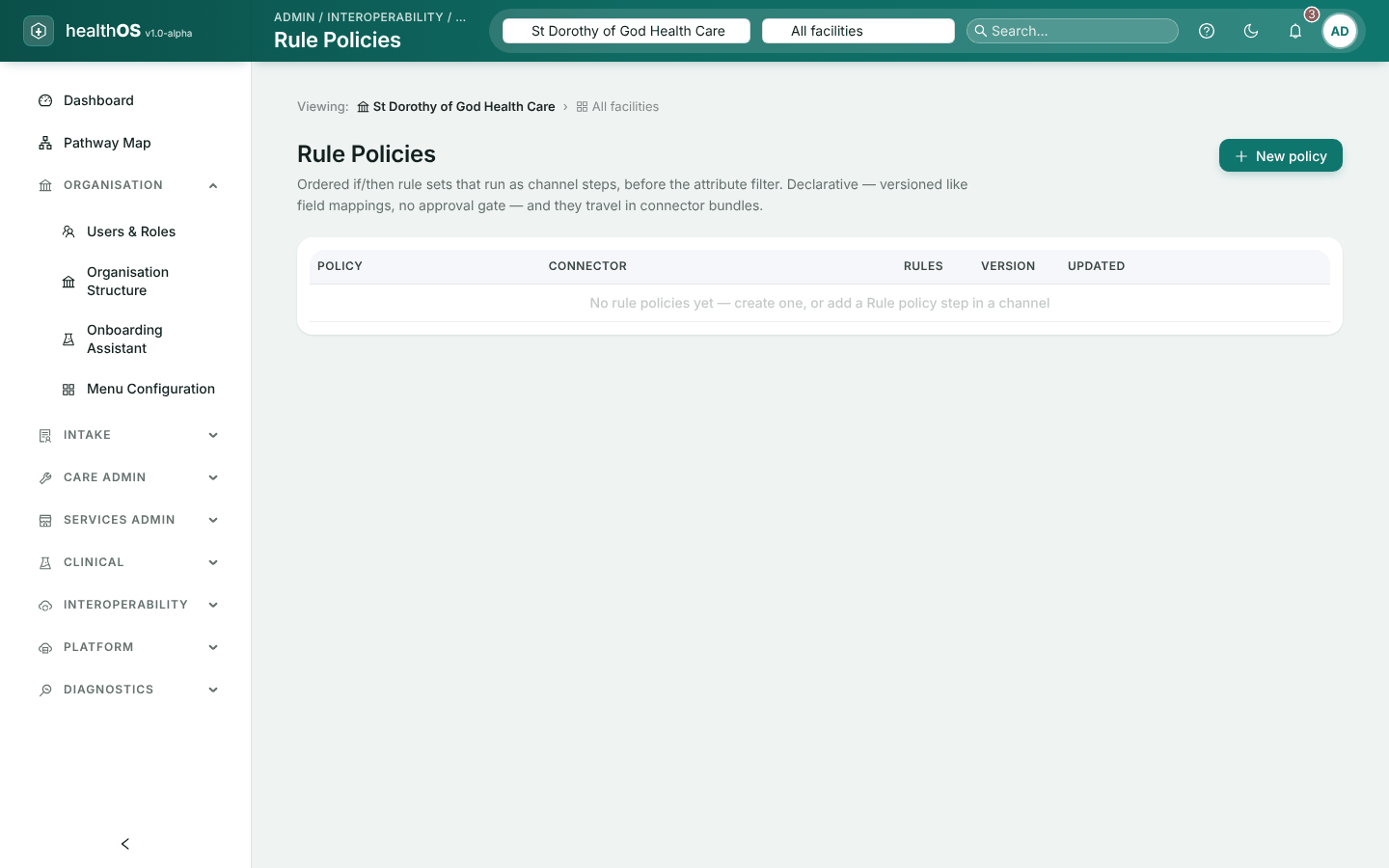
| Rule Policies | Reusable if/then rules for flows |
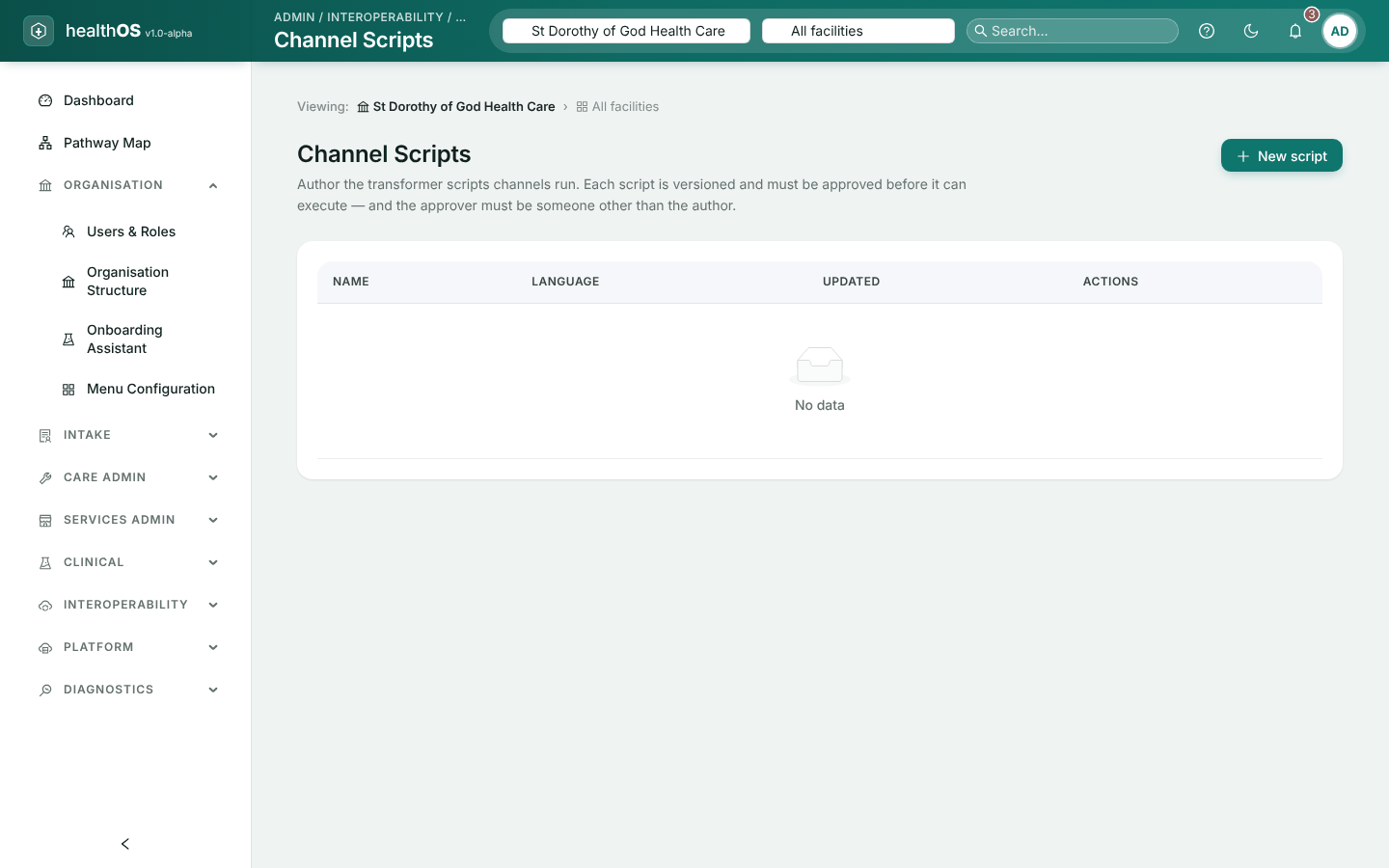
| Channel Scripts | Versioned scripts. The person who approves a script cannot be its author. |
| Standards | HL7 v2, SMART on FHIR, medicines and terminology. See Standards below. |
- Drafts. A connector’s configuration is read-only until you open a draft. Choose Edit configuration, make your changes, then Review & publish. Every published version is kept and can be rolled back.
- Approval. A connector can be set to hold its changes to clinical records until someone approves them.
- Message history. Message logs are kept for at least a day, and each connector can keep them longer.
Developers connecting a system should read the Developer portal.
Standards
HL7 v2.x
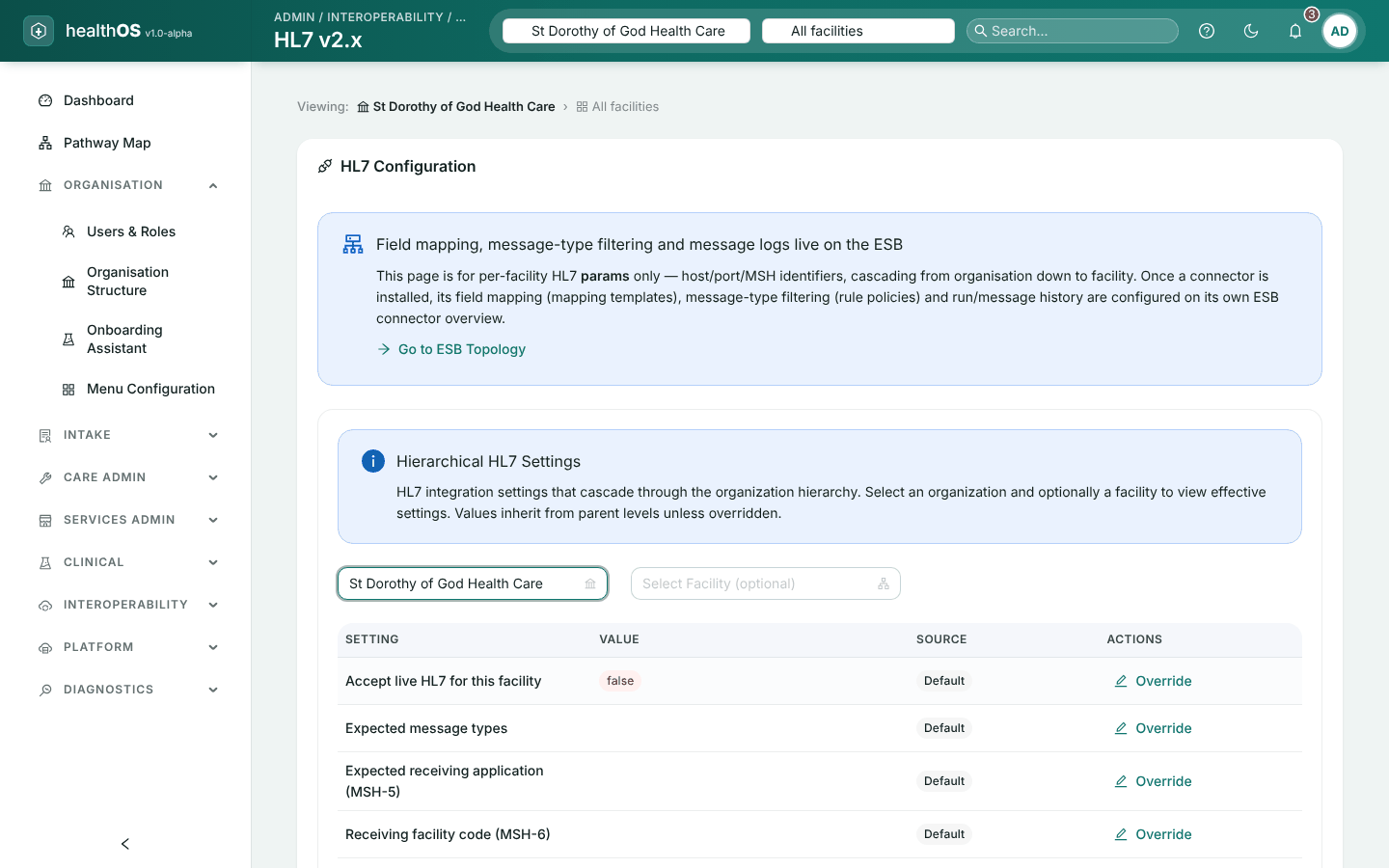
Sets each facility’s HL7 v2 settings: the address and port, the message header identifiers, and whether live messages are received. Values set for the organisation pass down to every facility unless a facility overrides them.
Choose where
Select the organisation, and a facility if the setting is for one site only.
Override a value
Choose Override beside the setting, enter the value and Save. The Source column shows where each value comes from.
Turn on live messages
Set inbound HL7 on, and set the receiving-facility code: the code the sending system puts in each message header (MSH-6) for this facility. The banner confirms when live routing is active.
Go back to the inherited value
Choose Revert.
Field mapping, message filtering and message logs are in the Integration Topology. Files of HL7 messages imported in bulk do not use these settings. For the sending system’s side, see Step by step: HL7 v2 over MLLP.
FHIR and SMART on FHIR
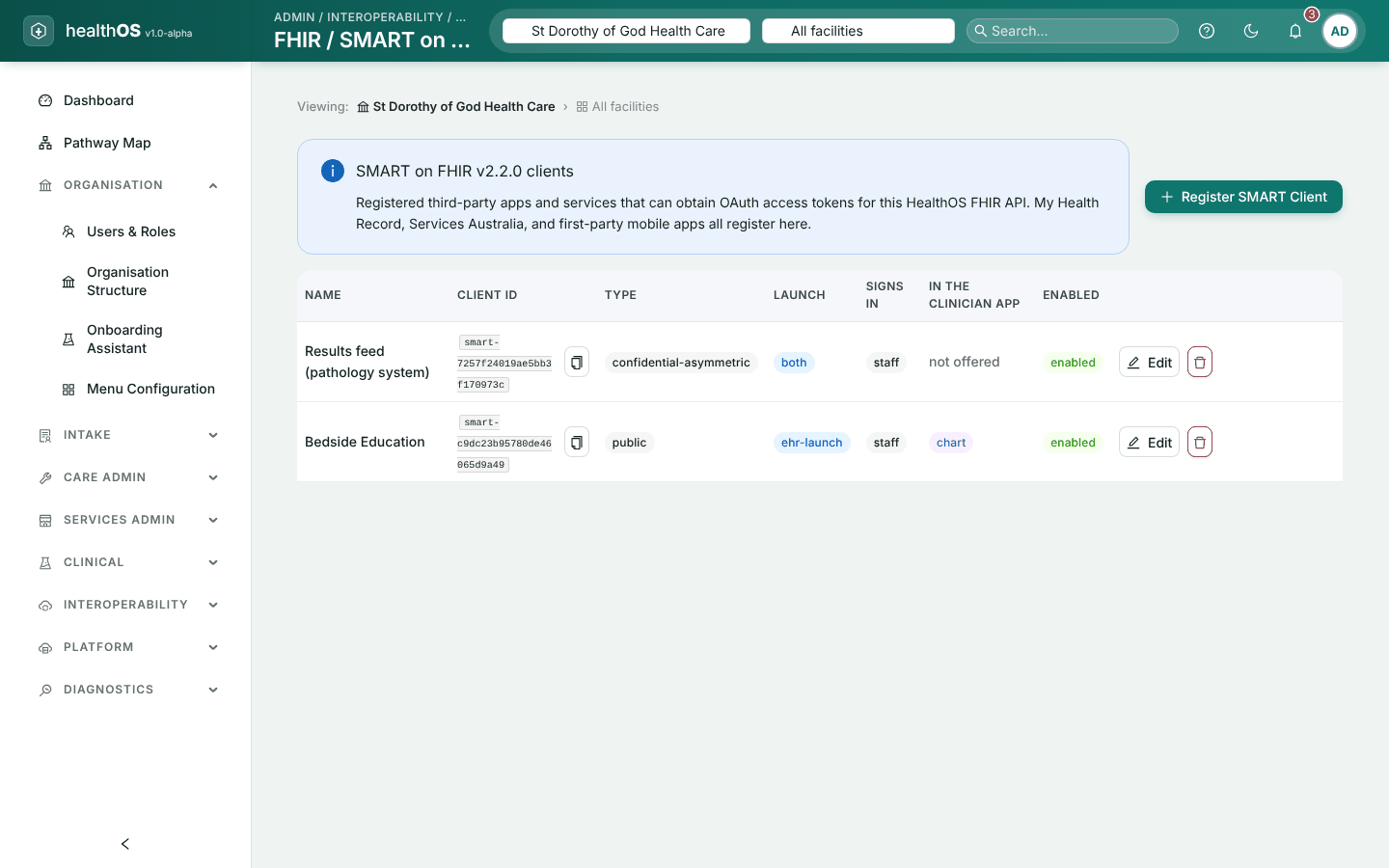
Register the apps and services that may use your organisation’s FHIR API. It needs the settings.config.update permission and a specific organisation selected.
Register the client
Choose Register SMART Client and give it a display name.
Choose its type
Public (no secret, for apps that cannot keep one), Confidential, client secret, or Confidential, JWKS (the app signs with its own key; give its JWKS address).
Set what it may do
Its redirect addresses (exact matches), allowed scopes, launch mode (from the chart, standalone, or both) and who signs in: staff, patients and families, or both. A patient or family app can only hold patient scopes. A backend service uses
system/scopes and needs no redirect address.Show it in the clinician app (optional)
Give its https launch address, choose whether it appears in the person’s chart header or the encounter view, limit it to certain roles if needed, and add a logo.
Copy the secret
For a client-secret client, the secret is shown once. Copy it to the app’s developer straight away.
- Rotate issues a new secret. The old one stops working at once.
- To change a client’s type, delete it and register it again.
- Staff see the app’s button only if they hold the Launch SMART Apps permission.
The app’s developer will find their side in SMART on FHIR apps, Step by step: a SMART app and Step by step: a backend system.
Medications
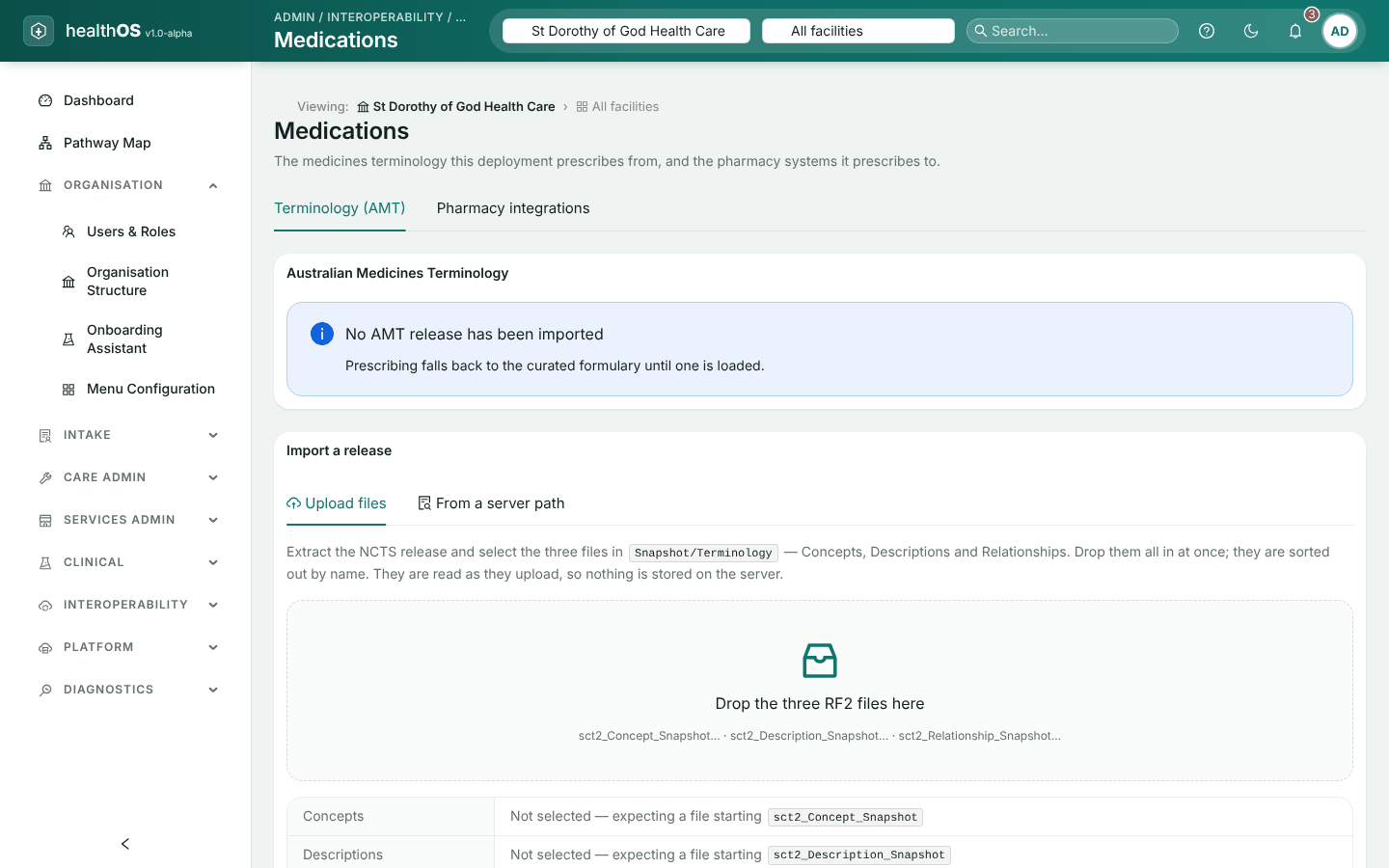
The Terminology (AMT) tab shows which release of the Australian Medicines Terminology prescribing uses. Until one is imported, prescribing uses HealthOS’s own formulary. The AMT is shared by every organisation, so only a global administrator imports a release:
Get the release
Download the AMT RF2 release from the National Clinical Terminology Service.
Import it
Either Upload files (the Concept, Description and Relationship snapshot files; keep the browser tab open until it finishes), or From a server path: enter the folder holding the release, Verify, then Import AMT.
Check it
The progress banner and Import history show when it has finished.
The Pharmacy integrations tab holds your organisation’s connections to pharmacy systems: add one, edit it, turn it on or off, or delete it. An API key is stored encrypted and never shown again.
Terminology
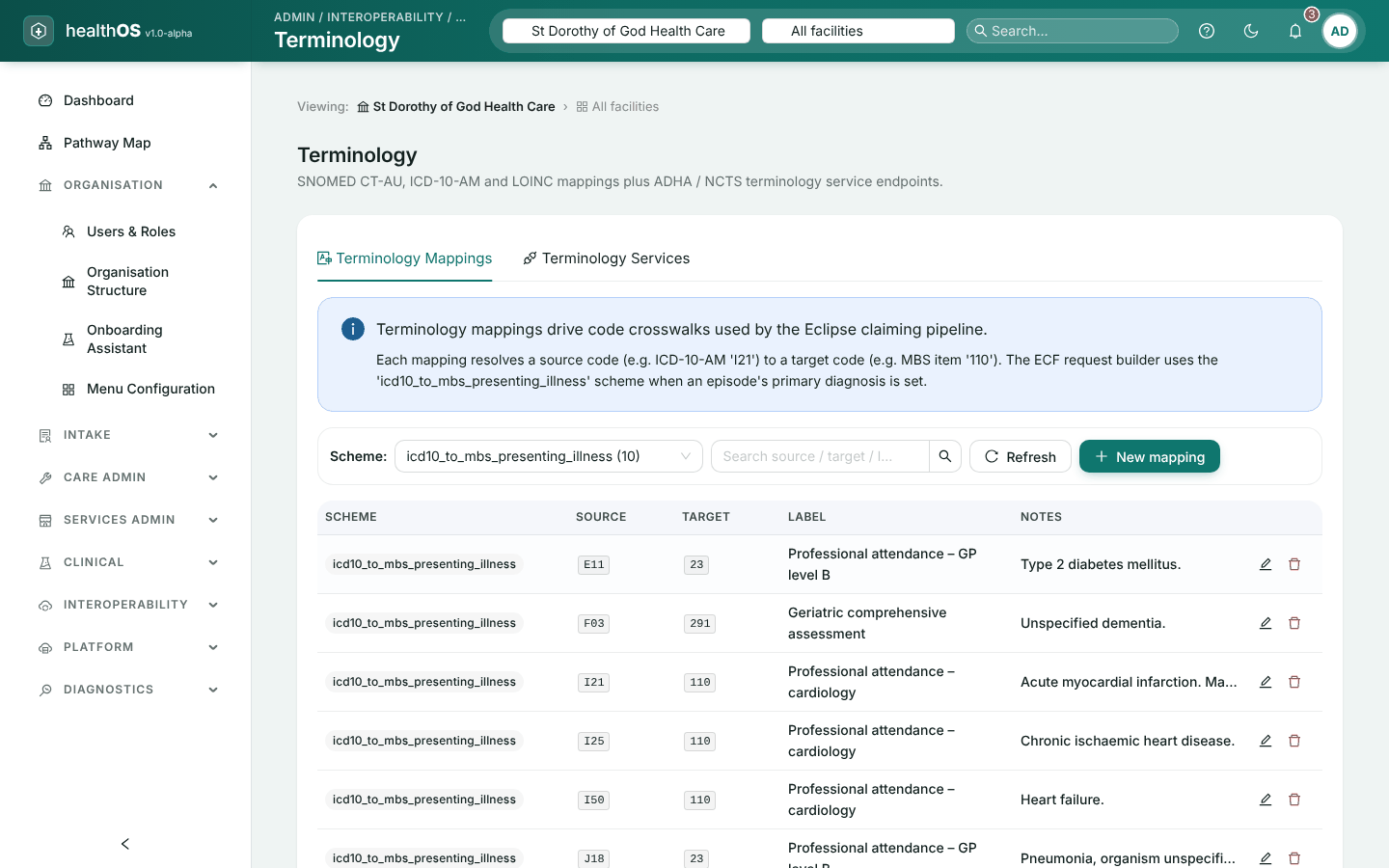
The Terminology Mappings tab holds code crosswalks, for example from an ICD-10-AM diagnosis to the MBS item claimed for it. Choose New mapping and enter the scheme, source code, target code and a readable label. Once a mapping is saved its scheme and source code are fixed: to change them, delete it and add it again. Mappings are shared by every organisation on the site, so only a global administrator can change them.
The Terminology Services tab holds the terminology servers your organisation uses (for example SNOMED CT-AU, ICD-10-AM, ACHI and LOINC): add one, edit it, turn it on or off with Enabled, or delete it.
CDM Editor
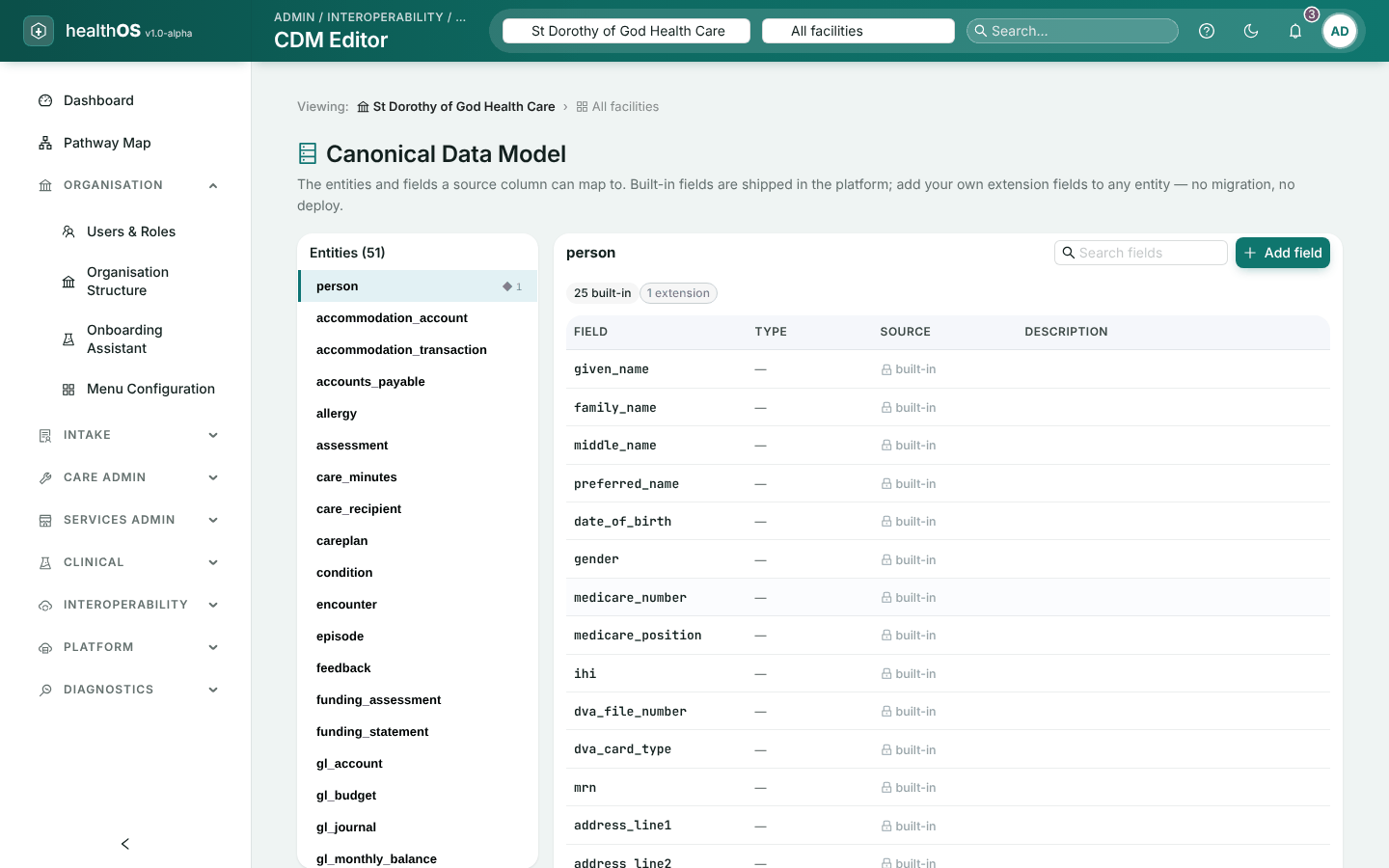
The Canonical Data Model is HealthOS’s standard set of record types (a person, an episode, an encounter and so on) and their fields. Every import and integration maps its incoming columns onto it. Built-in fields are locked. Your organisation can add its own fields without a software release.
Choose the record type
Select it in the Entities list.
Add the field
Choose Add field and give a field name (stored in lower case with underscores), a label, a type (text, number, yes/no, date, date and time, or code) and an optional description.
Use it
The field appears at once in every mapping picker, for your organisation only.
Removing a field takes it out of the pickers, but values already stored are kept. To change a field, remove it and add it again. Only your organisation’s administrators can add or remove fields.
AI
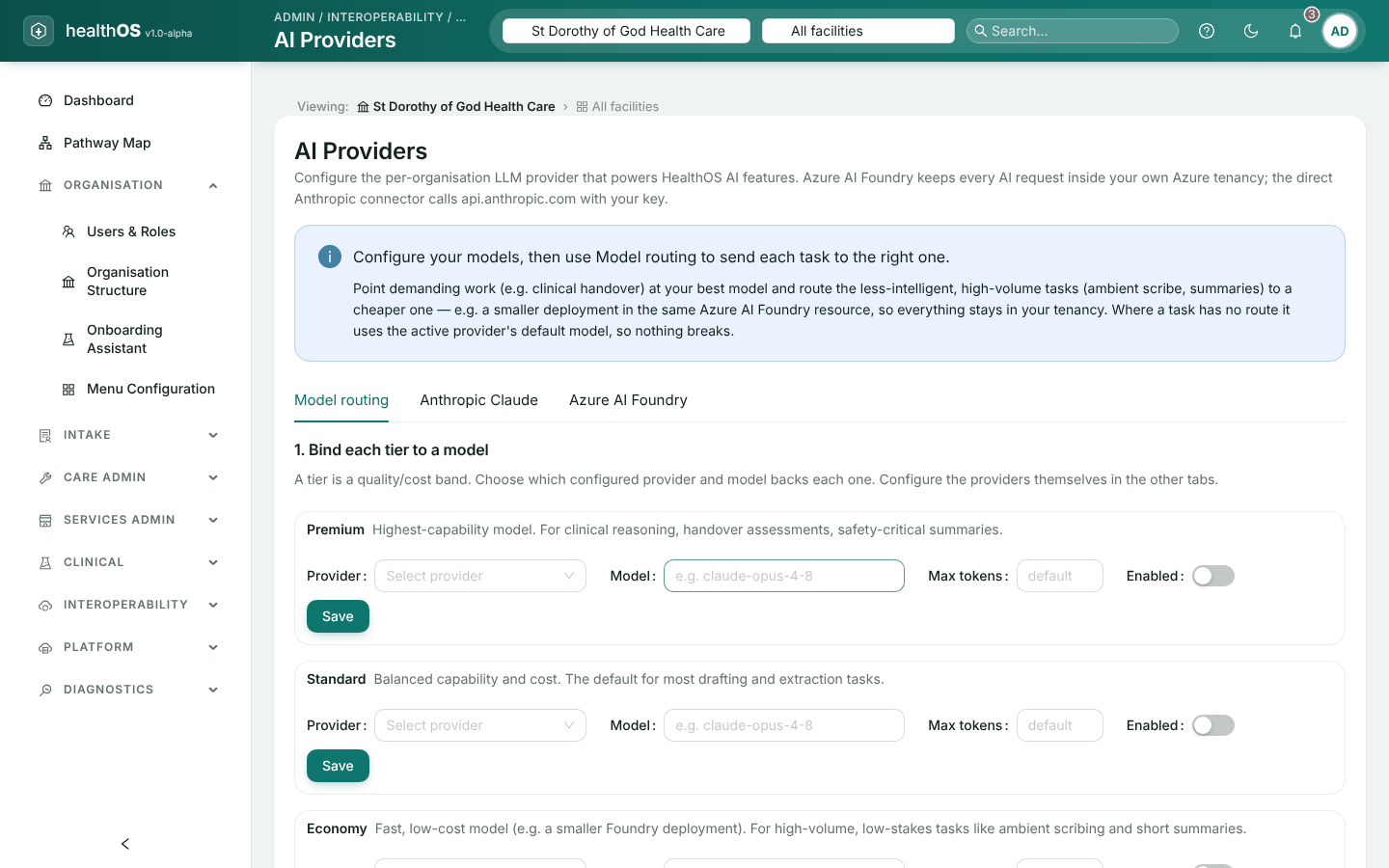
Interoperability › AI Providers sets which AI service HealthOS uses:
- Model routing. Which provider and model serve each kind of task.
- Anthropic Claude. Its key, default model and limits.
- Azure AI Foundry. The same, plus your endpoint and deployment. When both providers are on, Azure AI Foundry is used, keeping requests within your own Azure tenancy.
Keys are write-only: the screen only says whether one is set.
Keep AI inside Azure AI Foundry, above the tabs, restricts your organisation to Azure AI Foundry, so no personal information is sent to another AI service. Turn it on only once a Foundry provider is set up: until one is, AI features stop.
Your organisation can also set:
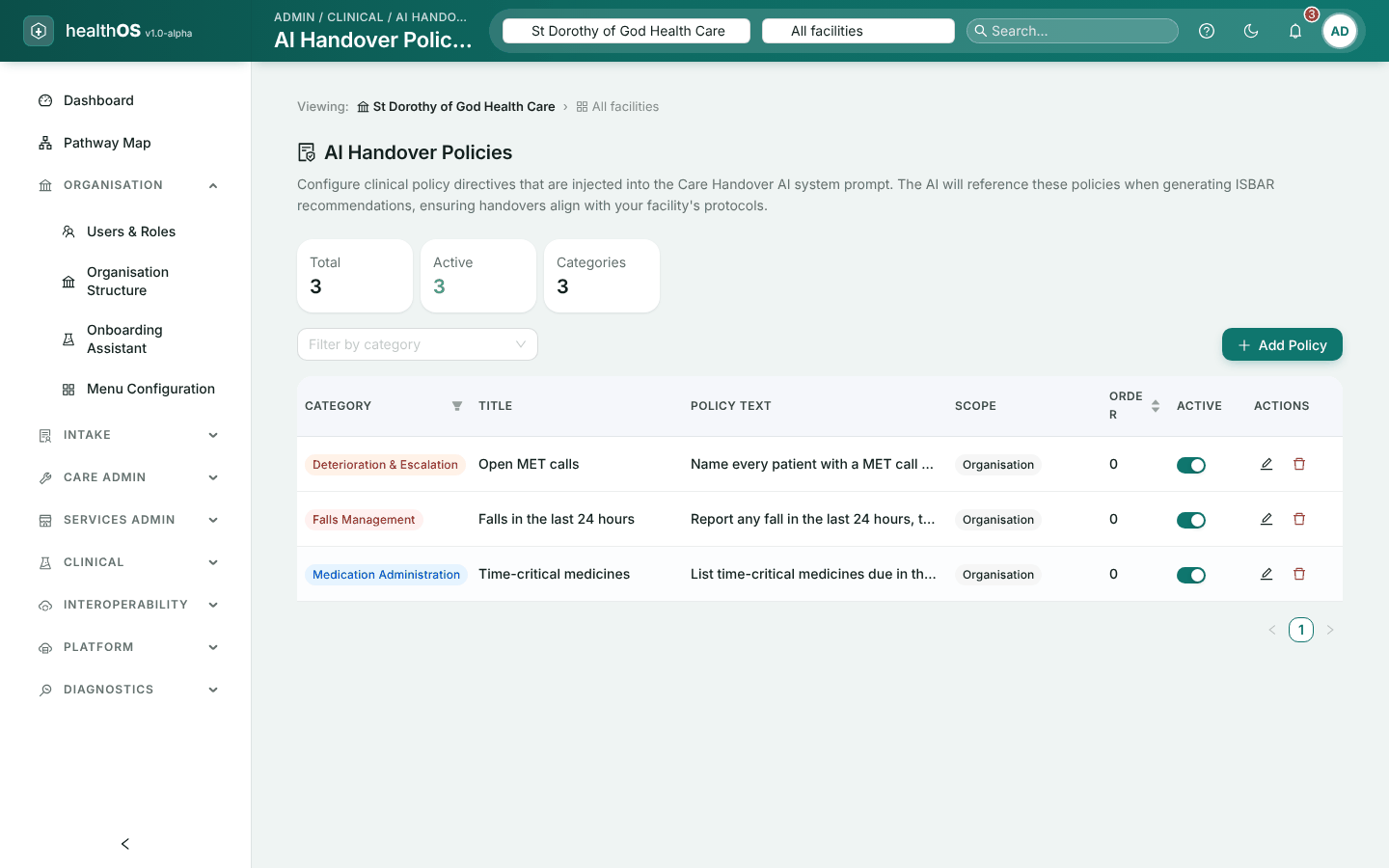
- AI Handover Policies (Clinical): your own instructions to the handover AI, for the organisation or a facility. A facility’s policy replaces the organisation’s policy with the same title. A policy document can be uploaded as a PDF and turned into draft policies.
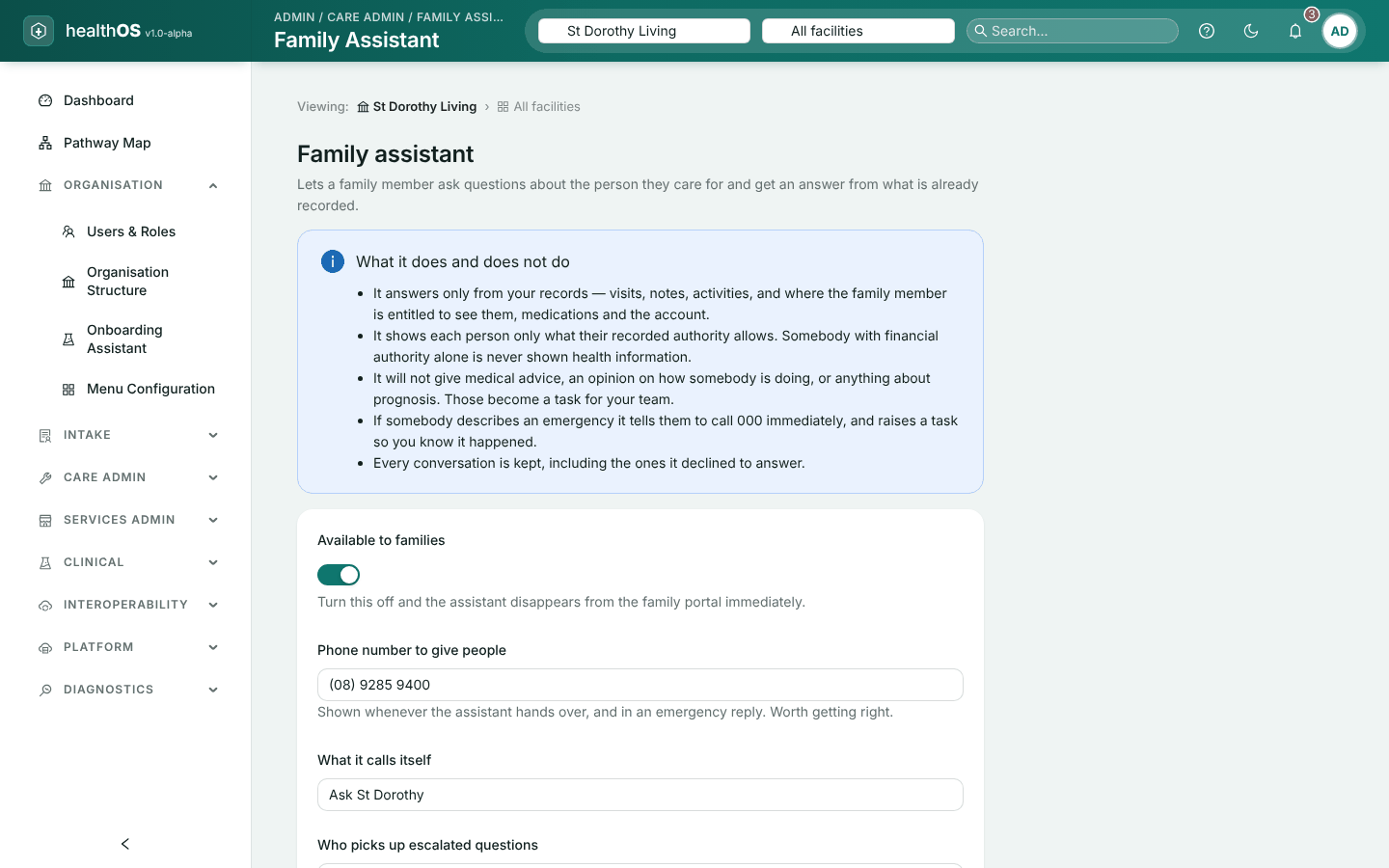
- Family Assistant (Care Admin): turns the assistant for families on or off, and sets its name, your phone number and who it escalates to.
Every AI request is recorded (see Monitoring and audit).
Notifications
| Screen | Use |
|---|---|
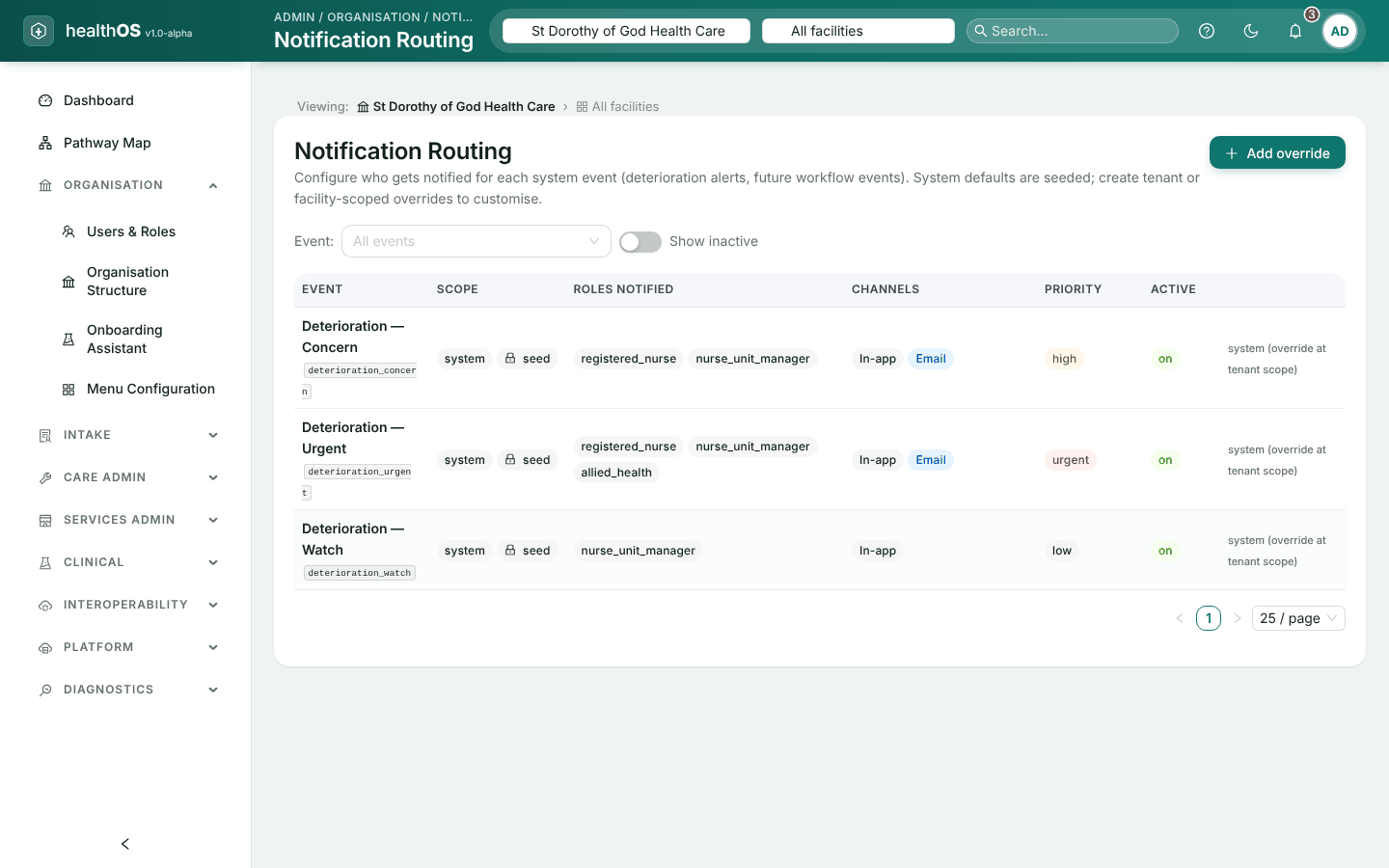
| Notification Routing | Who is told about an event, such as a deteriorating patient or a change of care, by which channels (in-app, email, SMS), and how urgently |
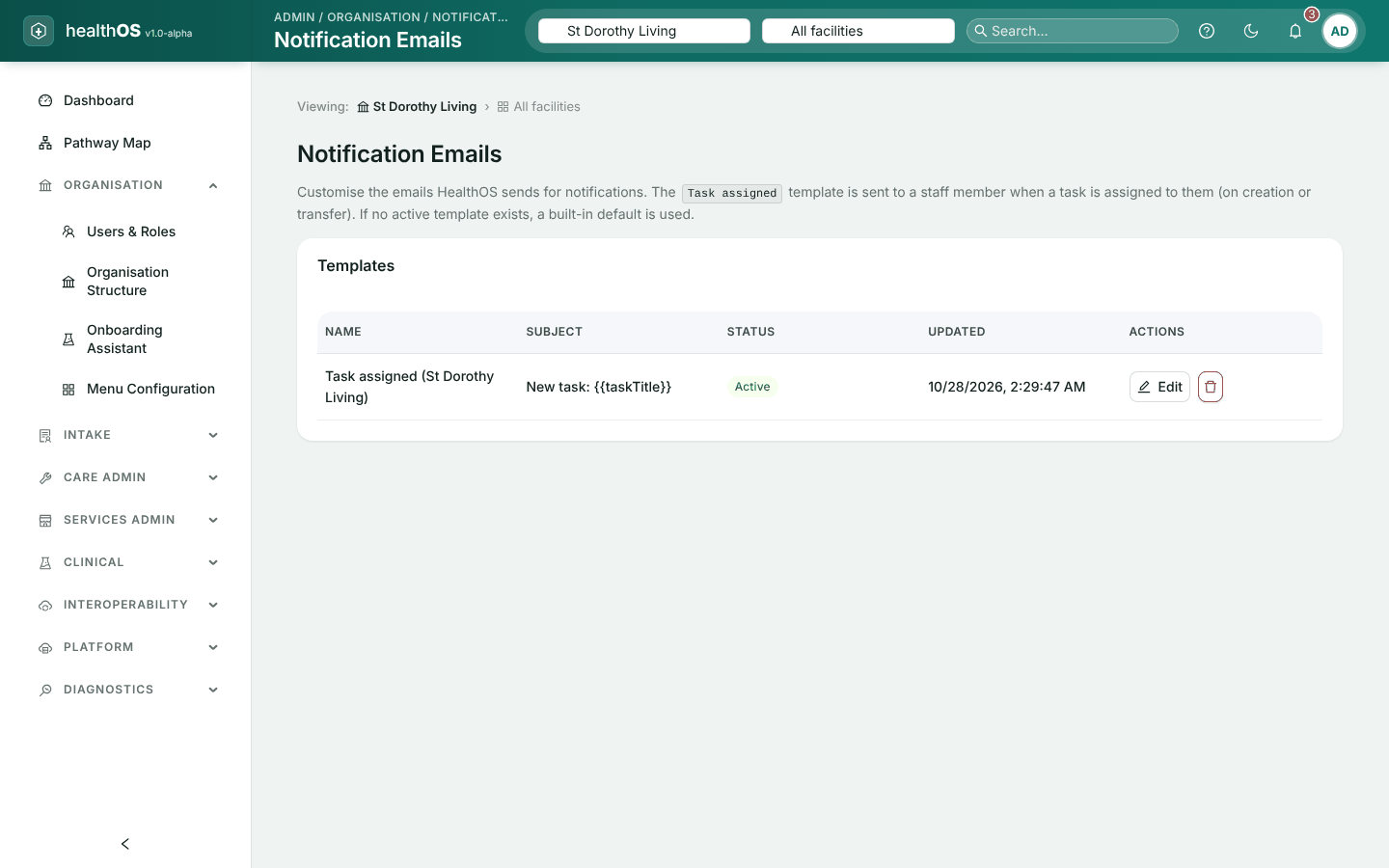
| Notification Emails | The email templates, with a preview and a test send |
| SMS | Which text message service is used (Amazon SNS or Azure Communication Services) and its credentials, with a test. Found in Integration Topology. Only an administrator can change it. |
HealthOS’s standard routing rules cannot be edited. To change one, add a more specific rule: a facility’s rule wins over the organisation’s, which wins over the standard rule.
Your website
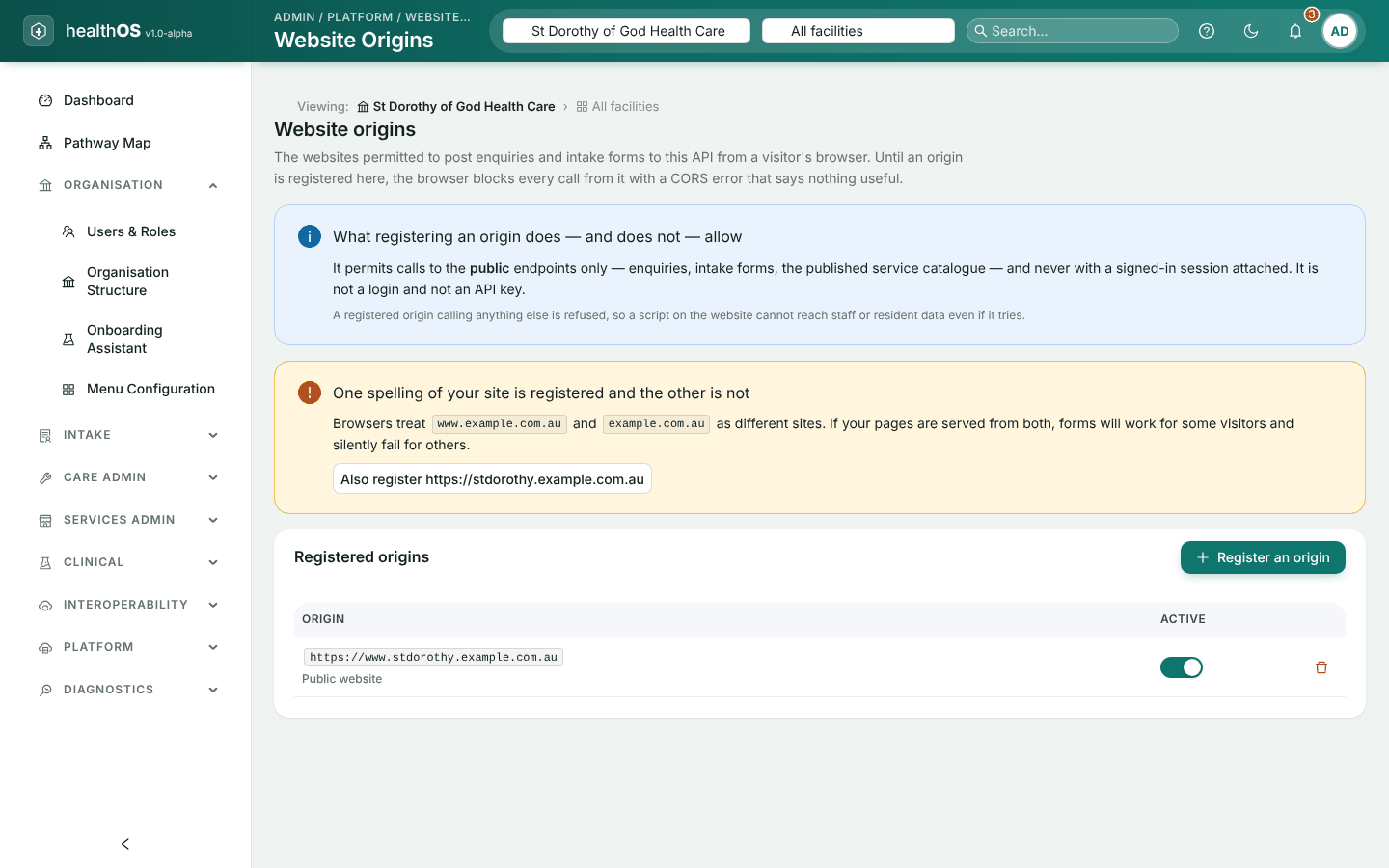
- Website Origins (Platform). The websites allowed to send enquiries to HealthOS, such as an enquiry form on your own site.
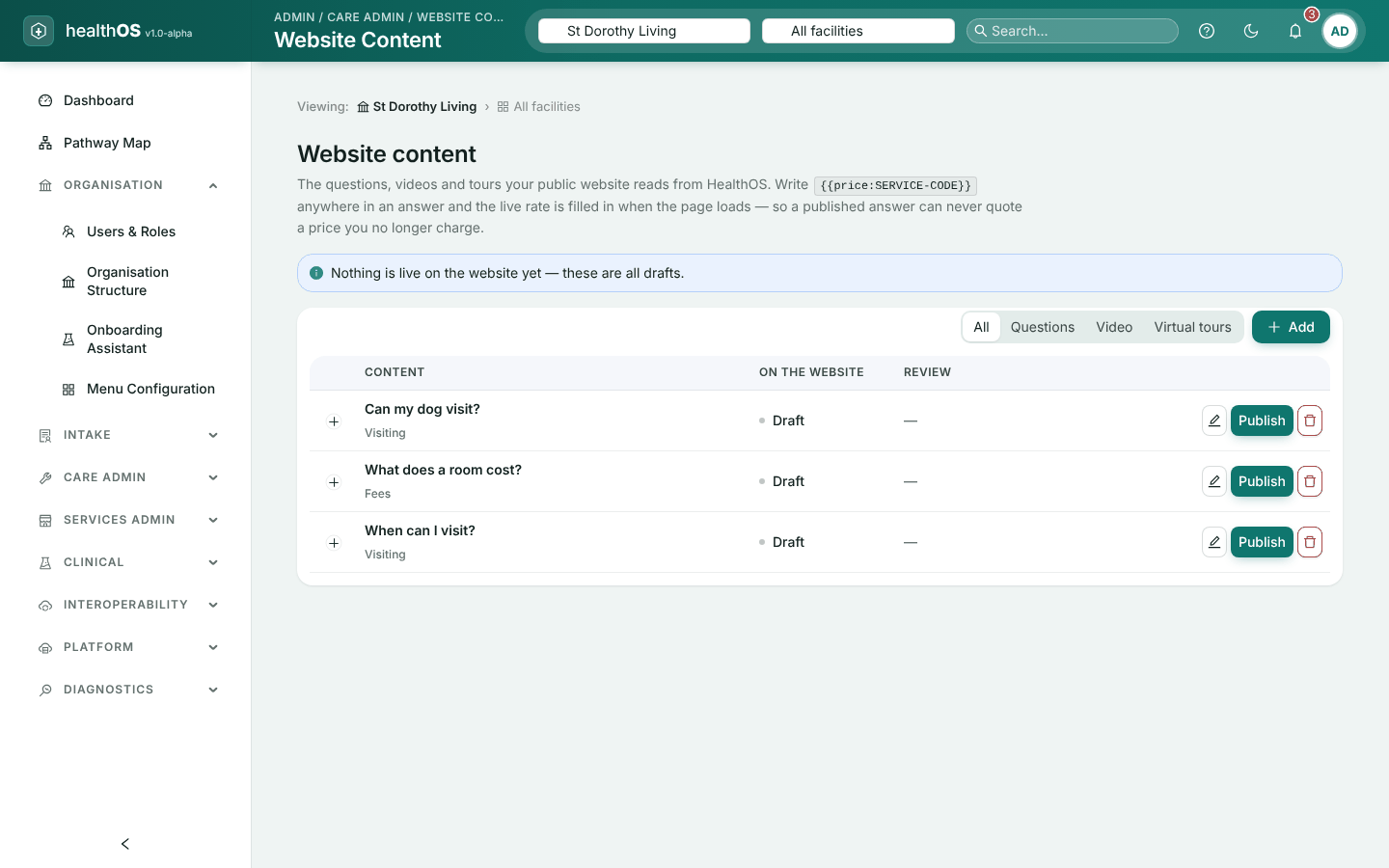
- Website Content (Care Admin). Questions and answers, videos and virtual tours. New content stays a draft until it is published, and a price written as
{{price:CODE}}always shows the current price list.
Still stuck? Email support@healthos.net.au