Code Captain
Give Code Captain the paperwork and it proposes the codes and the DRG, with its reasoning. The patient’s details are removed in your browser first; only the redacted text is sent.
 3:55
Who has Code Captain
Code Captain is in the Coder + AI plan, and each person needs a Coder + AI seat to see it. A workspace manager changes a person’s plan on the Team page; see Your team and seats. Code Captain runs on AI, so each person can start a limited number of runs a day, five unless your workspace has been told otherwise; they start again at midnight Sydney time. The workspace’s monthly allowance applies as well. HealthOS can give one person their own limit, or unlimited runs; see Your monthly runs.
Add the documents
- Drop PDFs and Word (.docx) documents on the page, up to 25 at a time. They are read in your browser, not uploaded.
- Or choose Paste text and paste the document’s text into it.
- Scans are read by text recognition. A poor scan is flagged with how confident the reading is: check it.
- Mark each document Pre-admission or This admission.
Check the redaction
Above the patient’s details, the pickers say what Code Captain codes in. It opens on AR-DRG v11.0 and the active ICD-10-AM edition, with ACHI paired to it; change them there if you need to. The DRG is marked Concept preview: during the tech preview it is for evaluation only.
Name the patient
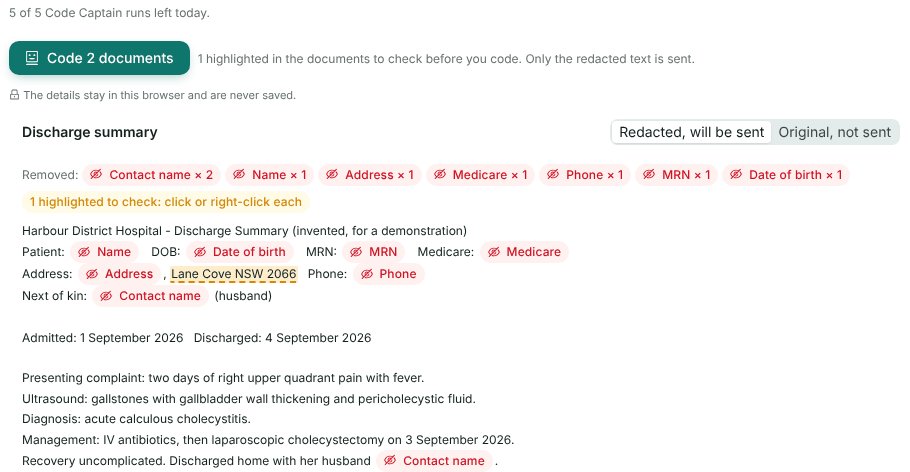
Enter the given name, family name and date of birth as the paperwork has them, so they can be found and removed. Where the paperwork names the patient beside an MRN or date of birth, Code Captain fills the name in for you; check it. You can also select a name or date in the preview, right-click, and choose Use as the patient’s name or Use as the date of birth. More identifiers takes others: MRN, Medicare, IHI, DVA, phone, email, address, and other people named in the paperwork.
Add the separation date
Optional, but it picks the classification edition and coding standards in force at the time. Left blank, the current ones are used.
Review the preview
Anything that still looks like someone’s details is highlighted, and is removed unless you keep it: click a highlight and choose Not personal: keep it for one that is safe to send. Select text and right-click to remove more. Anything that still looks like an identifier must be removed, or the document is refused.
Leave out what is not relevant
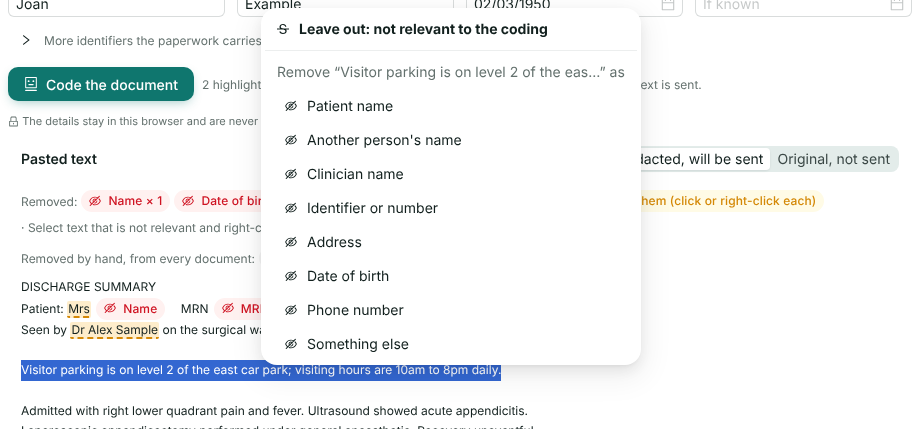
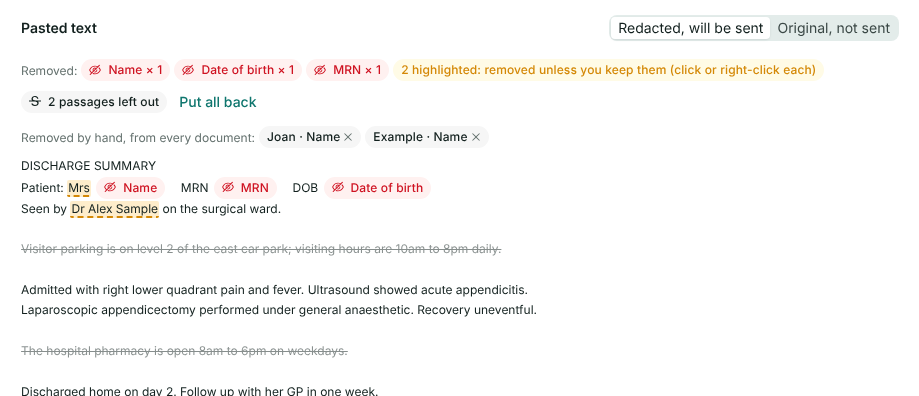
You can make Code Captain’s job easier by leaving out text that has nothing to do with the coding, such as visiting hours, parking directions or a pharmacy’s opening times. Select the passage in the preview, right-click and choose Leave out: not relevant to the coding. It can run over several lines.
- The passage is struck through. It is sent as a single
[…]marker, so Code Captain knows something was there and reads less. - Click a struck passage and choose Put it back if the coding needs it. Put all back beside the count restores every passage in the document.
- Nothing is rewritten: a passage is taken out whole, so what the rest of the record says cannot change by mistake.
- What you leave out is also left out of the PDF and the handoff to the Code Navigator.
Choose a coding style
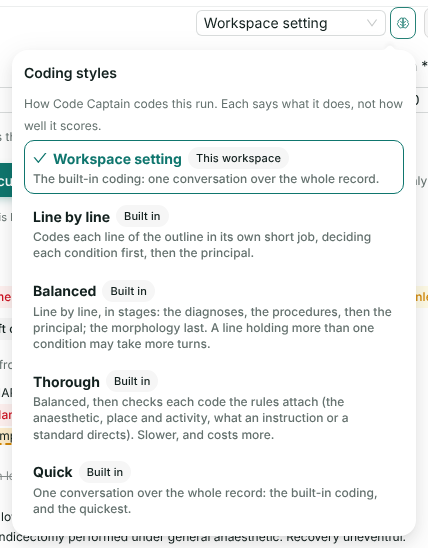
The drop-down above the patient’s details sets how Code Captain codes this run. The brain button beside it lists every style with what it does; choose one there or in the drop-down.
| Style | What it does |
|---|---|
| Workspace setting | What your workspace has chosen for everyone. The default. |
| Line by line | Codes each line of the episode outline in its own short job, deciding each condition first, then the principal diagnosis. |
| Balanced | Line by line, in stages: the diagnoses, the procedures, then the principal; the morphology last. |
| Thorough | Balanced, then checks every code the classification’s rules attach to the codes found: the anaesthetic, the place of occurrence and activity, the circumstance of a poisoning, and what an instruction or standard directs. It answers each one, with a code or the reason none applies. Slower, and costs more. |
| Quick | One pass over the whole record. The quickest. |
Your workspace may offer further styles of its own. The descriptions say what a style does, not how well it scores. The style is named on the PDF.
Code it
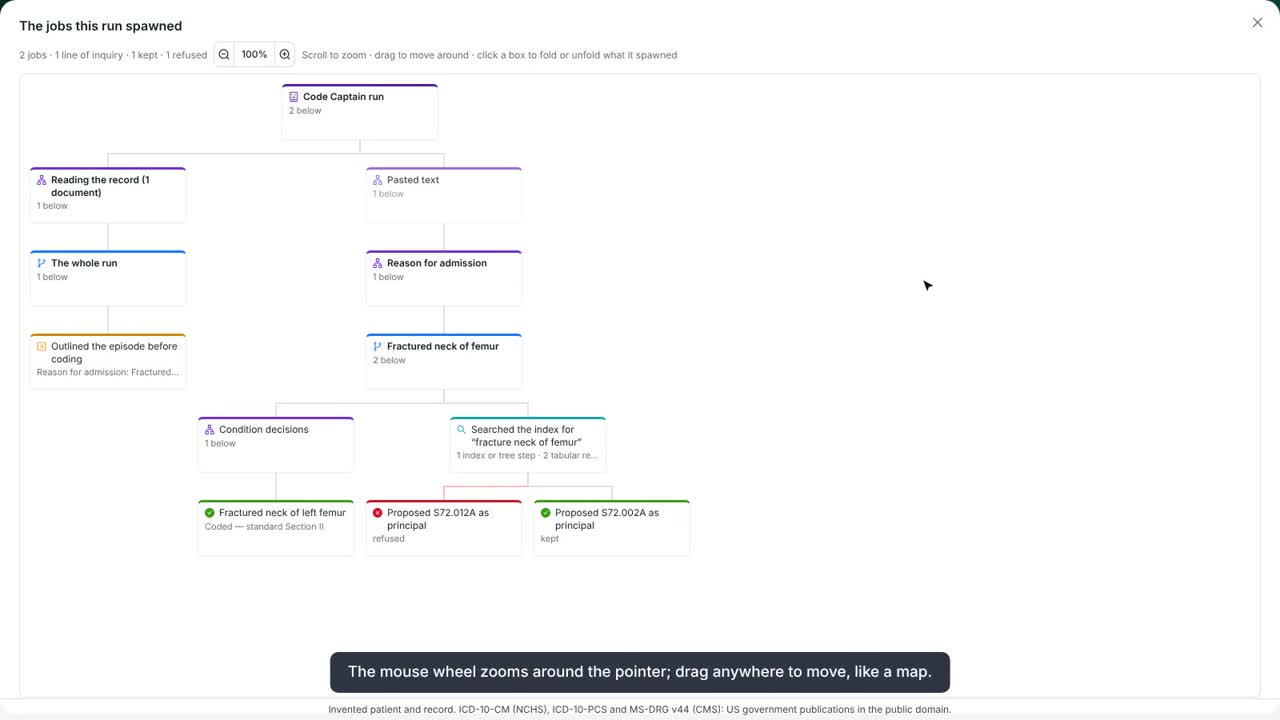
Above the button, the page says how many of today’s runs you have left. Choose Code the document (or Code N documents). Code Captain works in two steps: Reading the record, which outlines the episode from every document, then Coding from the outline. You can watch its decisions as it works, as a decision tree or a timeline. Under Thorough, the steps also list the codes the rules called for and what each came to (Owed codes answered).
Run the same documents again and Code Captain skips the reading and codes from the outline it already has, so the same record gives the same reading. To have it read the documents afresh, choose Code again, re-reading the documents.
Work through the results
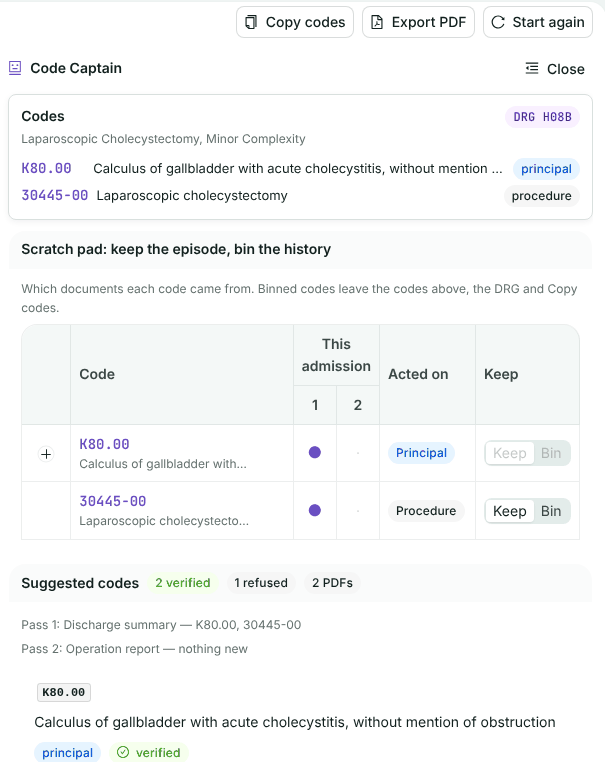
- Suggested codes shows how many codes were verified, how many the verifier refused (in their own fold, with reasons), and how many documents were read.
- The Scratch pad separates this episode from past history: Keep or Bin each code. Binned codes leave the codes list and the DRG.
- Questions for the clinician lists documentation queries, ready to copy.
- Open in Code Navigator, Copy codes and Export PDF are at the top, beside Start again. Copy codes copies the kept codes; the PDF keeps the coding style, the episode outline, the codes it led to with the DRG and its details, the reasoning, the decision tree and the redacted documents.
These are suggestions. Accept or override each one before you copy it into your own system.
Finish in the Code Navigator
Choose Open in Code Navigator to make the final amendments there. The kept codes open on the worksheet, in the books, grouper and stay Code Captain used, with the live DRG and the prompts beside them. Add, remove or resequence codes as you would by hand. Each diagnosis arrives with condition onset flag 2 (not arising during the episode) and a default DCID, for you to check; see The worksheet.
When the coding is done, Final report (PDF) exports the whole episode: your codes and what you changed from Code Captain’s, its reasoning for each code, the episode outline, its decision tree, and the redacted documents with each coded passage highlighted. Only redacted text goes with the codes; the original documents never leave your browser.
Nothing is saved on the screen itself. The handoff lives in your browser tab and goes when you close it, and Code Captain’s run is removed by the nightly purge once it is past your workspace’s retention period.
Your monthly runs
Each plan includes a number of Code Captain runs per seat each month, pooled across the workspace. Starting a run counts; looking at or exporting results does not. See how many are used on the Subscription page in the account menu, under Code Captain runs.
HealthOS can also set runs for one person: their own monthly or daily limit, or unlimited runs. Unlimited means no daily or monthly limit, and the workspace’s allowance never stops them, though their runs still count towards it. Ask support@healthos.net.au if someone needs more.
If something goes wrong
- Only PDFs and Word documents can be read: save the file as one of those, or paste the text.
- The button stays off: the hint beside it says why, usually a missing name or date of birth, or something still flagged in the preview.
- A run fails part way through a batch: the codes from the documents before it are still shown.
- A run is refused: the workspace may have used this month’s runs (check the Subscription page), or you have used your own runs for today or for the month. The message says which.
ICD-10-AM/ACHI/ACS and AR-DRG Classification Systems Copyright © Independent Health and Aged Care Pricing Authority. All rights reserved. Copyright in the Licensed Material is owned by the Independent Health and Aged Care Pricing Authority. ICD-10-AM is based upon the International Statistical Classification of Diseases and Related Health Problems, Tenth Revision (ICD-10) 2019, COVID-expanded © Copyright World Health Organization. All rights reserved. Modified by permission for Australian Government purposes.
Still stuck? Email support@healthos.net.au