Agreements
Turn an accepted quote into the agreements a family signs, send them to sign online, record a signature taken in person, and keep the signed copies in your own records.
 6:13
Draft the agreement from a quote
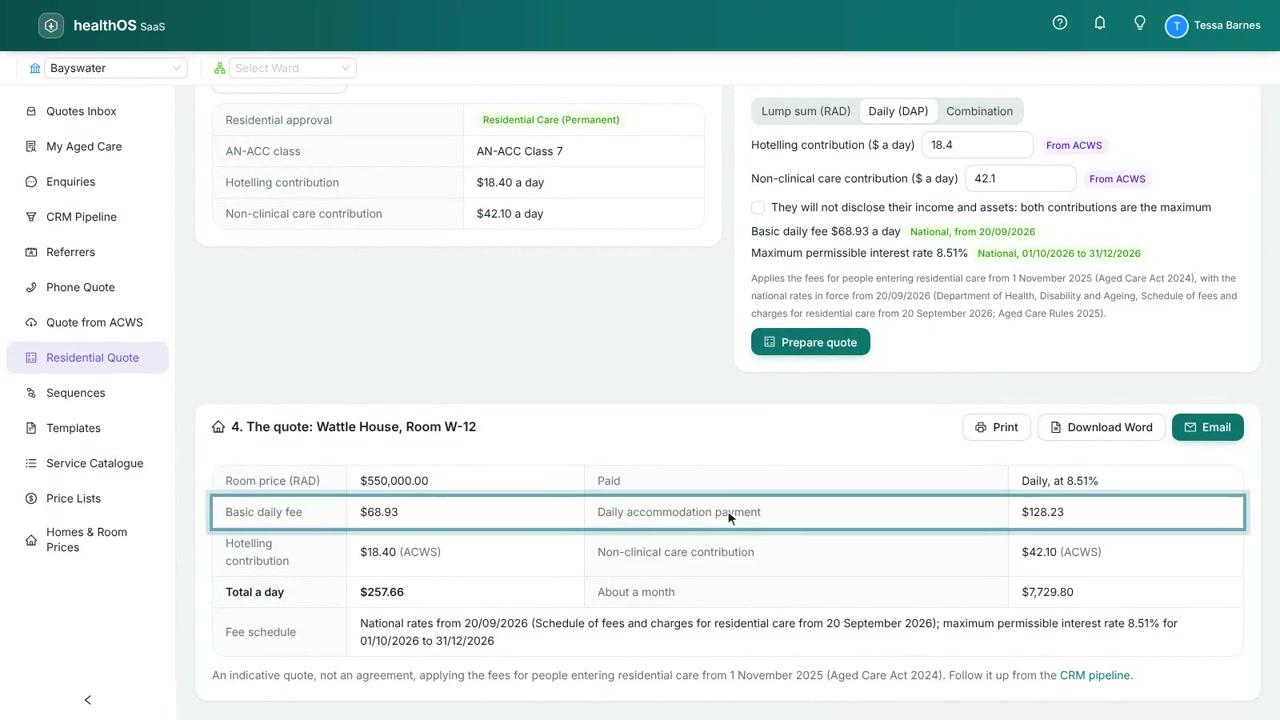
On a priced residential quote, a Support at Home phone quote saved to the Quotes inbox, or a quote made with Quote from ACWS and saved, choose Draft agreement. A quote from ACWS carries the person’s classification, budget and contribution rates as Services Australia holds them, and only its Support at Home services go into the agreement; it is already for its client, so naming an enquiry is optional. Purser prices the quote again, keeps it exactly as accepted, and drafts the agreement from your workspace’s template. Tell it which enquiry the agreement is for, the dates, your ABN and contact, who signs and who gets copies. For a representative, record the authority they sign under (an enduring power of attorney, a guardianship) and confirm you have seen it.
The first time, the drawer says your workspace has no agreement template yet: someone who manages the workspace chooses Install starter templates. The starters are drafts for your lawyers to review. A pack drafted from one shows Template not yet published, and cannot be sent until the template is published. There is no Purser screen yet for publishing a template: email support@healthos.net.au when your wording is ready.
The draft shows the agreement as the family will read it, and anything that stops it being sent, with the part of the Act or the Rules it comes from.
Your own terms
Some wording only you can write: how and when you are paid, the circumstances in which you may end the agreement, your fees and charges policy, the home’s address. The template leaves a place for each. When a draft still has some to enter, it lists them under Your own terms still to enter: fill them in and choose Save your terms. They go into the agreement, and are kept for that kind of agreement at that home, so the next one is drafted with them already in. Nothing the quote filled can be changed this way, and once a pack is sent its wording is final. The same list is in the pack, under Read, until it is sent. A pack cannot be signed by everyone and sealed while a term is still to enter.
Send it to sign
Every agreement pack is under Agreements in the menu. Open the pack and choose Send to sign. Each person who signs is emailed an invitation from your own Microsoft 365 mailbox. If someone has not signed, choose Send again to whoever has not signed: they get a fresh invitation, and anyone who has signed is left alone.
The pack shows each agreement, each signer and how far they have got, and the signing record: every step, in order, with whether the record is whole.
Before it is sent, you can change the pack’s people: choose Change beside a signer to correct their name, email or authority (for a new authority, give the document it comes from and confirm you have seen it), and add or remove supporters. The agreement is redrawn with the new details. Once it is sent the agreement is final, so only the email of someone who has not signed can change: choose Change email, then send again to invite them at the new address.
Cancel a pack
If the person is not going ahead, or the pack needs drafting again, choose Cancel the pack and say why. Its agreements are withdrawn and every invitation to sign stops working at once. A pack can be cancelled until any agreement in it has been signed by everyone. After that, the person can only withdraw in cooling-off, or under the agreement’s own terms.
How the family signs
They open the link
The invitation opens HealthOS Connections. For their security, they choose Email me a code, and a six-digit code is emailed to the same address. It works for ten minutes.
They read each agreement
Exactly as it will be signed. They can take the time they need.
They sign
They type their name, draw their signature, and agree to sign electronically.
They download their copy
Once all their agreements are signed, the same link offers each one as a PDF to download, and says until when.
When everyone has signed every agreement, the pack is sealed: each agreement becomes a PDF whose last page records who signed, how and when.
Record a signature yourself
- Record provider’s signature for your own signer.
- Signed in person when you saw them sign on paper.
- Agreed without signing when they agreed but did not sign. Keep a note of how they agreed.
Each is a step in the signing record like any other.
The start day and cooling-off
- Sign by the start day. The service agreement is entered into on or before the start day, and the accommodation agreement before ongoing services start. From a week before the start day, an unsigned pack shows To be signed by in Agreements, and the people who send agreements hear about it in the morning email. Once the start day has passed, the pack says so.
- Entered into is the day the last signature completes the pack, not the day it was sent.
- Cooling-off. The person may withdraw, by telling you or in writing, within 14 days after the agreement is entered into and before the start day. The pack shows when the cooling-off ends. If they withdraw, choose Record a withdrawal and give the day you were told and how. The agreement then has no effect: refund any fees and contributions they have paid, and download the signed pack to keep the record.
How the room is paid for
The person does not have to choose before their start day how to pay for the room: a refundable deposit, a daily payment, or a combination of the two. Until they choose, they pay daily. Purser does not record the choice on a pack drafted from a residential quote: keep it in your own records with the signed pack.
Signed copies
When the pack is sealed, each family signer and each supporter you listed is emailed the signed agreements from your mailbox. The pack shows who has a copy. If a copy could not be sent (no mailbox connected yet, say), choose Send the signed copies to send it to whoever has not had one, or Send everyone a copy again.
At admission or when services start: download the signed pack
When you progress an enquiry to Resident (or Active Client) in the CRM pipeline and it has agreements, Purser asks you to download them first; or open the pack itself. Choose Download the signed pack. It is one zip: each signed agreement, the quote, the signing record and a list of fingerprints to check them by. Keep it in your own records system: signed agreements and their evidence are to be kept for 7 years.
For a Support at Home quote in the Quotes inbox, choose Services started from the quote’s actions and give the day services started. The same download comes first, and the quote then leaves the inbox. If an agreement on it is still being signed, the screen says so: it was due on or before the start day, so chase the signatures or cancel the pack.
What Purser keeps, and for how long
- While the enquiry is being worked, everything is kept.
- A signed pack you have not downloaded is kept, and the people who can download it are reminded each morning.
- Once downloaded, the personal details go at the next nightly clean-up. The family can still download their own copy for 14 days, and is reminded before that ends.
- A lost or closed enquiry goes after your workspace’s retention period. See Your personal data.
What stays names nobody: the pack number, its dates and status, and the fingerprint of each signed copy, so you can prove later that the copy in your records is the one that was signed.
If something goes wrong
- “Connect a Microsoft 365 mailbox”: Purser only emails families from your own mailbox. Connect one on Workspace setup.
- This agreement cannot be sent yet: open it with Read to see what is missing, and fix it on the quote or the template.
- The family’s link has expired: choose Send again to whoever has not signed.
- The invitation went to the wrong email: choose Change email beside the signer, then send again.
Still stuck? Email support@healthos.net.au