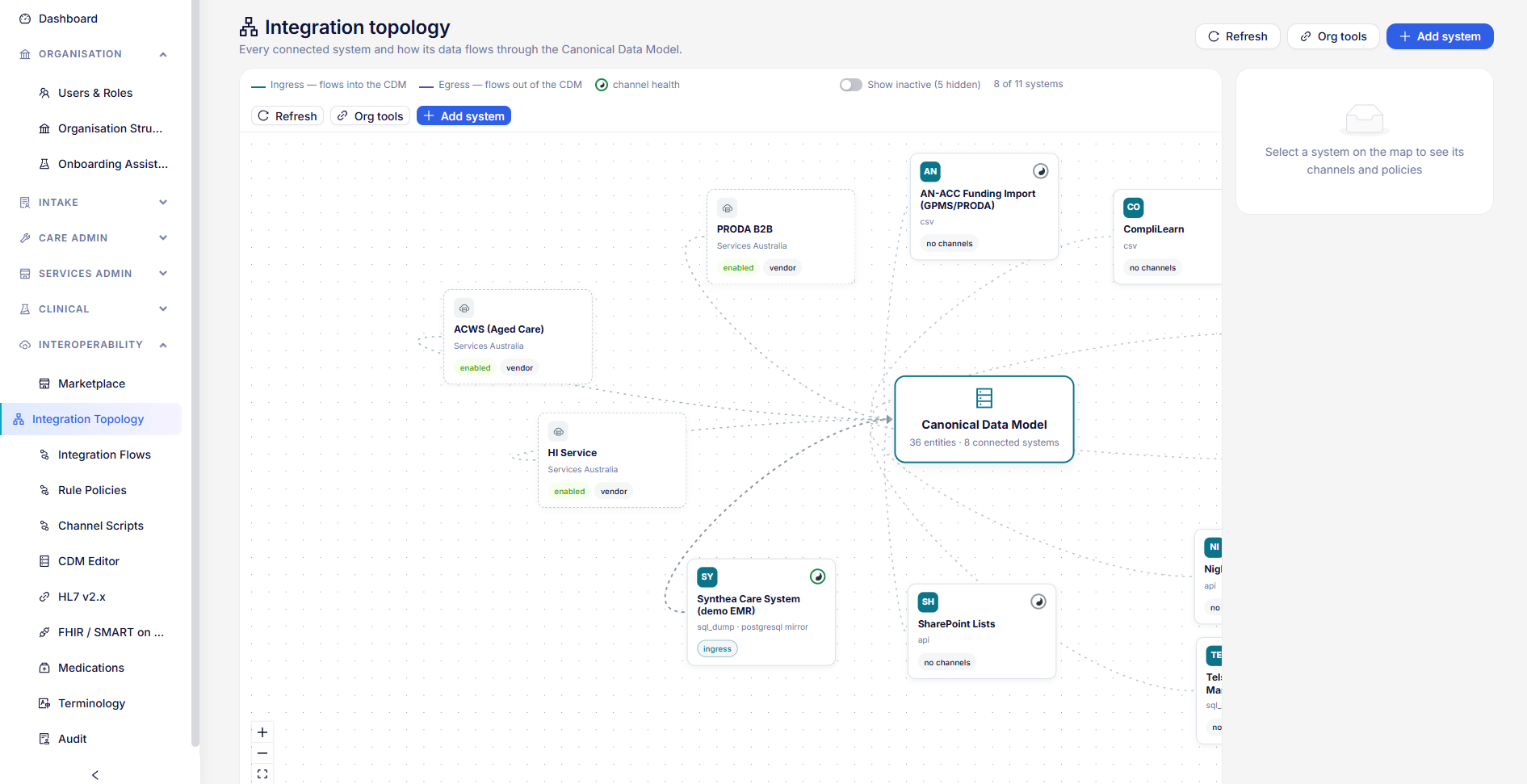
Platform settings
The settings that apply to every organisation on a site, and keeping the site up to date.
Everything on this page applies to every organisation on a site, and needs a global administrator.
Government identity
HealthOS’s own identity with Services Australia is used for any organisation that has not entered its own. Set it in the staff app at Settings › Government configuration.
| Section | Fields |
|---|---|
| ACWS and PRODA | Mode (mock, vendor or production), the ACWS address, client and product identifiers, and the PRODA client id |
| B2G | The software id and software version id |
- Precedence. Values saved here replace the site’s installed defaults, without a redeploy. An organisation’s own ACWS or B2G set-up still wins over them.
- Timing. Changes take effect within a minute.
- Not held here. There is no site-wide B2G portal client id or secret: each organisation registers and enters its own in its GPMS set-up.
Accounting apps
Organisations can connect Xero or MYOB for journals and receivables. Each can bring its own app, or use the site’s. A global administrator sets the site’s app on Platform › Accounting Apps: its client ID, client secret, redirect address (/care-admin/billing/accounting/callback on your staff address) and, optionally, scopes. The secret is encrypted and never shown again. Use environment settings goes back to the app your platform team configured for the site.
Code Captain runs
Platform › Tenant Licensing holds each organisation’s licence. Choose the organisation in the picker, then the Code Captain runs tab.
| Setting | What it does |
|---|---|
| Runs a month, for everyone together | The organisation’s monthly allowance. Blank is unlimited. The tab shows the runs used this month against it. |
| Runs a day, for each person | The daily limit per person in a SaaS coding workspace on the free preview. Blank uses the site default; 0 turns it off. |
| Make everyone unlimited | Clears the monthly allowance and turns the daily limit off, in one step. |
| A person’s allowance | Each person’s runs this month and today. Make unlimited, or Edit to set their own monthly and daily limits, or go back to the organisation’s. |
An unlimited person has no daily or monthly limit, and the organisation’s allowance never stops them, though their runs still count towards it. A person’s own daily limit replaces the organisation’s; their own monthly limit applies on any site. Starting a run counts; looking at or exporting one does not.
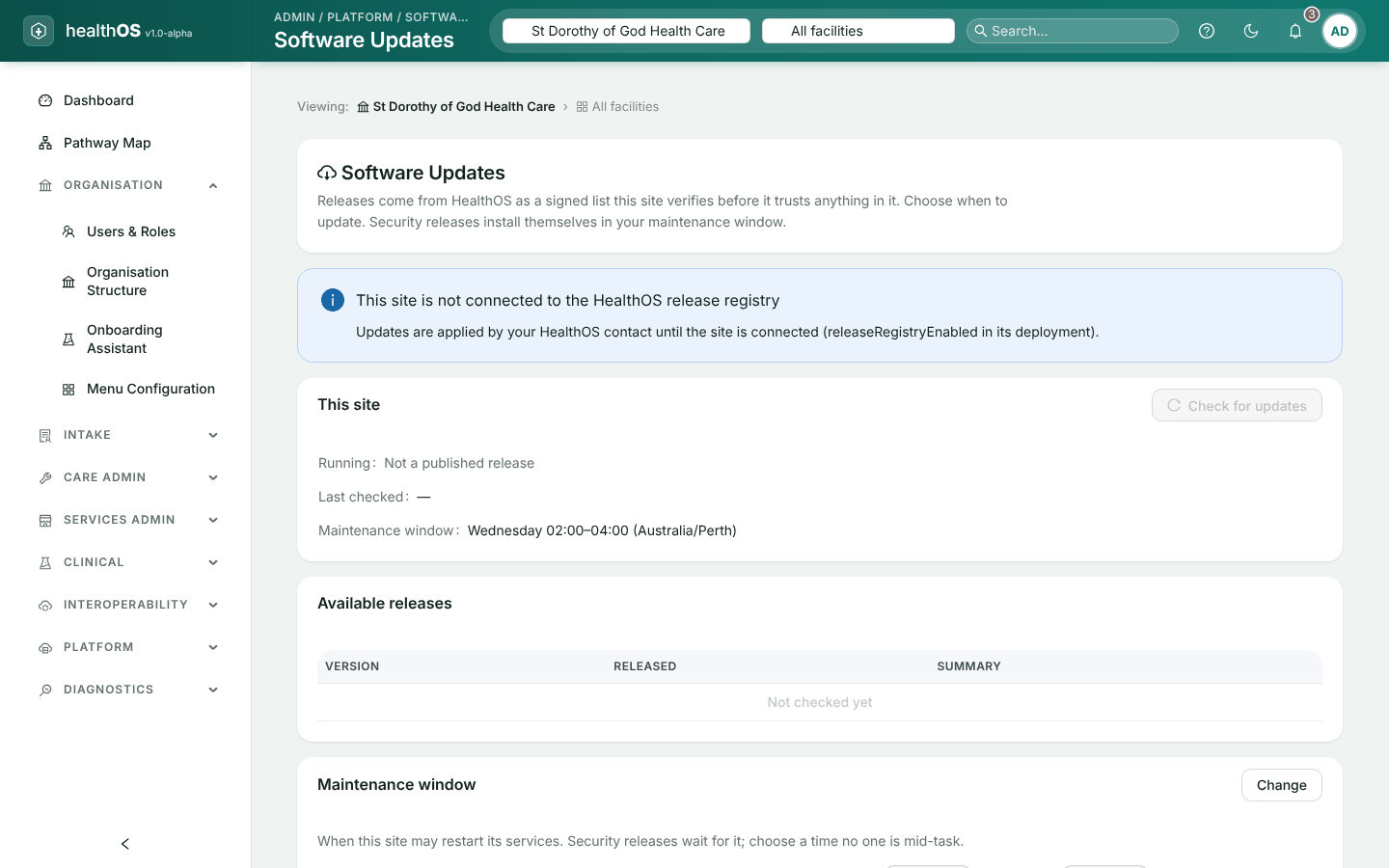
Software updates
Platform › Software Updates shows the version your site is running, the releases available and every update so far.
Set a maintenance window
The days, start time, length and time zone in which updates may run.
Schedule an update
Choose a release and run it now or in the next window. Until it starts, you can start it early or cancel it.
Let it run
The update is applied automatically, usually within ten minutes of its start.
Security releases are scheduled into the next window automatically. They can be started early, but not cancelled.
Other site-wide screens
| Screen | Use |
|---|---|
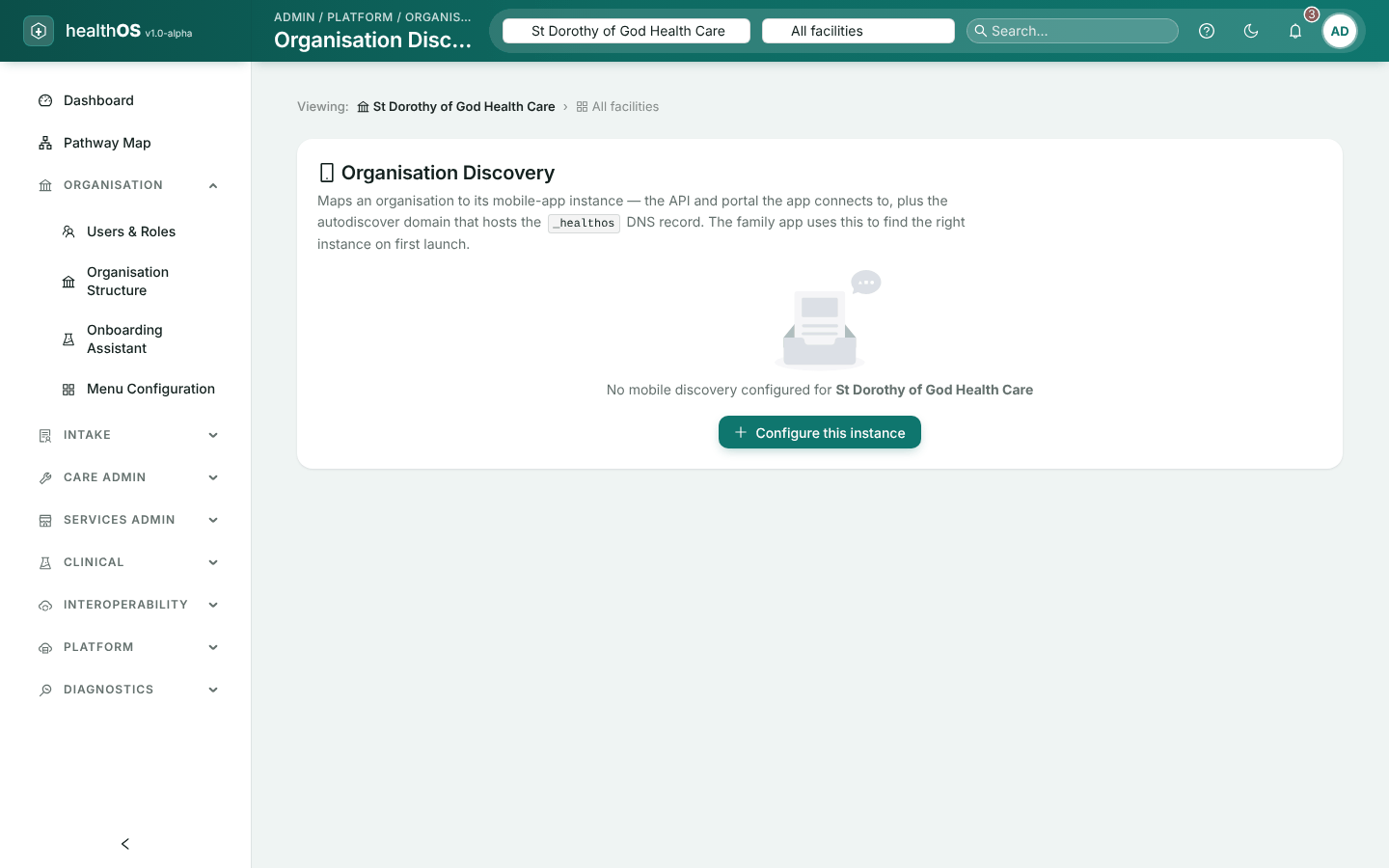
| Organisation Discovery | How the mobile app finds your organisation |
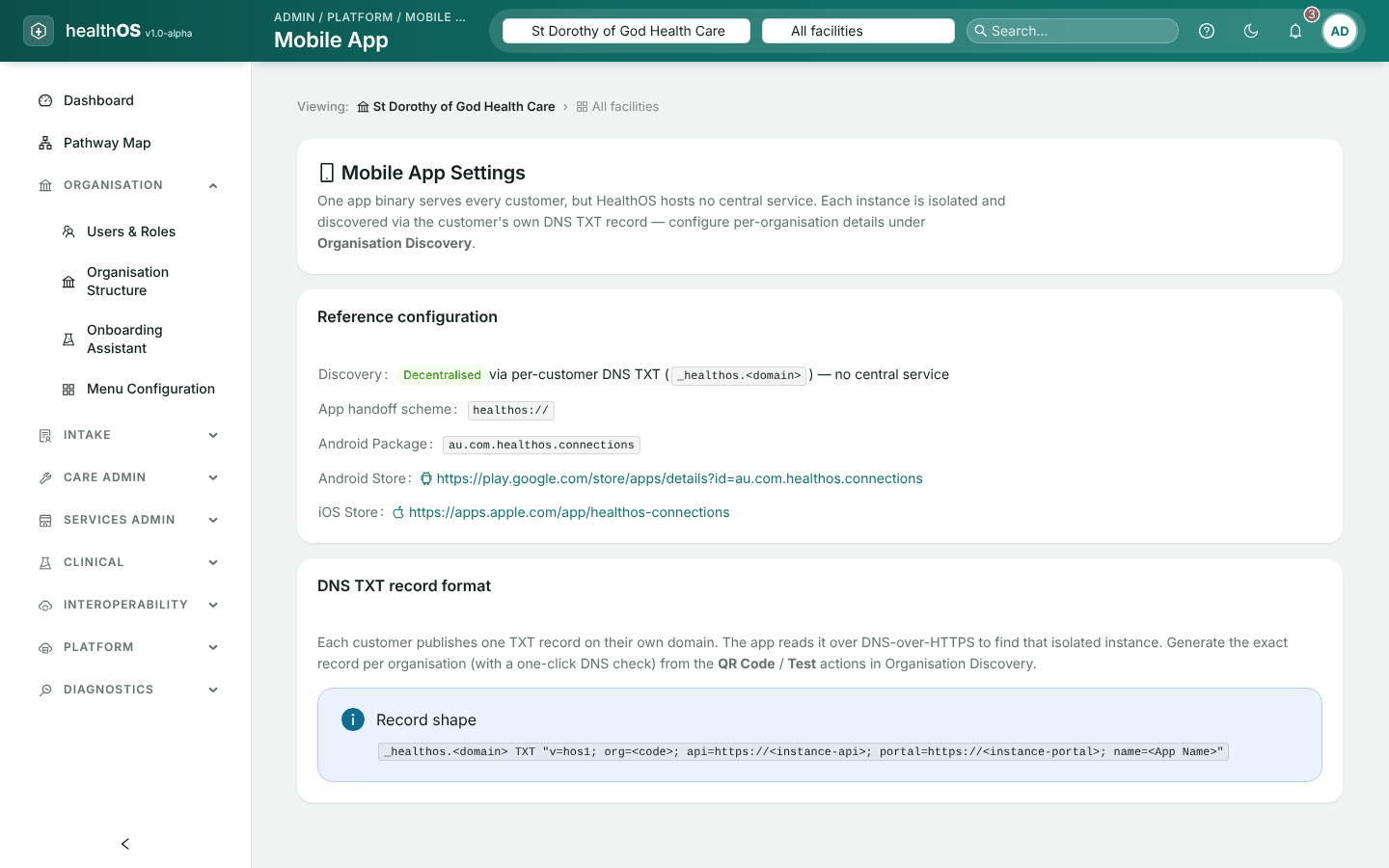
| Mobile App | The mobile app’s set-up, including the DNS record that identifies your site |
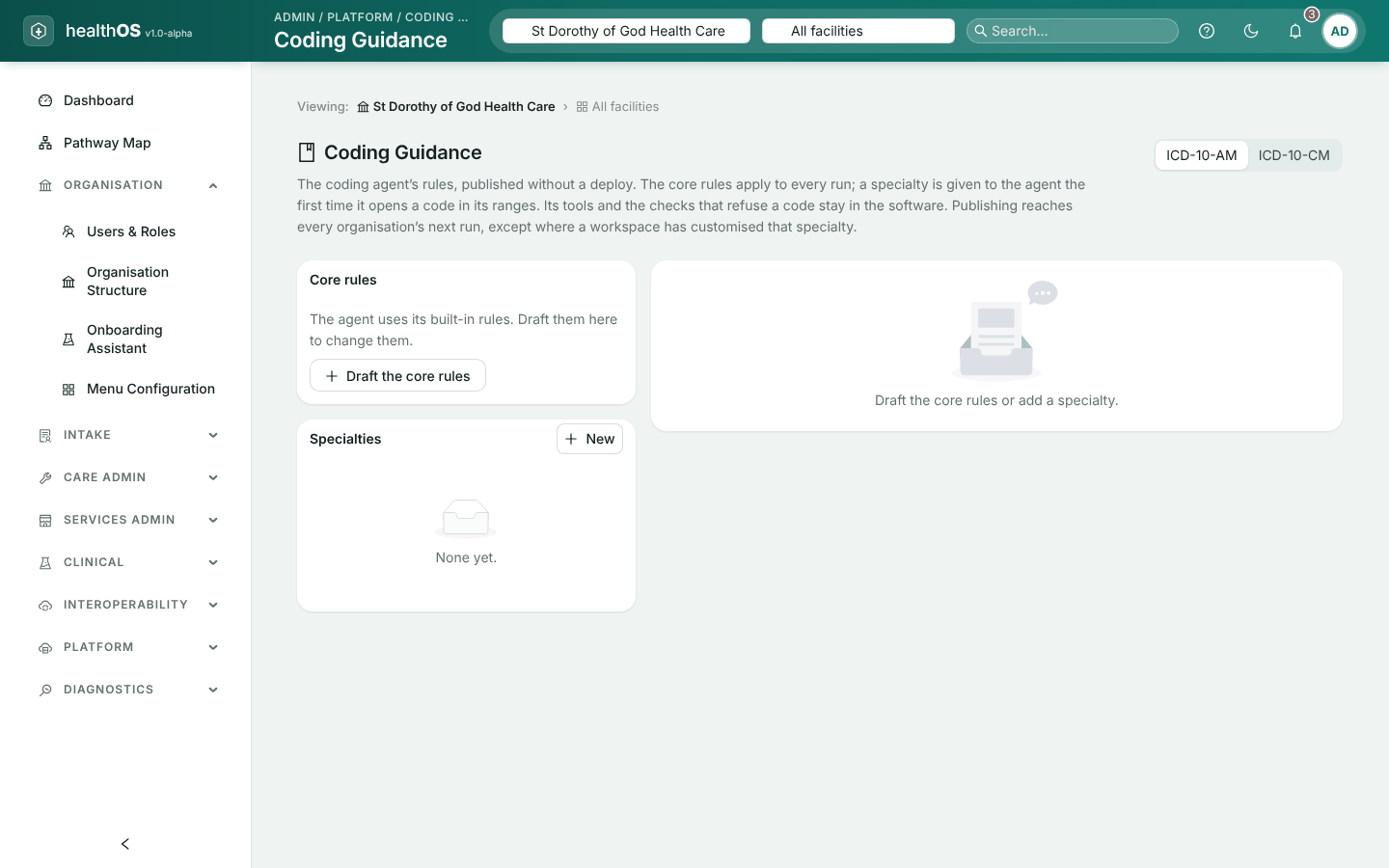
| Coding Guidance | The rules the coding assistant follows in each state, with drafts and publishing |
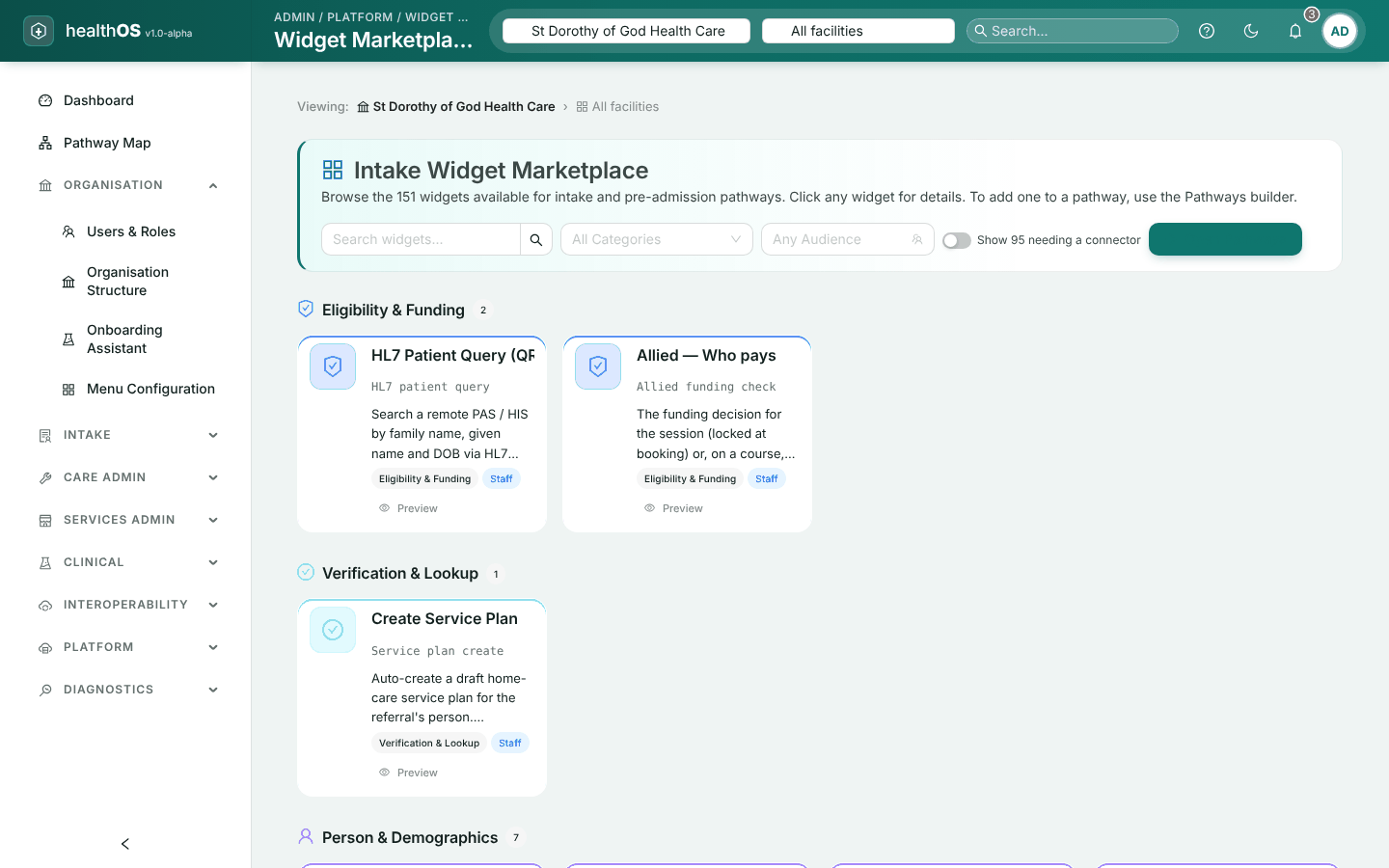
| Widget Marketplace | The building blocks available to pathways |
Preventive Health
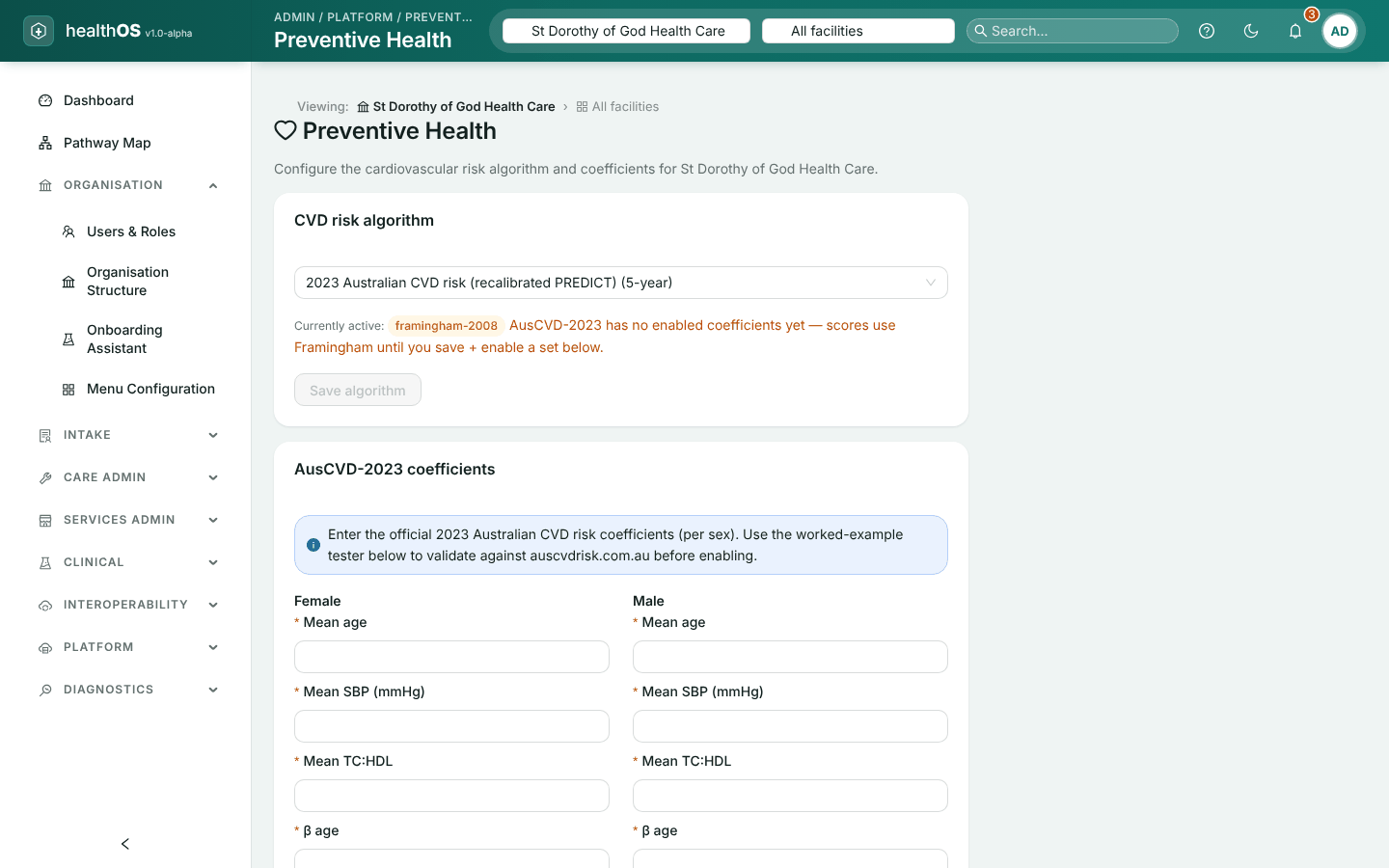
Platform › Preventive Health chooses how an organisation’s preventive health assessments estimate cardiovascular risk. Choose the organisation in the picker first: each organisation has its own setting.
Choose the algorithm
Under CVD risk algorithm, choose the 2023 Australian CVD risk calculator (AusCVD-2023, a 5-year risk) or Framingham, and save it.
Enter the AusCVD-2023 coefficients
AusCVD-2023 needs its published coefficients, for women and for men, entered under AusCVD-2023 coefficients. They are entered rather than built in, so a new release of the equation needs no software update.
Check them
Use the worked-example tester to compare a result with the official calculator at auscvdrisk.com.au before you rely on it.
Enable them
Save the coefficients and enable them. Currently active then shows AusCVD-2023.
Until AusCVD-2023 coefficients are saved and enabled, scores use Framingham, and the screen says so. Each risk score records which algorithm produced it.
SaaS workspaces
If you use one of the HealthOS SaaS products, your workspace’s team, billing, terms and the nightly removal of personal details are covered in Help, particularly Personal data and the nightly purge.
Still stuck? Email support@healthos.net.au