Organisation, settings and licensing
Shape the organisation, set how each part of it works, and see what it is licensed for.
Organisations
| To | Who | Where |
|---|---|---|
| Create an organisation | Global administrator, from the all-organisations view | Organisation › Organisation Structure |
| Edit its details | A system administrator or administrator of that organisation | Organisation › Organisation Structure |
| Delete an organisation | Global administrator. Its records are retired, not erased. | Organisation › Organisation Structure |
The organisation tree
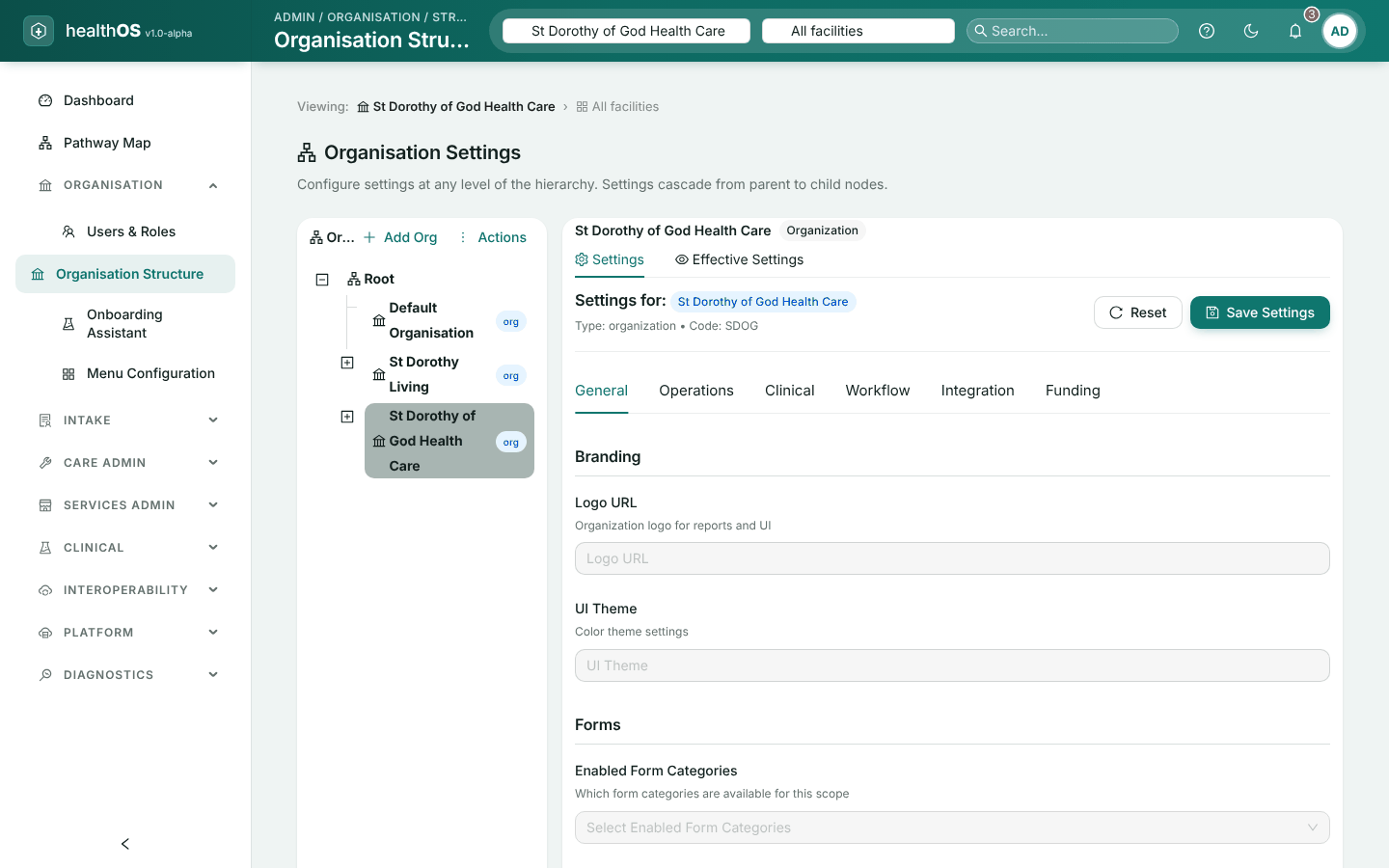
Organisation › Organisation Structure shows your organisation as a tree. Each part shows its own settings and its effective settings, meaning what it inherits from above.
- Kinds of unit. State, local health district, region, facility, ward and department. A unit’s kind cannot be changed once it is created.
- Facilities record their type (hospital, aged care, home care, clinic or community health), funding (public, private or mixed), time zone, HPI-O, bed count, ABN and address.
- Beds are added and edited on their ward.
- Moving a unit takes everything under it along. Deleting a unit retires everything under it.
Settings and overrides
Most behaviour is set once for the organisation and changed where a site needs something different. Each setting says which levels may change it (organisation, state, district, facility or ward) and how levels combine. The lowest level that sets a value wins.
Every change is kept with the reason given, and the history is on each part of the tree. A global administrator decides which settings exist and their defaults. Changing a setting needs settings rights: an administrator, or a manager holding the settings.config.update permission.
| Screen | Where | Covers |
|---|---|---|
| Billing | Care Admin | See Billing reference data below |
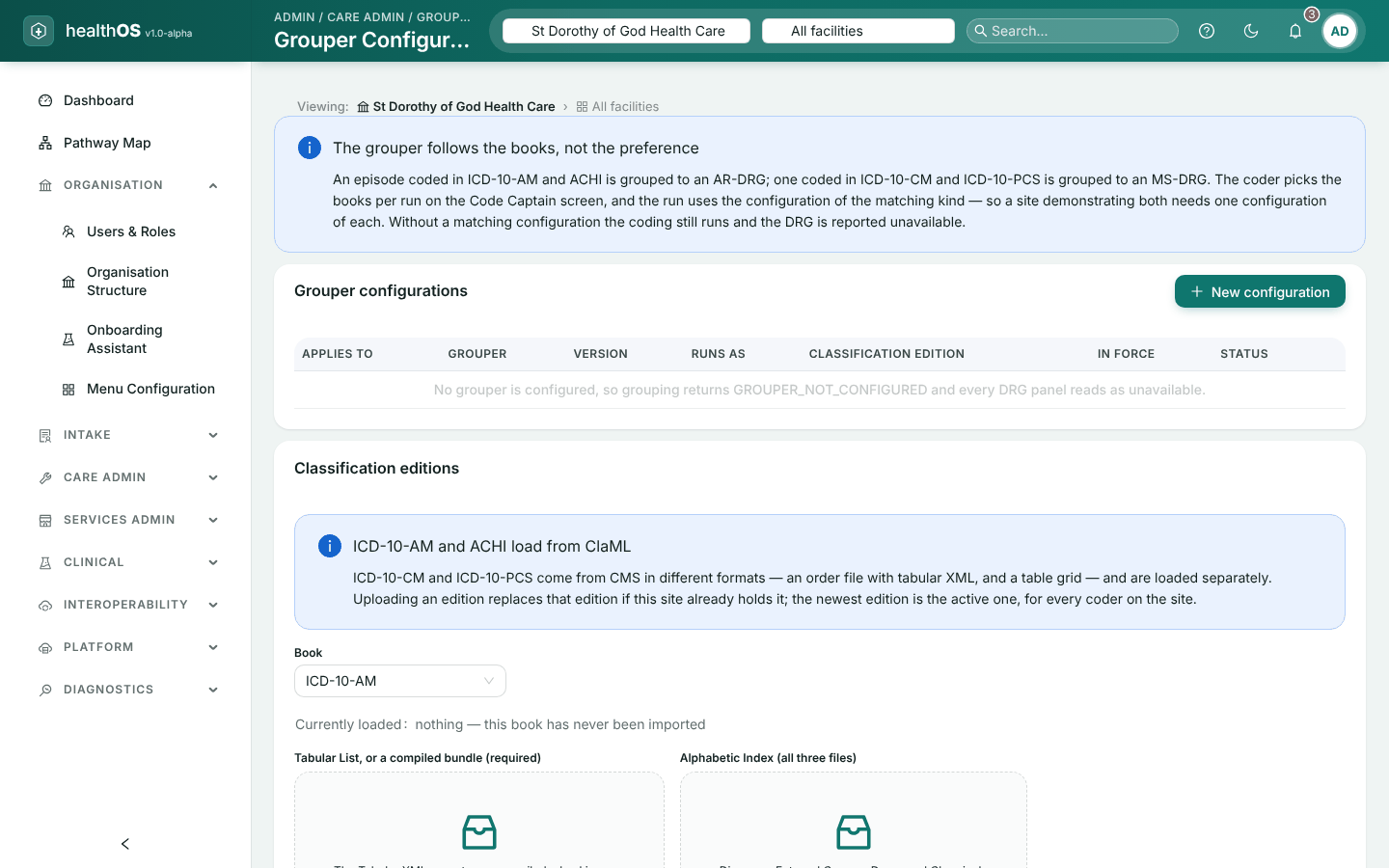
| Grouper Configuration | Care Admin | Which DRG grouper applies to which episodes, and the classification editions your site holds |
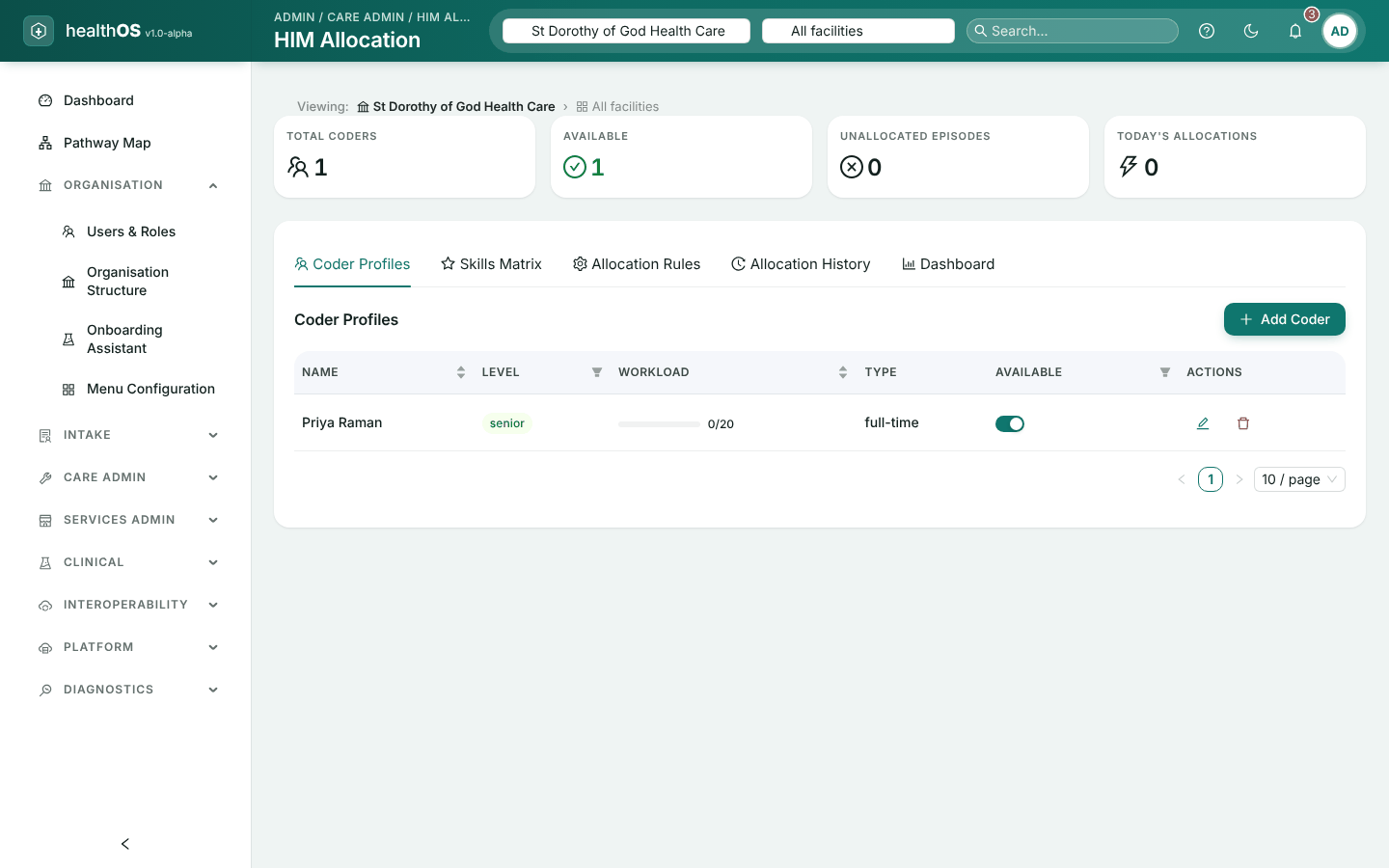
| HIM Allocation | Care Admin | Coder profiles, skills and how work is allocated. Set up by health information managers; allocating work needs the permission to allocate coding. |
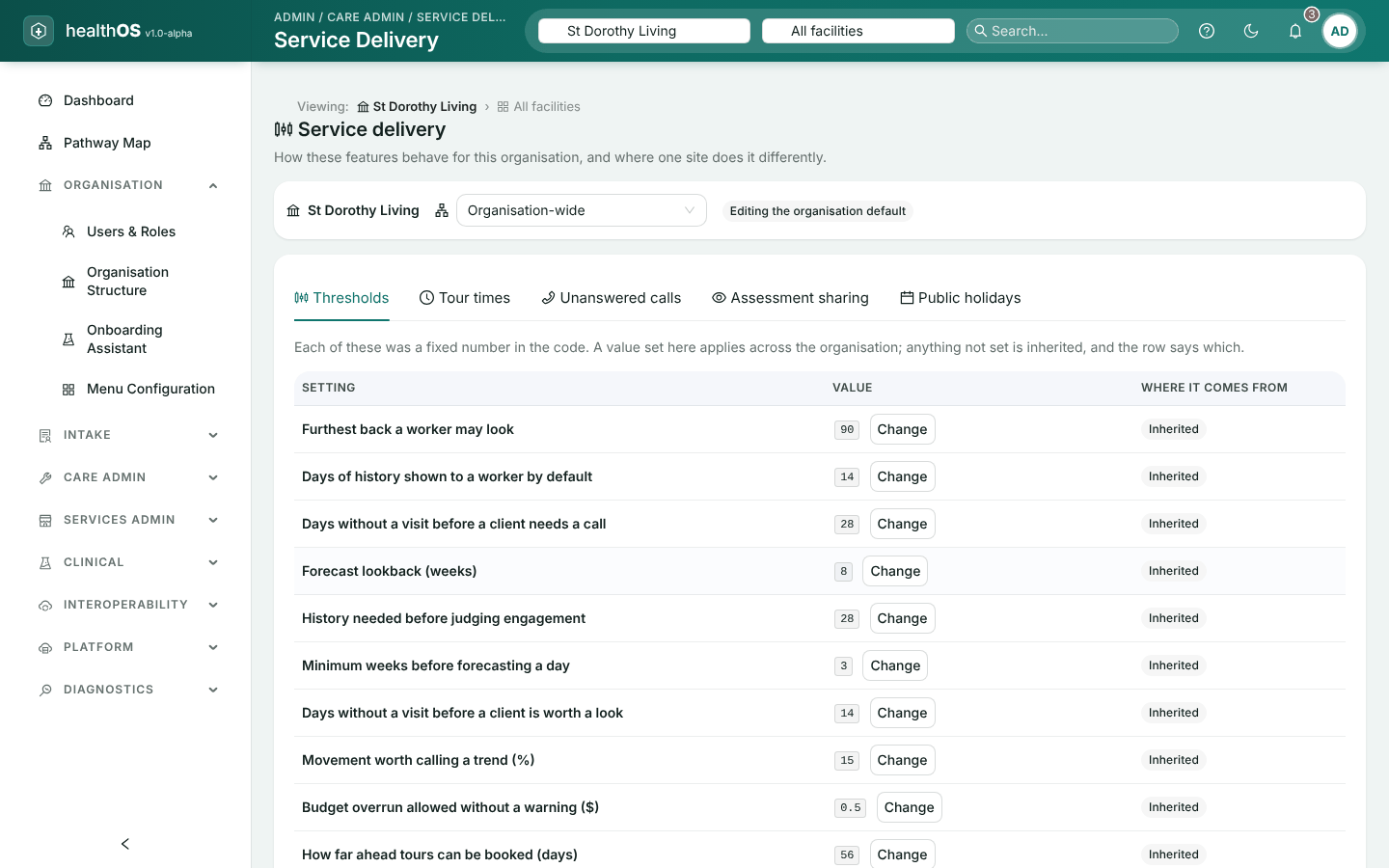
| Service Delivery | Care Admin | Service delivery for the organisation and each site |
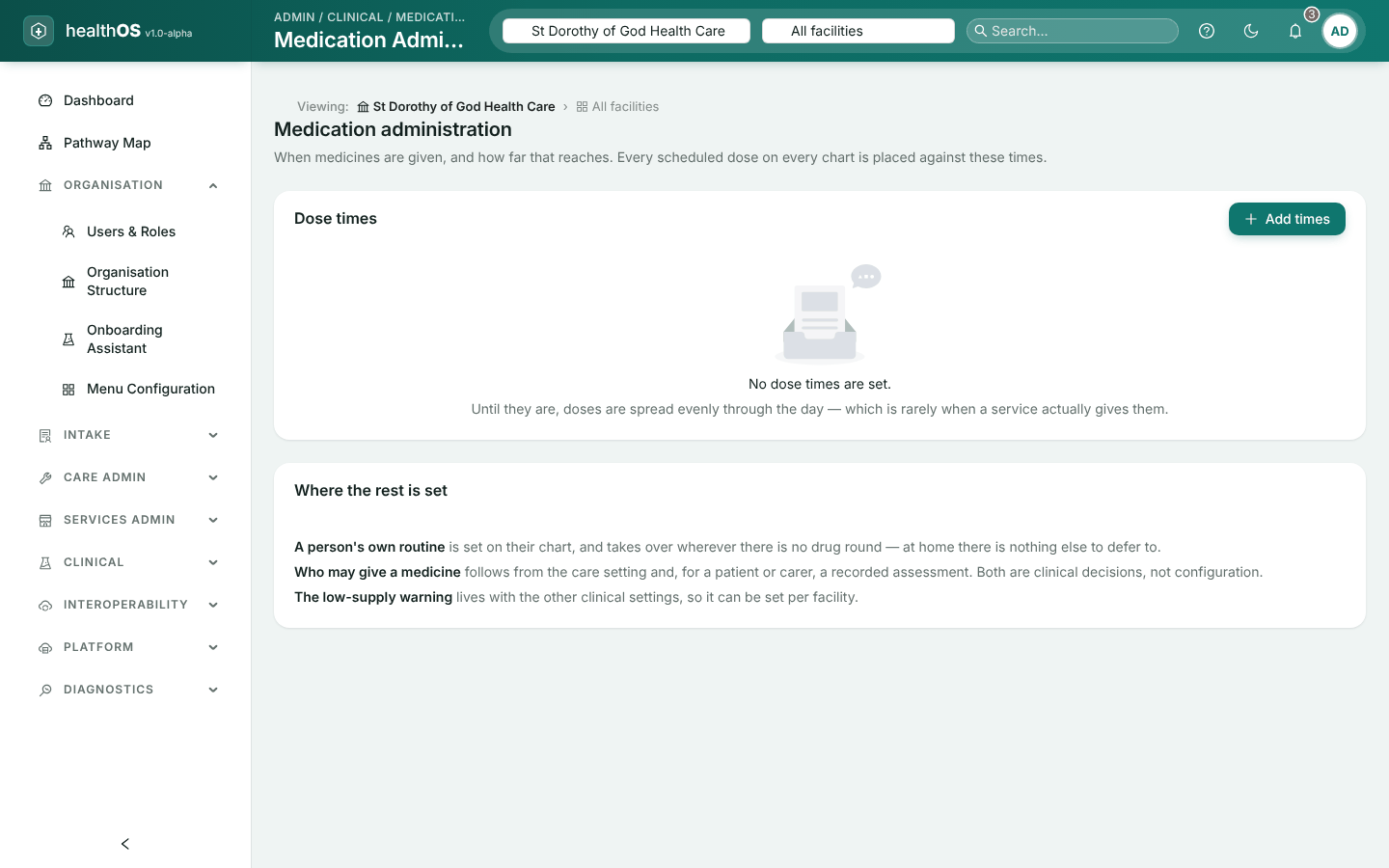
| Medication Administration | Clinical | Dose times and related settings |
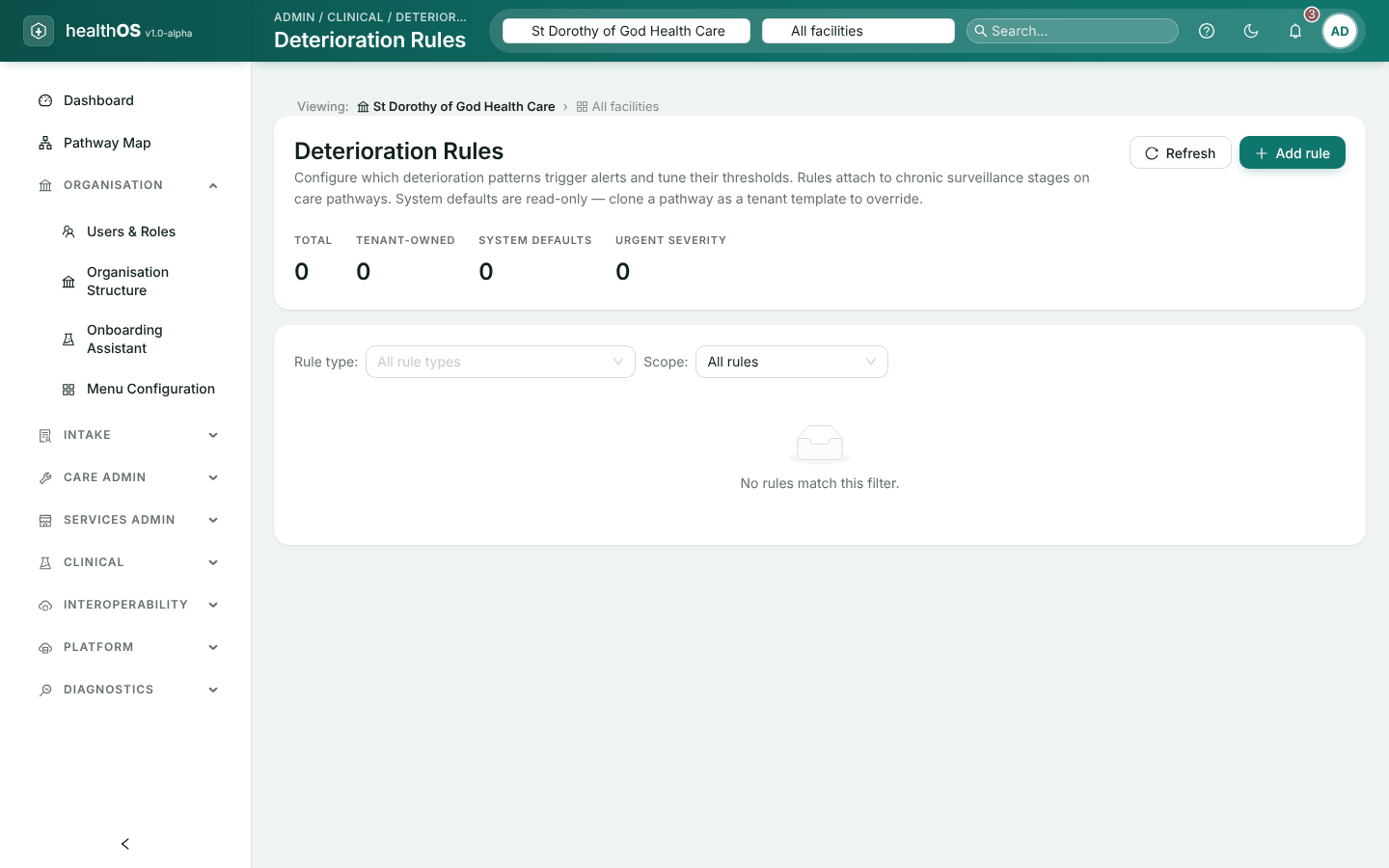
| Deterioration Rules | Clinical | Your changes to the standard deterioration rules |
| Pathways, forms and letters | Intake, Care Admin, Clinical | See Pathways, forms and letters |
Billing reference data
The four billing screens under Care Admin hold national reference data shared by every organisation on the site, so a change made here applies to all of them.
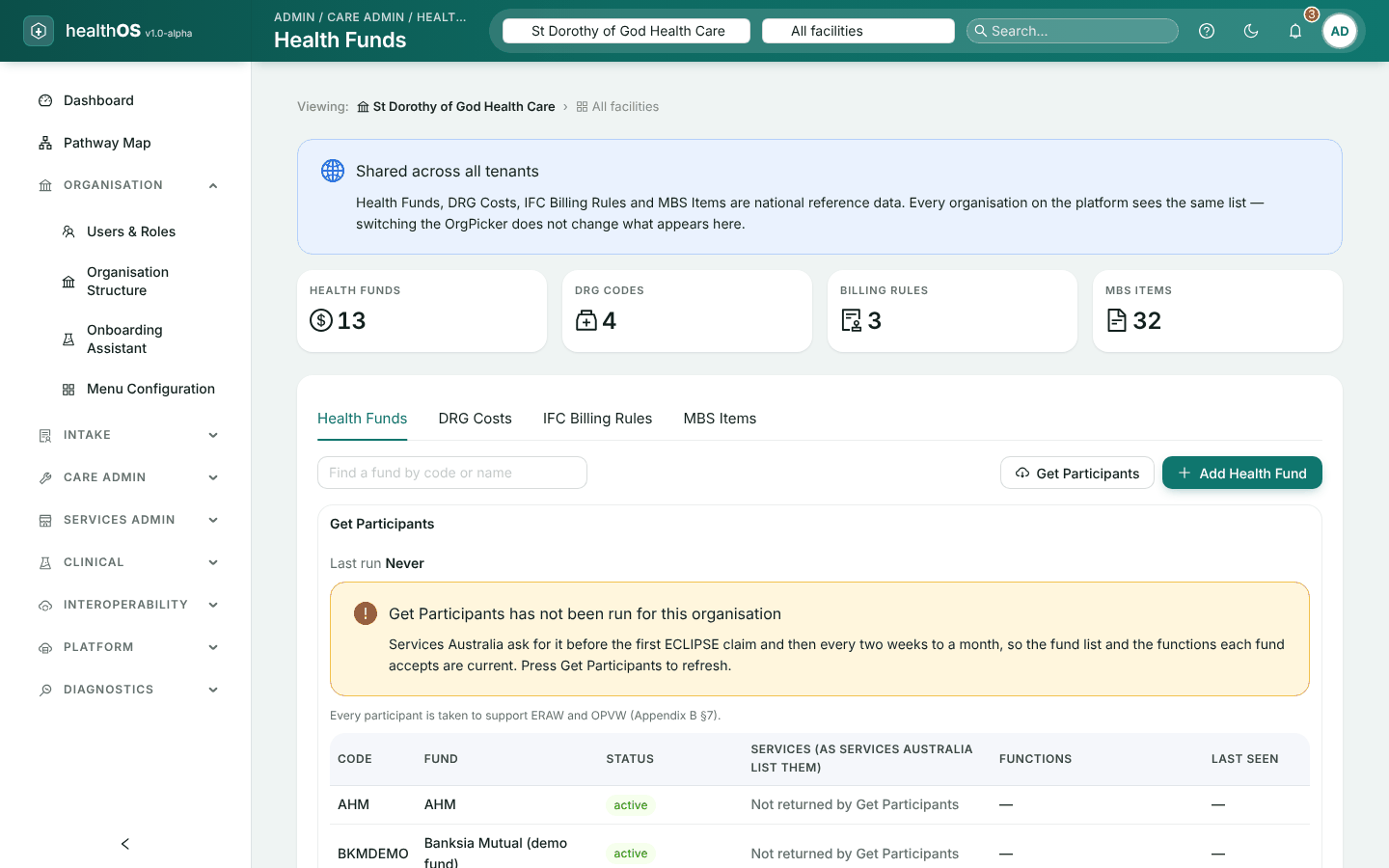
Health Funds
The register of health funds and other payers: code, name, type, contact details, whether they take electronic claims, default accommodation and status.
Refresh the list from Services Australia
Choose Get Participants. Funds Services Australia no longer lists are made inactive, and the result stays on screen. It needs an administrator, or a settings manager who also lodges Medicare and fund claims.
Add or edit a fund
Choose Add Health Fund, or edit a row. This needs an administrator.
Retire a fund
Set its status to Inactive. A fund that still has DRG costs or billing rules cannot be deleted.
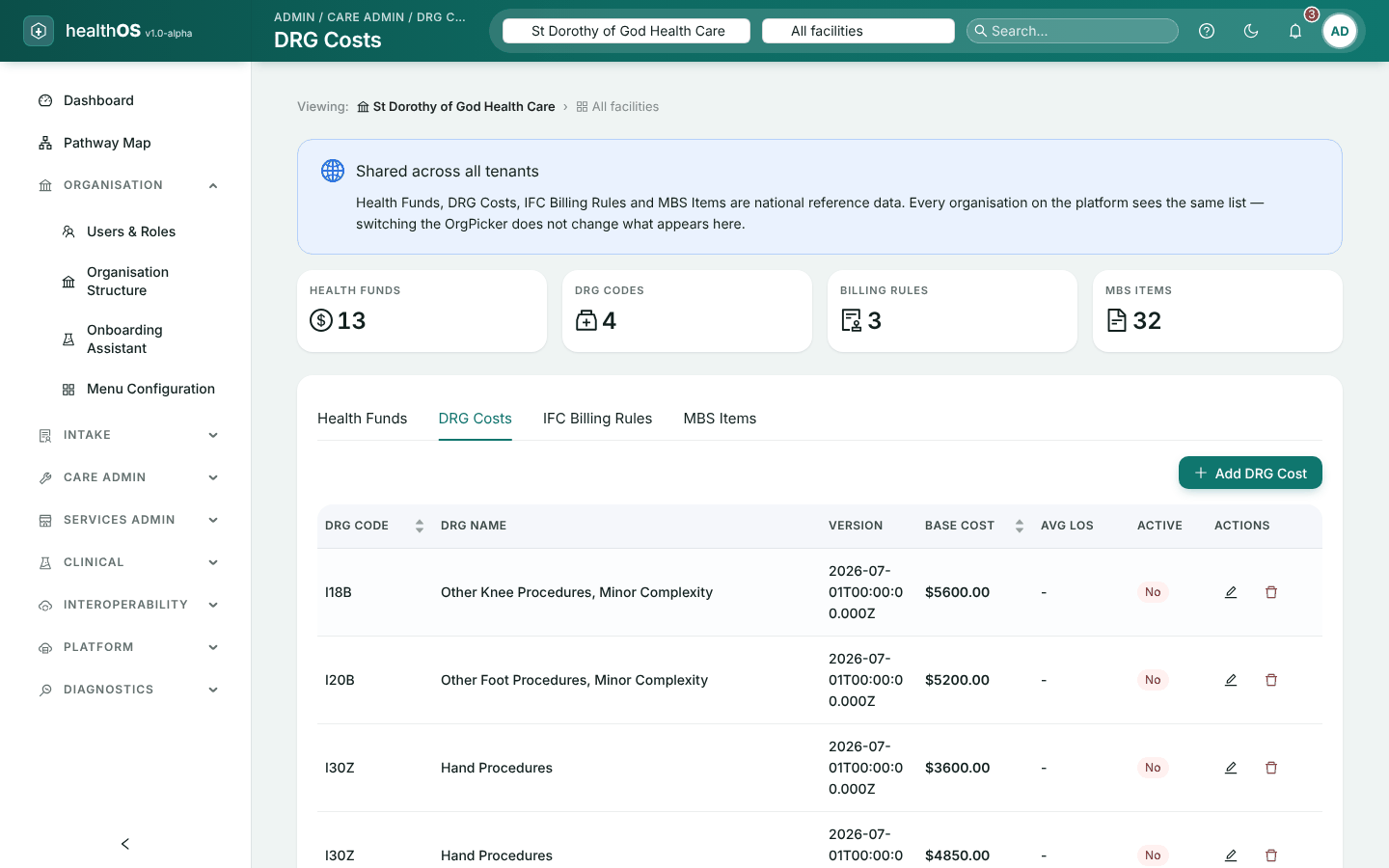
DRG Costs
Base costs, average length of stay and outlier thresholds by DRG and fund. Add a rate, or edit or delete a row. Changing them needs settings-write authority.
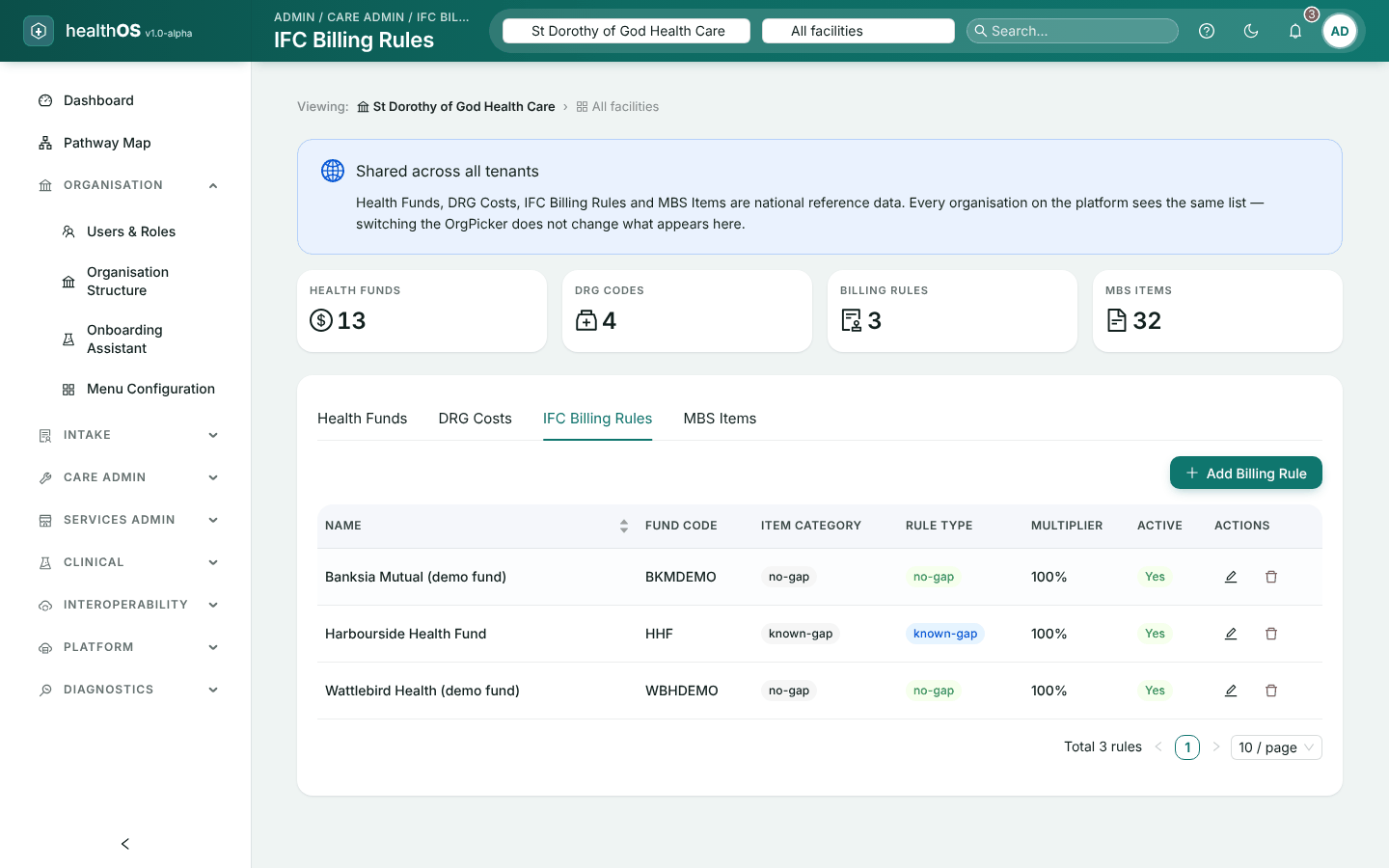
IFC Billing Rules
The informed financial consent rules for each fund: gap scheme (known gap, no gap or percentage gap), room rates, surgeon and anaesthetist rebate rates, the theatre rate per minute, and the dates the rule applies. Choose Add Billing Rule. Changing them needs settings-write authority.
MBS Items
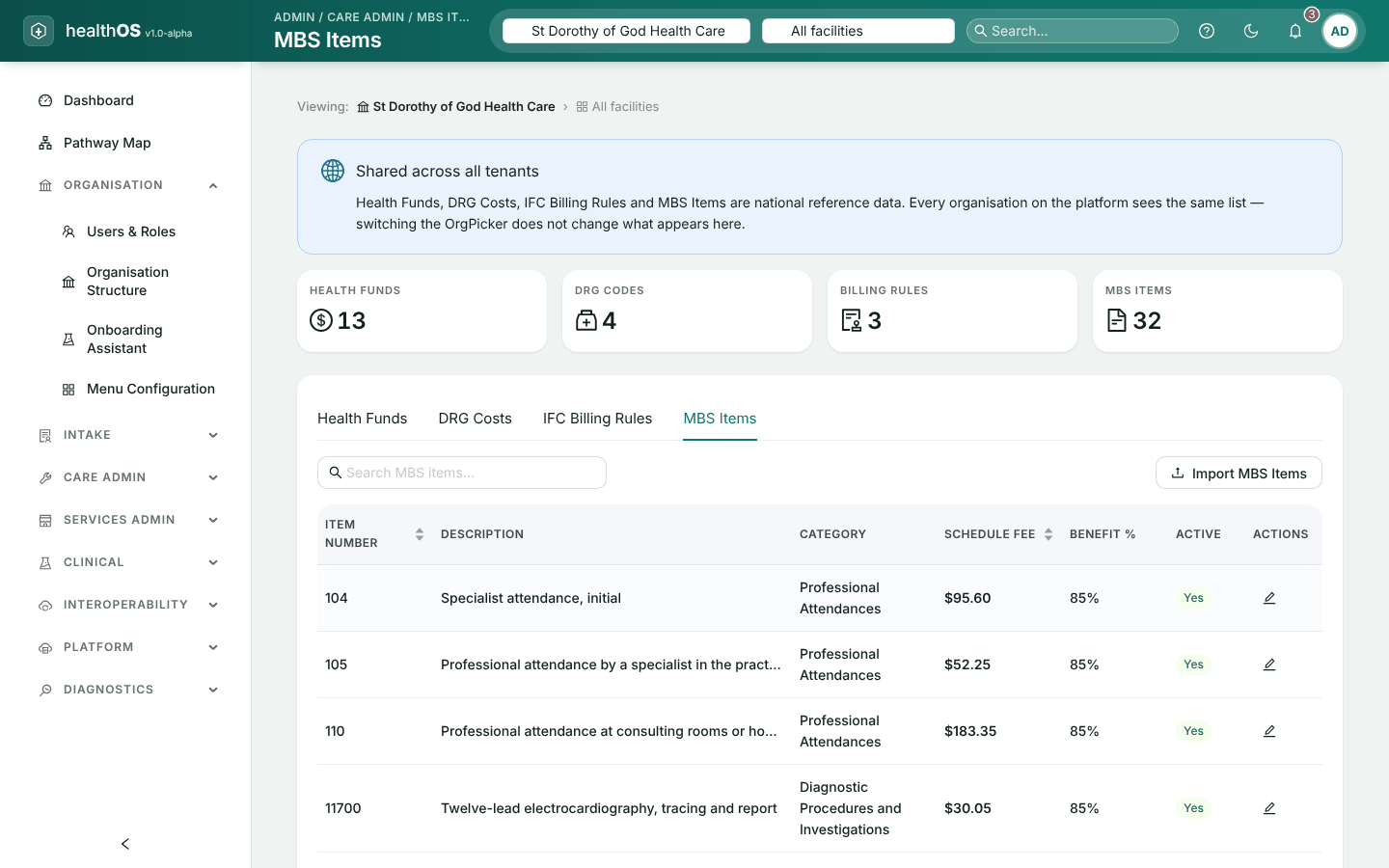
The Medicare Benefits Schedule: item number, description, category, schedule fee and benefit. Only a global administrator can change it.
Download the schedule
Download the MBS XML file from MBS Online.
Import it
Choose Import MBS Items and select the file. A dry run shows how many items are ready to load and any left out.
Load it
Choose Load. The result says how many items are new, corrected and unchanged. A new fee becomes a new version from the date it starts, so earlier claims keep the fee that applied to them.
ADT and jurisdictional reporting
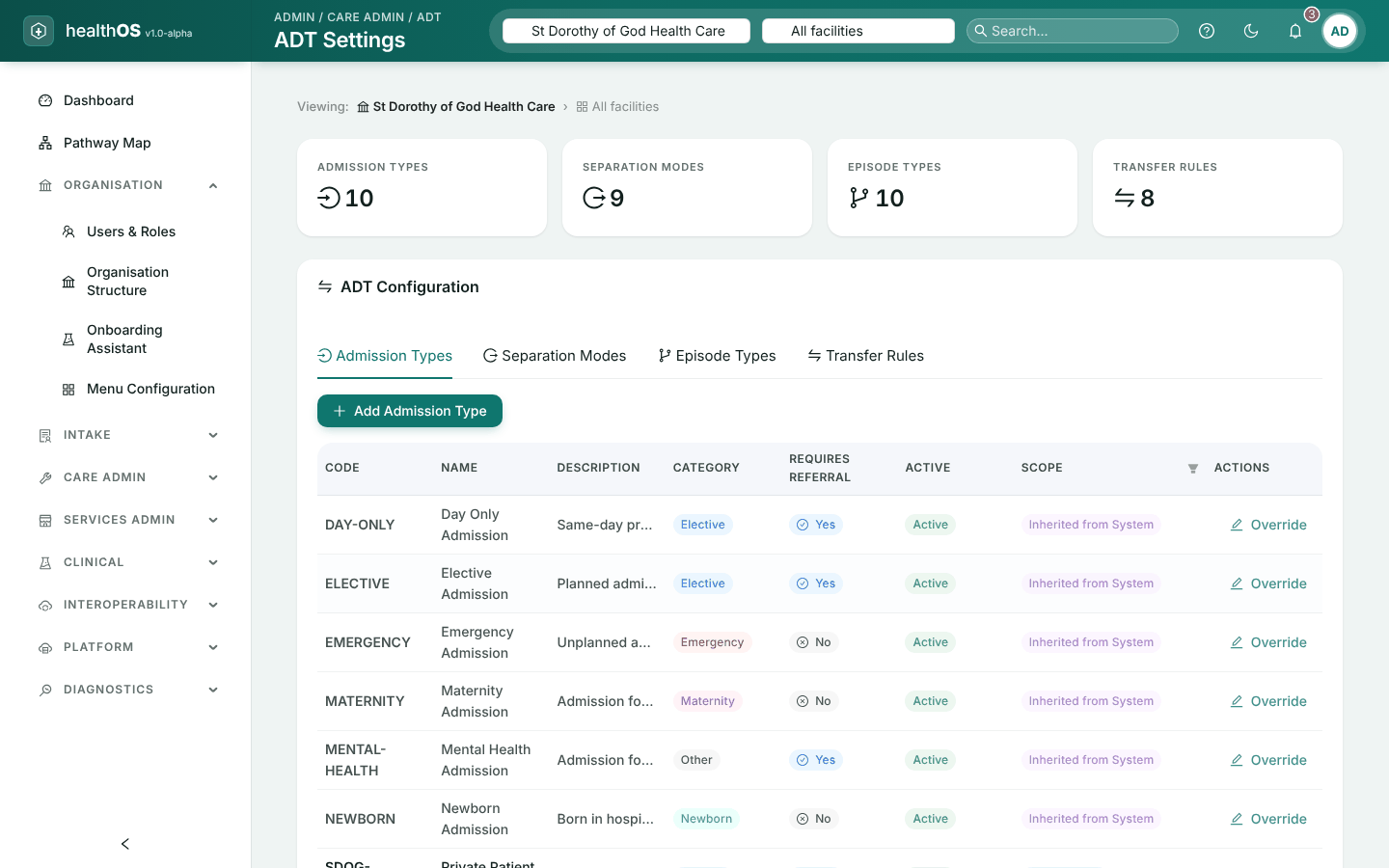
- ADT Settings (Care Admin) holds the admission types, separation modes, episode types and transfer rules your organisation uses. Add, edit or delete your own. HealthOS’s defaults are shared by every organisation and cannot be changed: to use a different value, add your own at the organisation or a facility.
- Jurisdictional Reporting (Care Admin) holds the data extracts, validation rules, mandatory fields and reporting periods for state reporting. Extracts, rules and mandatory fields can be added, edited and deleted. Reporting periods can be added, edited, closed and locked, but not deleted. The first time your organisation opens the screen it is given a starting set of extracts and rules to adapt.
Changing either needs settings-write authority.
One thing to watch on Jurisdictional Reporting: Add extract offers the types VAED, VEMD, VINAH, VAHI and Custom, while most of the starting set uses other types. An extract you add does not pick up the starting set’s rules and mandatory fields, so check them after adding one.
Menus
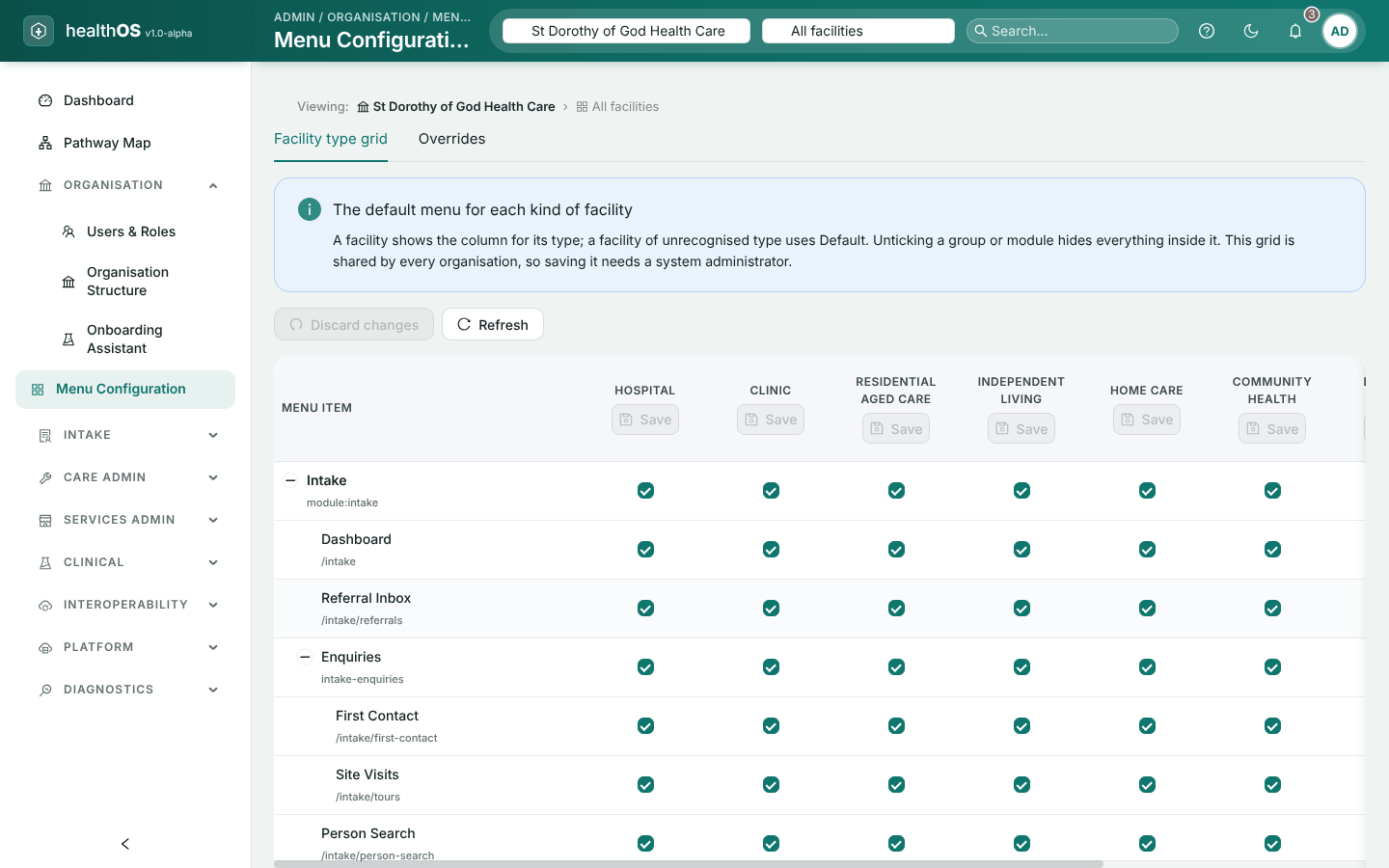
Organisation › Menu Configuration decides which menus staff see.
- The default is set for each type of facility. It applies to the whole site and needs a system administrator.
- Overrides can be set for your organisation or one facility.
- Precedence. A facility’s override wins over the organisation’s, which wins over the default.
Licences
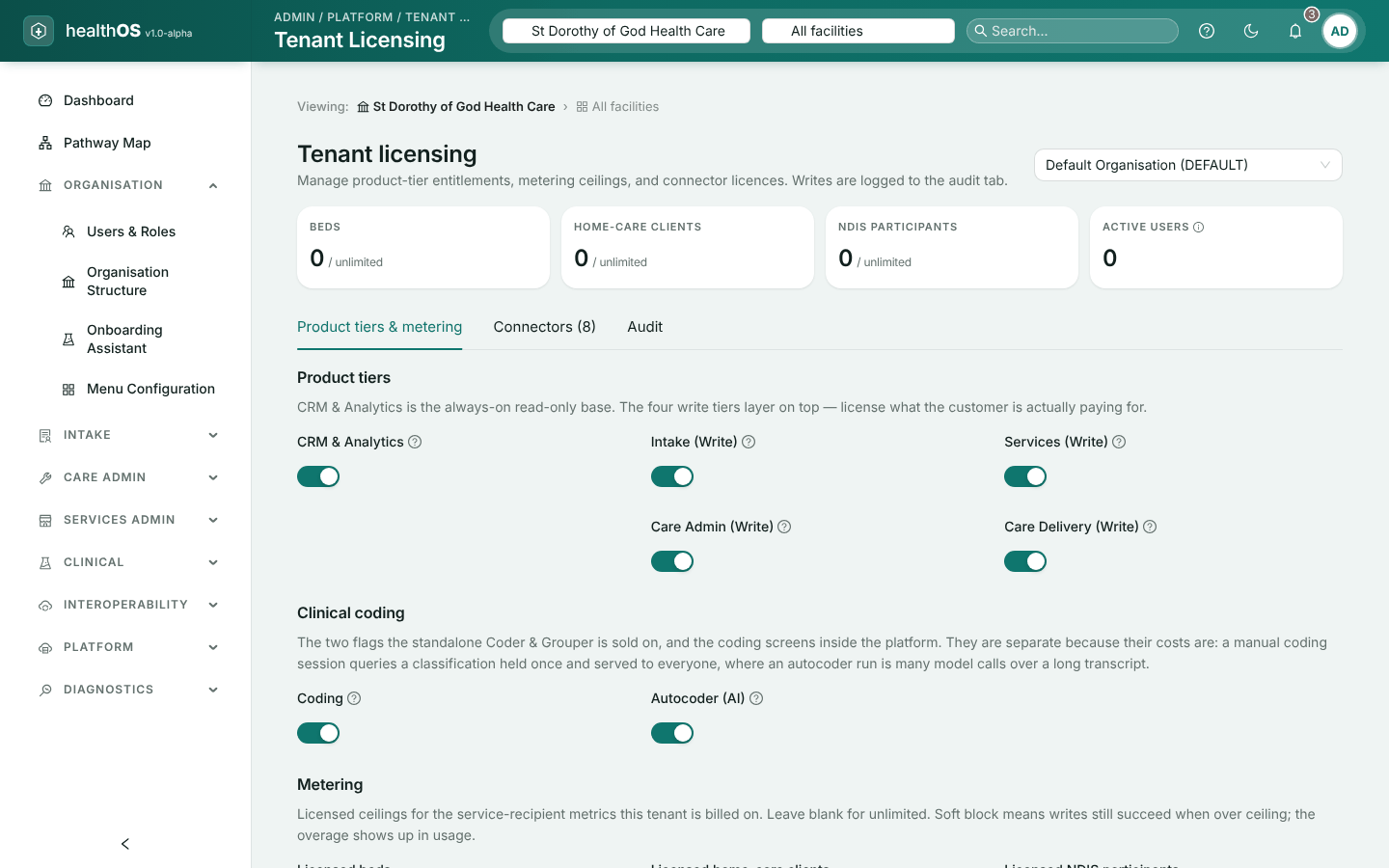
An organisation’s licence decides which modules and connections it can use. See it in Platform › Tenant Licensing. A system administrator can view their own organisation’s licence and its history. Only a global administrator can change a licence: an organisation cannot raise its own.
| Part | Contents |
|---|---|
| Modules | CRM and analytics; intake, services, care administration and care delivery; clinical coding and the AI coder; care minutes; Support at Home quotes |
| Limits | Licensed beds, home care clients, NDIS participants, coder seats and AI coder runs, and what happens at the limit: an alert, a soft block, or a hard block |
| Connections | Which connectors are licensed, and until when |
| History | Every change to the licence and its connectors |
A feature the organisation is not licensed for is greyed out with the reason. Ask your global administrator, or HealthOS, to add it.
Still stuck? Email support@healthos.net.au