Homes and room prices
Each home and the price of each room in it, as you publish them. A residential quote is priced from this page.
Add a home
Open Homes & Room Prices and choose Add a home. It is the same form the Homes screen uses, so a home added here is the same home everywhere in your workspace.
Add a room
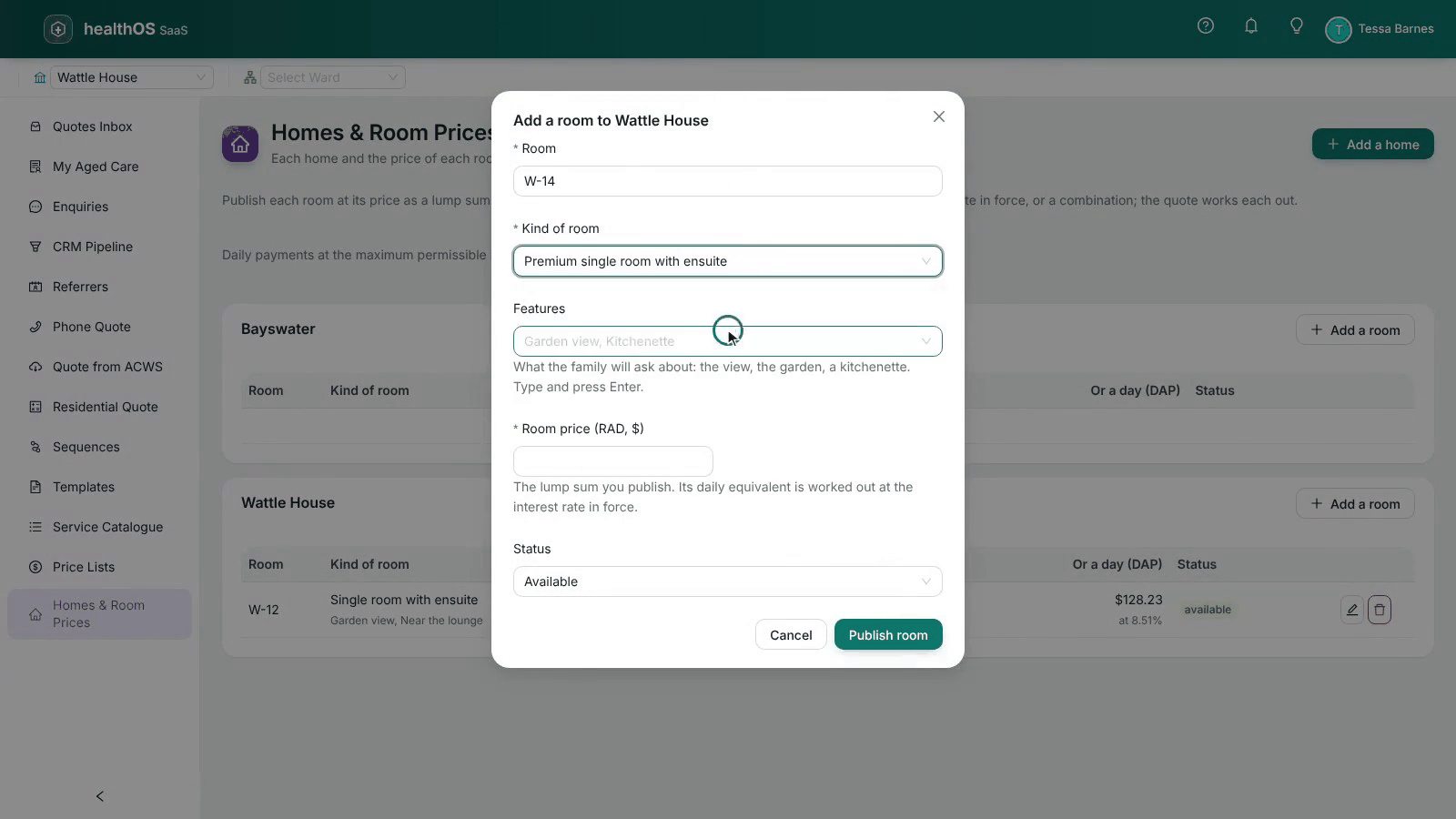
On the home, choose Add a room and fill in:
- Room: its number or name, for example W-12.
- Kind of room: single with ensuite, premium single and so on.
- Features: what the family will ask about, such as the view, the garden or a kitchenette. Type each and press Enter.
- Room price (RAD, $): the lump sum you publish.
- Status: Available, Reserved, Occupied or Not available.
Then choose Publish room.
The daily payment
Beside each room’s price, Or a day (DAP) shows the daily equivalent at the maximum permissible interest rate in force. The rate comes from the national fee schedule your administrator has loaded. While the schedule leaves it to you, enter it in Maximum permissible interest rate (%) on this page or on the quote. Without a rate, no daily payment is shown. A family may pay the lump sum, the daily payment or a combination; the residential quote works each out.
Change or withdraw a room
Use the pencil to change a room. Withdraw takes it off the list: it is no longer offered or quoted.
Still stuck? Email support@healthos.net.au