Quality indicators
Each quarter, every home answers the Department’s Quality Indicators questionnaire. Periscope checks the answers as you type, fills what it can from your own data, and builds the submission for you to lodge.
Who can enter answers
Answers are entered by someone who may submit to GPMS: a person with GPMS submit rights, set up as a submitter in GPMS set-up. Everyone else sees the questionnaire marked Read only. Administrator accounts cannot submit to GPMS, so they cannot enter answers either.
Capture a quarter
Choose the home and the quarter
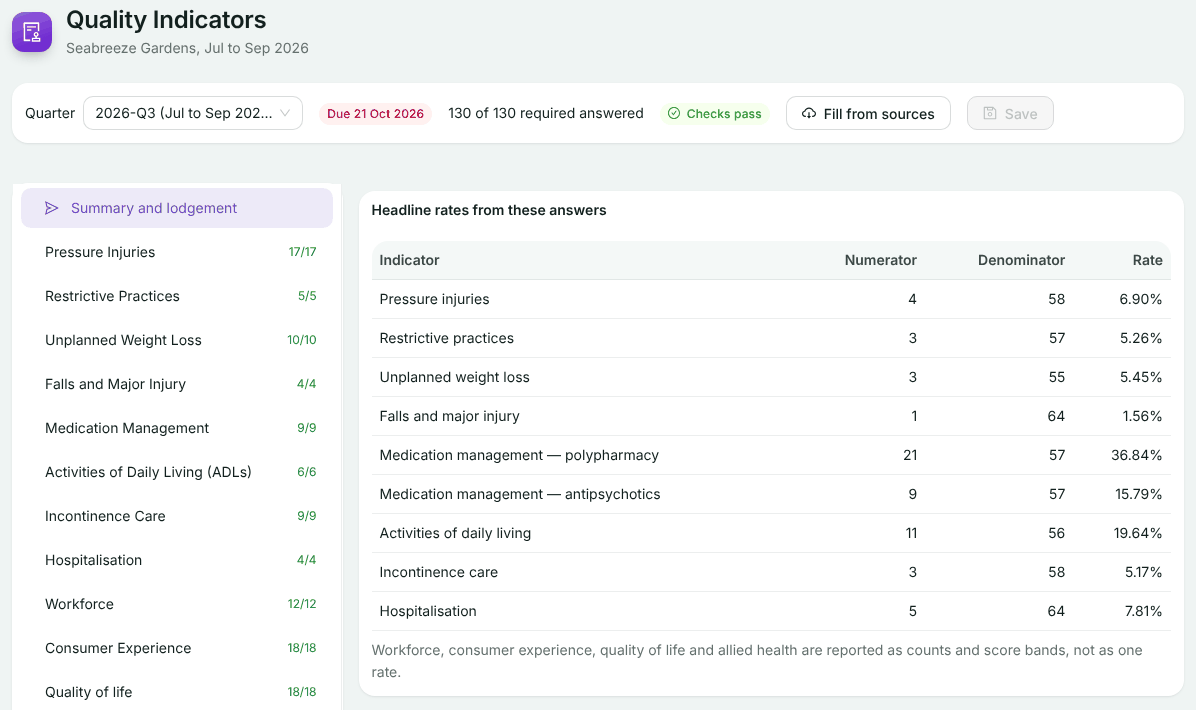
Choose the home in the picker at the top, then open Quality Indicators. It opens on the most recently ended quarter. The top bar shows when it is due (red once overdue), how many required questions are answered, and whether the checks pass.
Work through the sections
Pick a section on the left. Each shows its count of required answers, and a red badge if a check is failing. Questions still to answer say (required).
Fix failing checks
Checks run as you type: a part larger than its whole, score bands that do not add up, or a date outside the quarter. They appear in red at the top of the section.
Save
Choose Save. The button shows how many answers are unsaved. Save before you change quarter.
Fill from your sources
Fill from sources suggests answers from the data Periscope already holds, such as the roster and residents, or a clinical or quality system connected under Data Sources. It shows each suggestion beside your current answer. Tick the ones you want and choose Put N in the form, where N is how many you ticked, then check them and save. A filled answer carries a tag naming its source; typing over it makes it your own.
Build the submission
Open Summary and lodgement
It shows the headline rates your answers produce, and a Ready to lodge? card.
Build
Choose Build the submission for the quarter. It is built and validated: either ready to lodge, or with problems listed for you to fix first.
Lodge
Review and lodge it on GPMS Submissions.
If something goes wrong
- Build is greyed out: save your answers first.
- Nothing to fill from yet: import the roster and residents, or connect a clinical or quality system under Data Sources.
- The answers could not be saved: try again; if it keeps happening, use Contact support in the Help menu, which sends us the screen you were on.
Still stuck? Email support@healthos.net.au