Microsoft 365 mailboxes
Aged Care Purser emails families from your own Microsoft 365 mailboxes: one for each home, and a default. With none connected, Purser sends no email.
In short
- One mailbox for each home, often a shared one such as bayswater@, and an optional default.
- Emails go from the enquiry’s home’s mailbox, else the default.
- Purser reads only the replies to emails it sent, when someone presses Check for replies.
 6:13
Connect a mailbox
Open the set-up
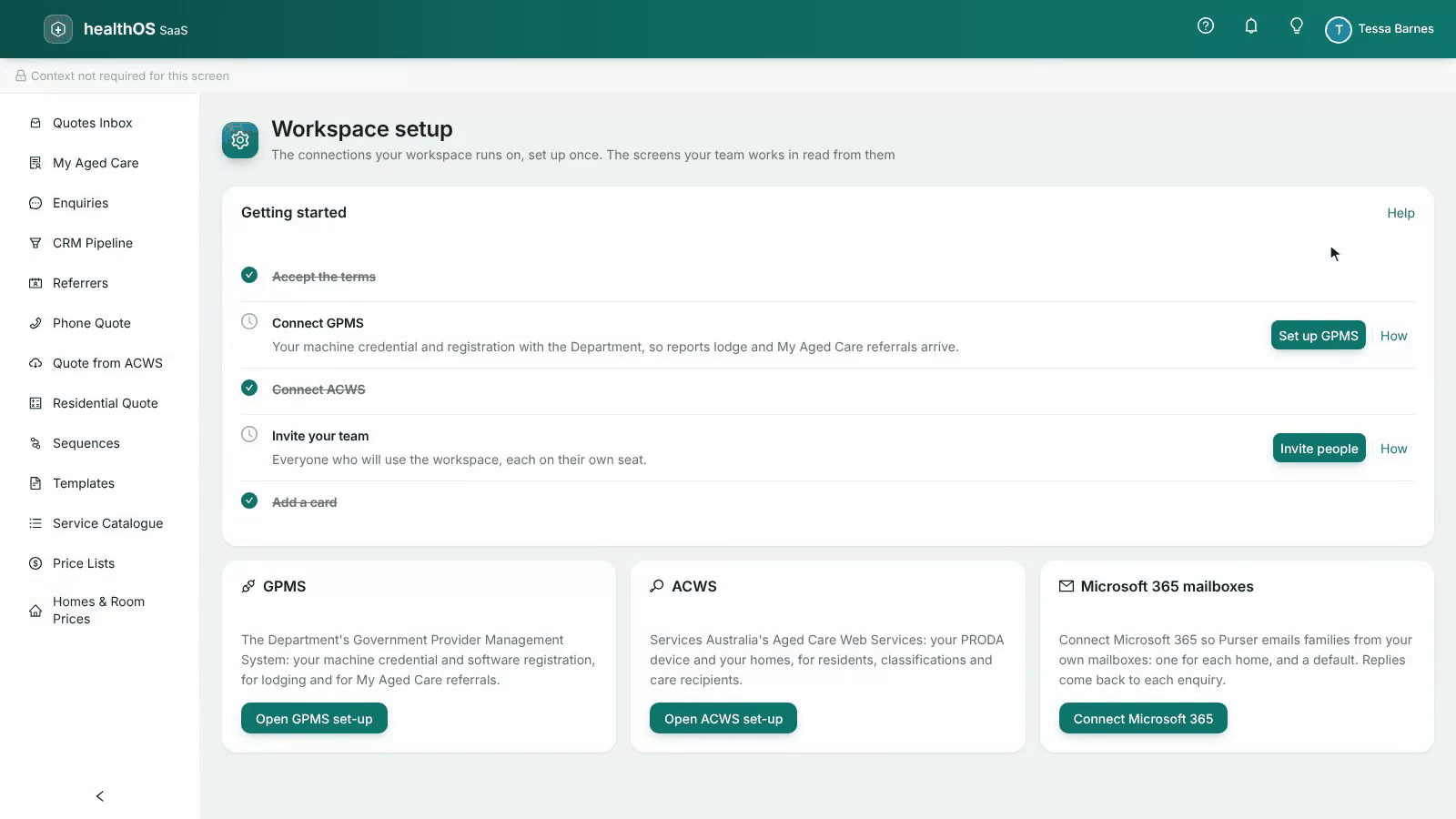
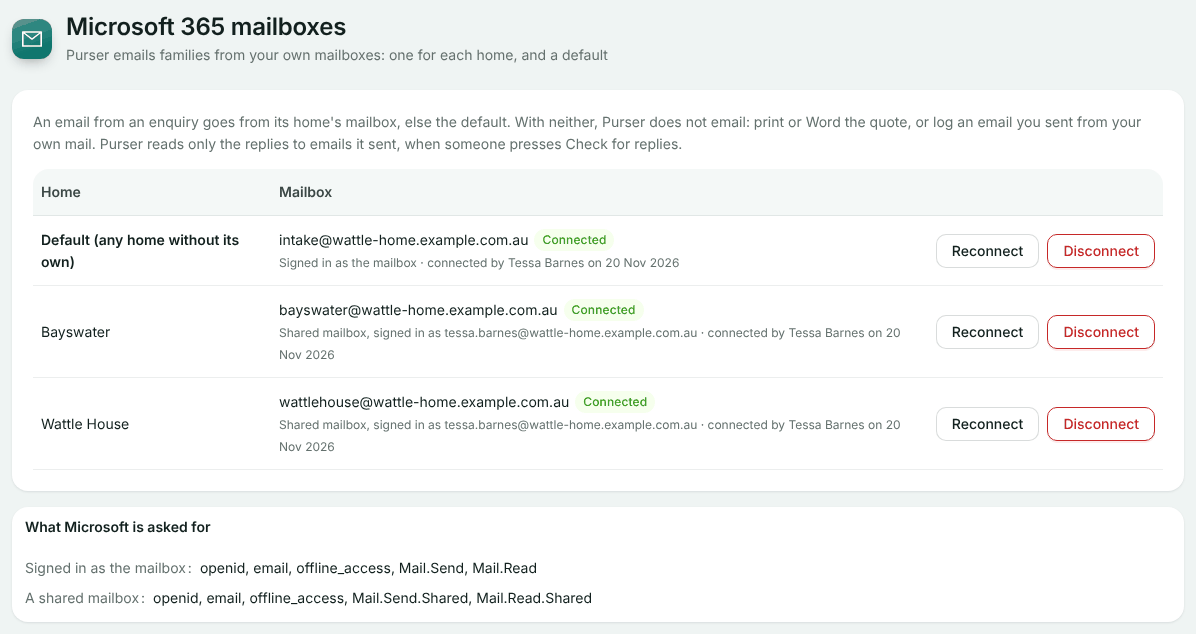
On Workspace setup, the Microsoft 365 mailboxes card has Connect Microsoft 365. The page lists each of your homes, and a Default row for any home without its own. Only the people who run the workspace can connect or disconnect a mailbox.
Choose how you will sign in
As the mailbox itself, for example intake@ your organisation, or as yourself, sending from a shared mailbox you have Full Access and Send As on. For a shared mailbox, enter its address.
Sign in with Microsoft
Microsoft asks you to agree to what HealthOS needs, then sends you back. The page says the mailbox is connected.
What Microsoft is asked for
The page lists the permissions. Signed in as the mailbox: to send mail and read mail as it (Mail.Send and Mail.Read), with your sign-in name and offline access so Purser can keep sending. For a shared mailbox: Mail.Send.Shared and Mail.Read.Shared. HealthOS keeps the sign-in encrypted and never shows it. The Privacy Policy says what is kept.
Which mailbox an email goes from
An email from an enquiry goes from its home’s mailbox, else the default. Set the enquiry’s home with Home at the top of its correspondence. With neither, Purser does not email: print the quote or download it as Word, or log an email you sent from your own mail.
On an enquiry
Open an enquiry from Enquiries or the CRM Pipeline. Above its correspondence, Emails go from names the mailbox, with three buttons:
- Write email: pick a template or write your own. A template’s words are filled in from the enquiry, and you can change them before you send. Choose Preview to see it as it will be sent, then Send.
- Check for replies: looks in the mailbox for replies to the emails sent from this enquiry.
- Log an email: see below.
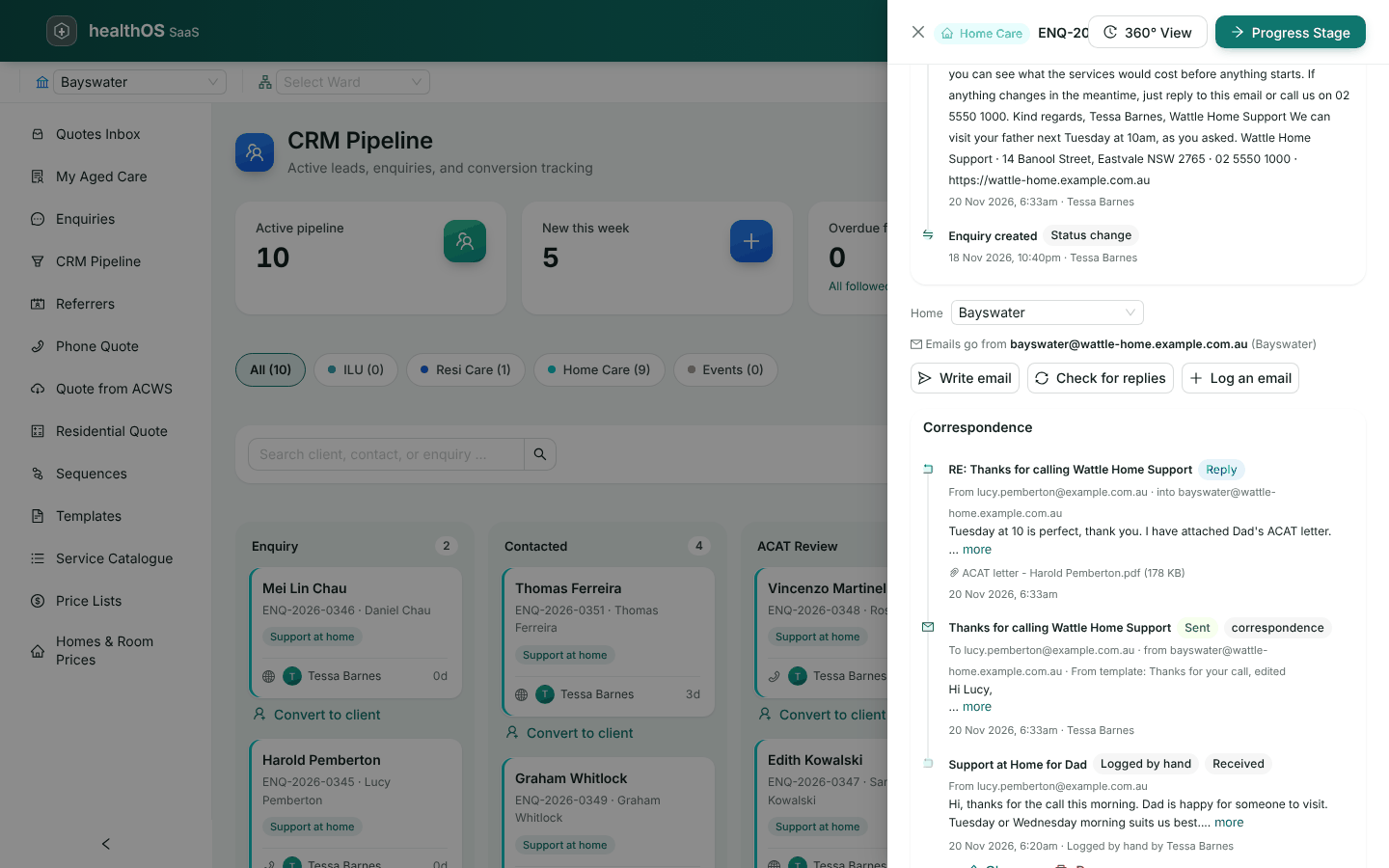
The Correspondence list shows every email in order. One sent from a template says so, “From template” and its name, and adds “edited” when its words were changed.
Replies
Purser looks only at the conversations it started, and keeps a message only when it answers one of its emails. A reply shows its sender, date, subject and text. Its attachments are listed by name and size; the files themselves are not kept. On the CRM Pipeline, Check all for replies checks every enquiry at once. Nothing is checked until someone presses one of these.
Log an email
For an email that went through someone’s own mail, choose Log an email: whether it was sent to them or received from them, when, the subject and the text. It is kept as plain text and marked “Logged by hand”, and you can change or remove it later.
Reconnect or disconnect
If Microsoft stops accepting a mailbox’s sign-in, its row asks you to Reconnect Microsoft 365. A follow-up sequence that was sending from it pauses by itself and says why. Disconnect removes the mailbox and deletes its sign-in.
Still stuck? Email support@healthos.net.au