Setting up your homes
Periscope reports for each of your homes. The Overview walks you through set-up; the Homes screen shows how each home is linked to GPMS, Services Australia and your own systems, and what still needs doing.
The Overview
Overview is Periscope’s start page. Its Set-up card has four steps, each ticked green when done:
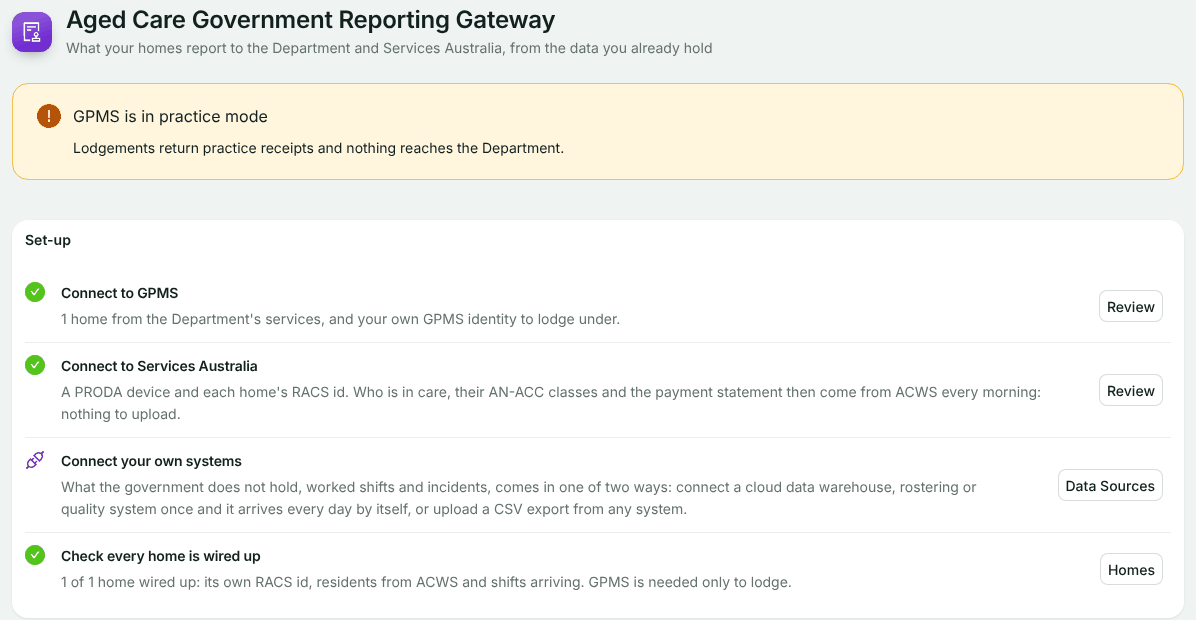
Connect to GPMS
Done when GPMS is set up, has homes, and you have your own GPMS identity. See Connecting GPMS.
Connect to Services Australia
Done when your PRODA device is activated, ACWS is on, and every home has a RACS id. See Connecting ACWS.
Connect your own systems
Your roster, payroll and quality systems, under Data Sources. This step never shows as done, because data keeps arriving. See Getting hours worked in.
Check every home is wired up
Opens the Homes screen, below.
Below the set-up, Reports shows what each report covers and what is due, and Latest lodgements shows your last six lodgements with their status and receipts. If GPMS is in practice mode, a banner says so: lodgements return practice receipts and nothing reaches the Department.
Add your homes
Workspace managers add and edit homes. Either:
- Read homes from ACWS: tick your services from the list Services Australia holds for your PRODA device, then choose Add N homes. A service that is already a home says so.
- Add a home: its name, beds (operational places) and RACS id, up to six digits. A home needs no GPMS link to calculate care minutes, only to lodge.
To change a home, choose Name, beds, RACS id on its row.
Wiring up each home
The Homes table shows how GPMS, Services Australia, your worked shifts and your quality systems each know every home. A home is Wired up when it has a RACS id no other home holds, its residents are read from ACWS, and worked shifts are arriving. GPMS is needed only to lodge.
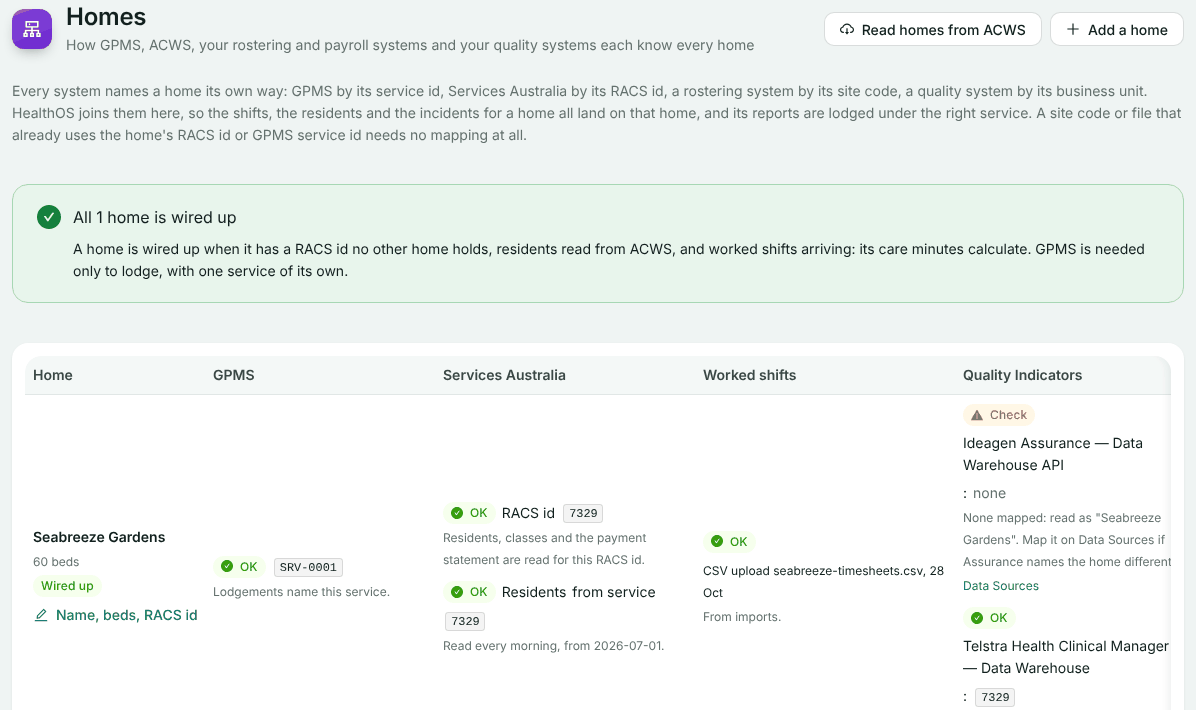
Each cell says what is wrong, and links to the screen that fixes it:
- OK: nothing to do.
- Missing: not linked yet. Follow the link, for example to start reading residents.
- Conflict: two homes claim one identifier, or one home has two. Correct the RACS id or site code on one of them.
- Check: it works, but something needs a look.
The banner above the table counts how many homes are wired up, and how many still need linking to GPMS before they can lodge.
If something goes wrong
- More beds than the subscription covers: choose Change the subscription to add beds, then save the home again.
- ACWS is in mock mode here: there is nothing to read homes from. Add them by hand.
- Services Australia lists no residential services for your PRODA device: check the device is linked to your organisation in PRODA. See Connecting ACWS.
- You cannot see the homes: viewing needs ACWS or GPMS set-up rights, or GPMS read or submit rights. Ask a workspace manager.
Still stuck? Email support@healthos.net.au