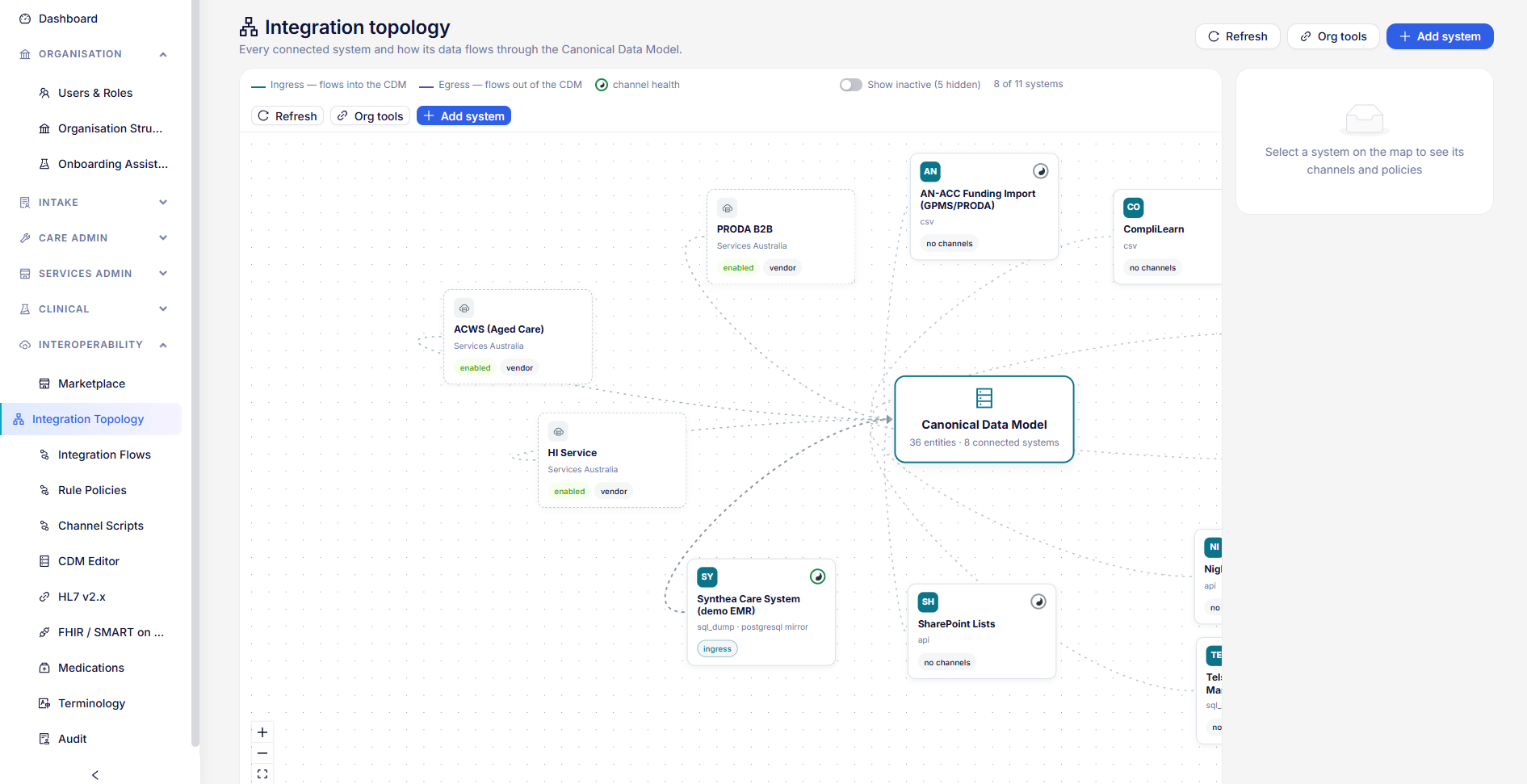
Submitting to GPMS
GPMS Submissions builds each report from your data, validates it, and lodges it with the Department under your own name. Some reports are lodged from HealthOS; others are prepared for you to key into the GPMS portal.
Which reports go where
- Quality Indicators (quarterly) and 24/7 Registered Nurse (monthly): built here and lodged electronically.
- Care Minutes and QFR Staff Hours (quarterly): built and validated here, then entered in the GPMS portal by you. The Department has no electronic lodgement for these.
Building and lodging need GPMS submit rights. Administrator accounts cannot submit, by the Department’s rules, so the person lodging needs their own submitter account; see Connecting GPMS.
The banner at the top says which GPMS environment you are connected to. In mock or practice mode, lodgements return practice receipts and nothing reaches the Department.
Build a submission
Choose the home
Choose it in the picker at the top of the screen.
Choose the report and period
In Build a submission, choose the report, then the month (24/7 RN) or quarter (the others).
Build
Choose Build. It is validated as it is built. If there are validation errors, open it with View to see each one.
For a 24/7 RN report, first record every RN gap and the month’s declaration on Care Minutes; see 24/7 RN gaps. For Quality Indicators, answer and build the questionnaire first; see Quality indicators.
Declare and lodge
Check it
View shows the validation results and the exact data that will be lodged.
Submit
On a validated submission, choose Submit. Read the declaration: that the information is complete and correct, and that you are authorised to submit it for this service. It is recorded against your account.
Keep the receipt
When GPMS accepts it, the receipt number is shown on the row and in the submission’s details.
Reports entered in the portal
A Care Minutes or QFR build shows Prepared for portal entry. Open it and choose Download for portal entry or Print, then key the figures into the GPMS portal yourself.
What the statuses mean
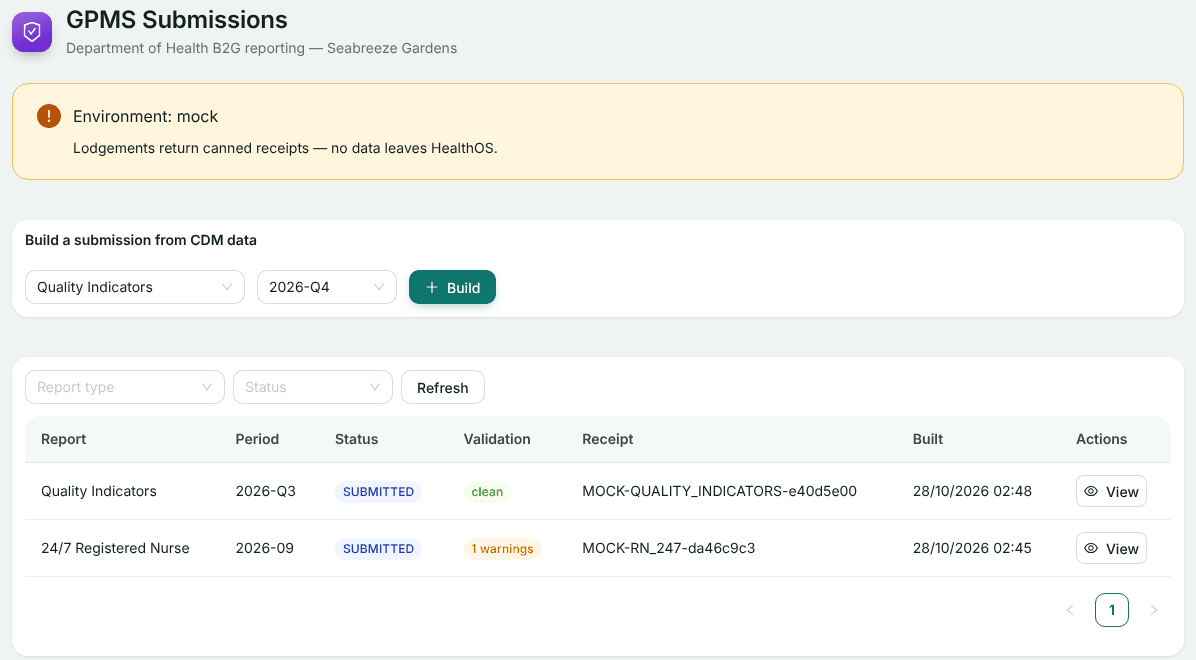
- draft: built with validation errors; fix them and build again.
- validated: ready to submit.
- submitted: sent to GPMS, waiting for its answer.
- accepted: lodged, with a receipt.
- rejected: GPMS refused it; the reason is in the submission’s details under Last error.
- superseded: replaced by a newer build of the same report and period.
If something goes wrong
- No Submit button: the submission has validation errors, or your account does not have GPMS submit rights. Ask a workspace manager to make you a submitter.
- GPMS B2G is not configured: finish GPMS set-up.
- A submitted or accepted submission already exists when you build again: a lodged report cannot be rebuilt from here. To correct one, use Contact support in the Help menu.
- GPMS rejected the submission: read the reason, fix the data, build again and resubmit.
Still stuck? Email support@healthos.net.au