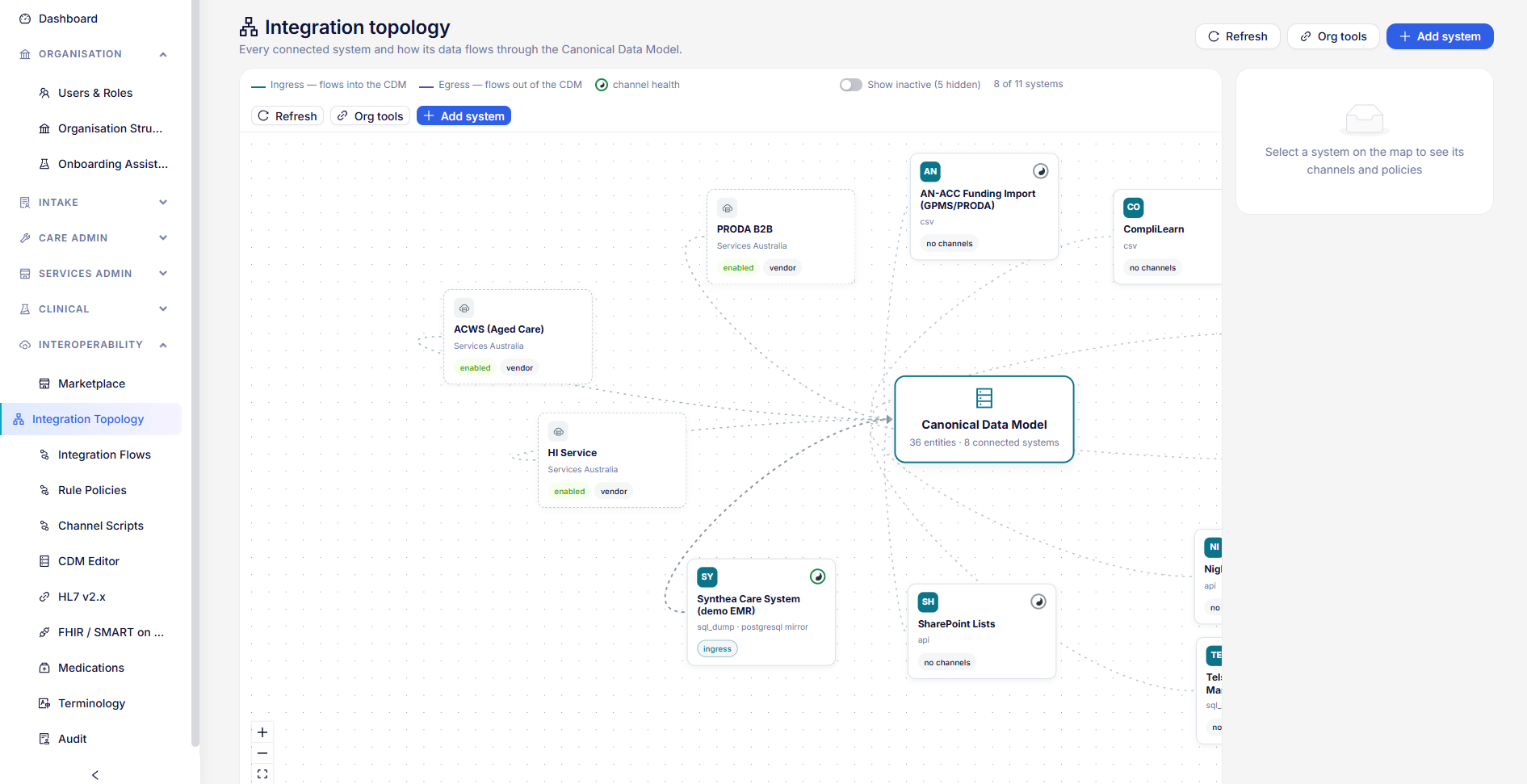
Care minutes and 24/7 RN
Periscope works out each home’s care minutes and registered nurse coverage from the hours worked and your residents’ AN-ACC classes. This is how to read it, and what to do about a gap.
Before you start
- Set up your homes and check each is wired up: see Setting up your homes.
- Connect ACWS, so your homes and residents come from Services Australia. Connect GPMS too if you will lodge from HealthOS.
- Bring in the hours worked: see Getting hours worked in.
- Choose the home in the picker at the top of the screen. Care Minutes shows one home at a time, and says Select a facility until you choose one.
The quarter so far
Open Care Minutes and choose the quarter. The figures recalculate by themselves as shifts and AN-ACC classes arrive; the refresh button beside the quarter recalculates now.
- Care minutes per occupied bed day, against the target: green at 100% or more, amber from 90%, red below.
- RN minutes per occupied bed day, the RN share and the Agency share (amber above 10%).
- Remaining quarter requirement: the care and RN minutes needed each day for the rest of the quarter to reach the target. For a closed quarter, whether it closed on target and by how much it was short.
- The daily table marks each day On target, Short or RN short. Expand a day to see where its figures came from.
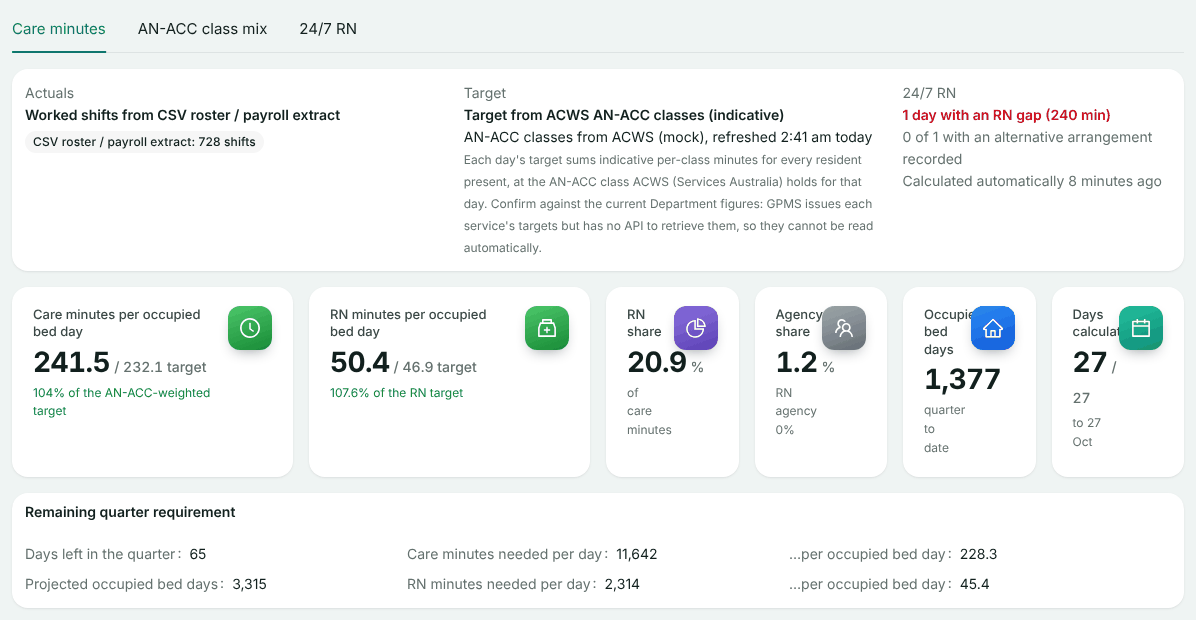
The targets are indicative. The Department sets each service’s targets in GPMS and does not publish them to software, so confirm them against the current Department figures.
AN-ACC class mix
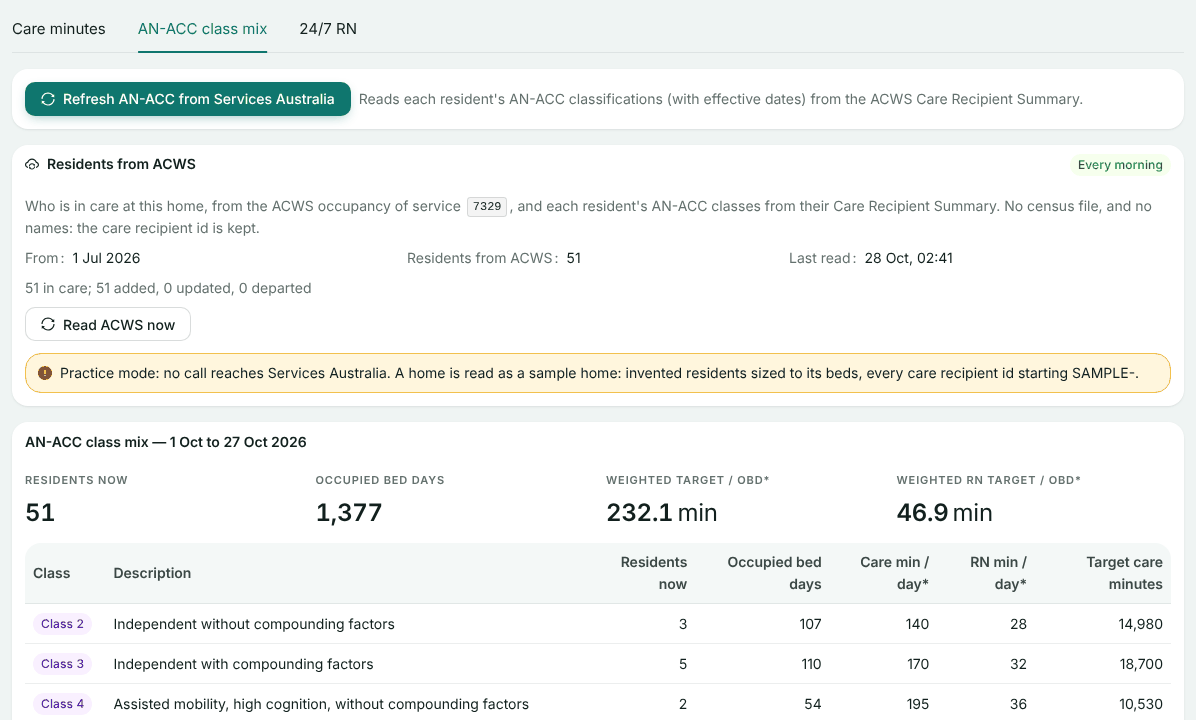
The AN-ACC class mix tab shows how many residents are in each class, their occupied bed days and the target minutes they bring.
Start reading residents
In Residents from ACWS, choose the date to take residents from (within the last year) and choose Start reading ACWS. From then on it reads every morning. A workspace manager or the care minutes manager starts this.
Refresh classes
Refresh AN-ACC from Services Australia reads every resident’s classes now and lists each change, for example “Class 7 → Class 9 from 3 August”.
Check the payment statement
Choose a Statement month to compare what Services Australia paid for, class by class, with the bed days HealthOS counted. Matches means they agree; otherwise the difference is shown in days.
If the card says This home has no RACS id, add it in ACWS set-up first.
24/7 RN gaps and the declaration
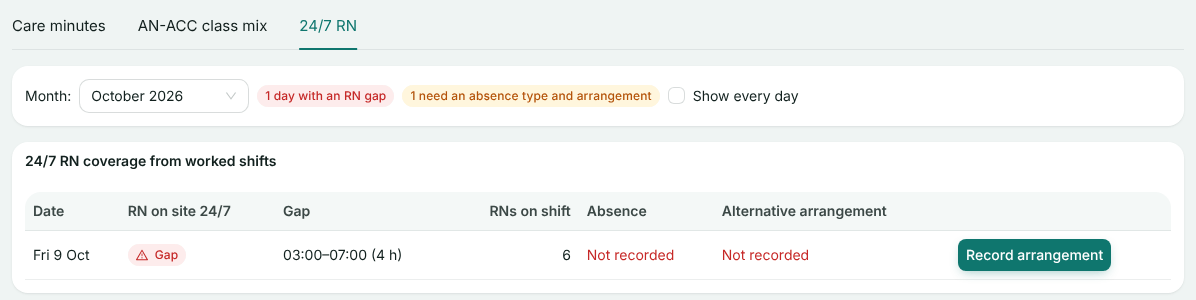
The 24/7 RN tab shows, month by month, every day an hour went without a registered nurse on site. Each gap needs an arrangement recorded before the month can be reported.
Record each gap
Choose Record arrangement on the gap. Pick the Absence type (planned or not planned) and the Alternative arrangement, such as an enrolled nurse on site with an RN on call, or a virtual RN service. Add who held delegated authority and any notes, then Save arrangement.
Declare the month
When every gap is recorded, tick the declaration that the month’s RN attendance information is complete and accurate, and choose Record declaration. The button stays off until every gap has an arrangement.
Lodge it
Build and lodge the 24/7 RN report on GPMS Submissions.
QFR staff hours
QFR Staff Hours shows the staff hours section of the Quarterly Financial Report from the shifts already in HealthOS, for one home or all of them. It opens on last quarter.
- Worked hours by staff category, employee and agency, by the care role each roster code is mapped to. A role split across care types is shared across them, the way Inerva splits a department’s hours: a 4-hour lifestyle shift at 15% personal care and 85% lifestyle counts 0.6 hours as personal care and 3.4 as lifestyle. Hours on codes not yet mapped show as “Not mapped” until you map them on Roster & Payroll Import.
- By shift: AM, PM or Night by start time, on the shift windows set in the Care Time Audit (07:00, 14:30 and 21:00 unless changed).
- Paid hours not worked, by roster code: lines whose hours type is Not worked, such as leave. They are kept for the QFR and never counted toward care minutes. Penalty lines are left out, because their hours are already on the shift’s own line.
Export downloads the quarter as a spreadsheet (CSV) in the QFR’s staff categories, to copy into the report. HealthOS does not lodge the QFR.
If something looks wrong
- No care minutes calculated for this quarter yet: bring in the hours worked, or choose the recalculate button.
- A day is short but the staff were there: check the import’s exceptions, an unmapped pay category leaves hours out. See Common exceptions.
- Targets look low or high: refresh AN-ACC, then check the class mix against the payment statement.
Still stuck? Email support@healthos.net.au