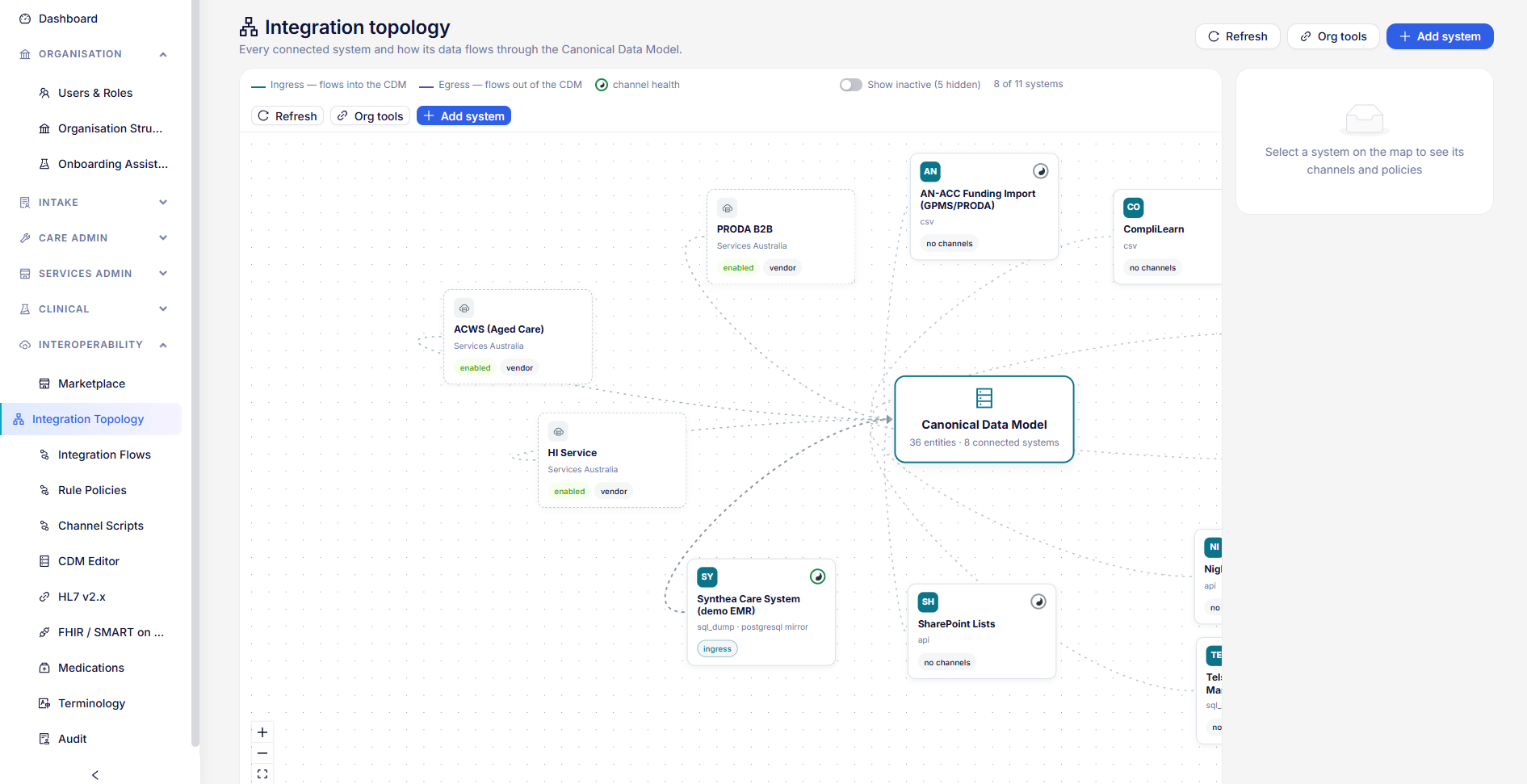
Services administration
Following delivered services through to payment, working the task queue, and sharing activities with families.
Service pathways
Service pathways are built like every other pathway: see Pathways.
Billable events
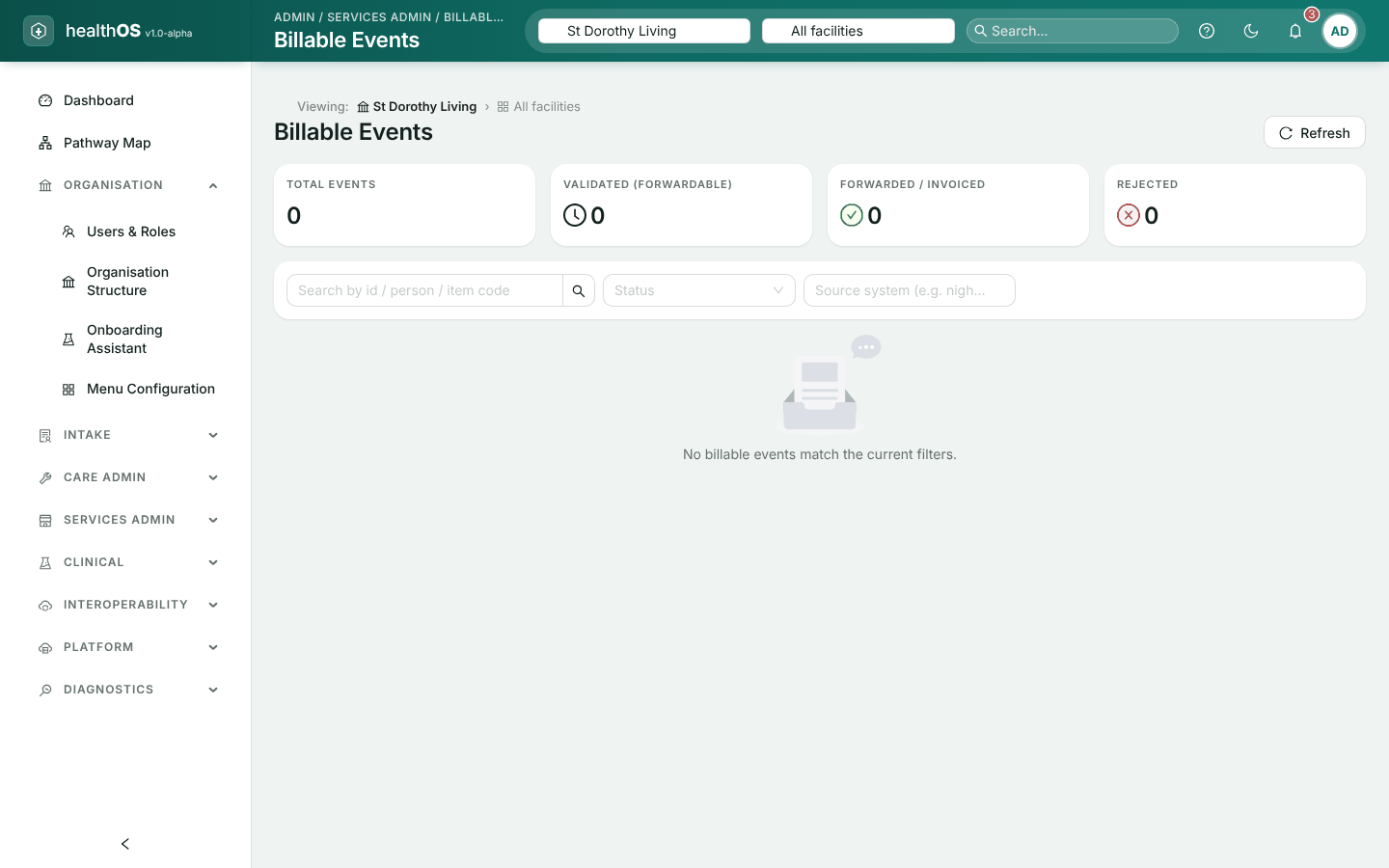
Billable Events lists the visits and services delivered by your service delivery systems, and tracks each one through to payment: received, validated, forwarded, invoiced, paid and reconciled.
- Forwarding. Validated events are forwarded to your billing system automatically, every few minutes.
- Finding an event. Search by id, person or item code, or filter by status or source system. Choose an event to see its amounts (rate, billable amount, subsidy and the client’s contribution), its history and the message it arrived in.
- Sending one now. Choose Forward to billing on a validated event. This needs the permission to sync with the billing system.
- Rejected events. Filter by Rejected and open the event: the reason is shown in red. Fix the cause in the delivering system so it sends the event again.
Work queue
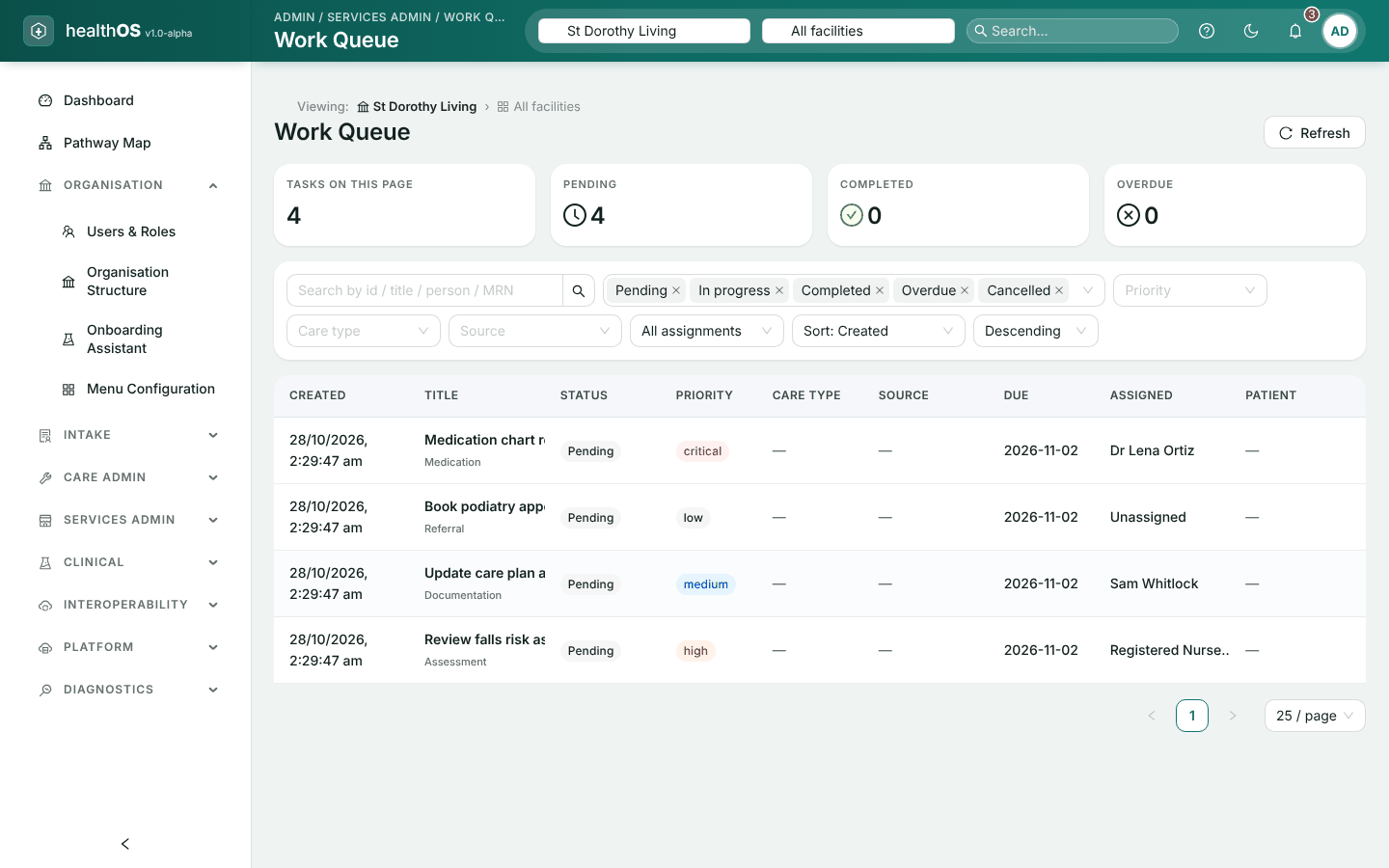
Work Queue lists every task in the organisation, whether a pathway, a service request, an alert or a person created it. Staff can take an unassigned task from their own role’s queue, and complete or comment on any task. Passing a task on, releasing or cancelling it is for the person holding it, the person who created it or a supervisor (a nurse unit manager, care coordinator, case manager, operations, aged care or health information manager, or an administrator). Editing a task’s details here needs settings rights, and deleting one an administrator.
Find the work
Filter by status, priority, care type, source or Unassigned only, and sort by created date, due date, priority or status. The counts at the top cover the page you are looking at.
Assign it
Open a task, enter a name or role in Assigned to, and choose Save changes. Every change of assignment is kept in its history.
Change it
Change its priority, due date or description, and save.
Close it
Choose Complete, or Cancel if it is no longer needed.
Add a note to a task with Post comment.
Activity stories
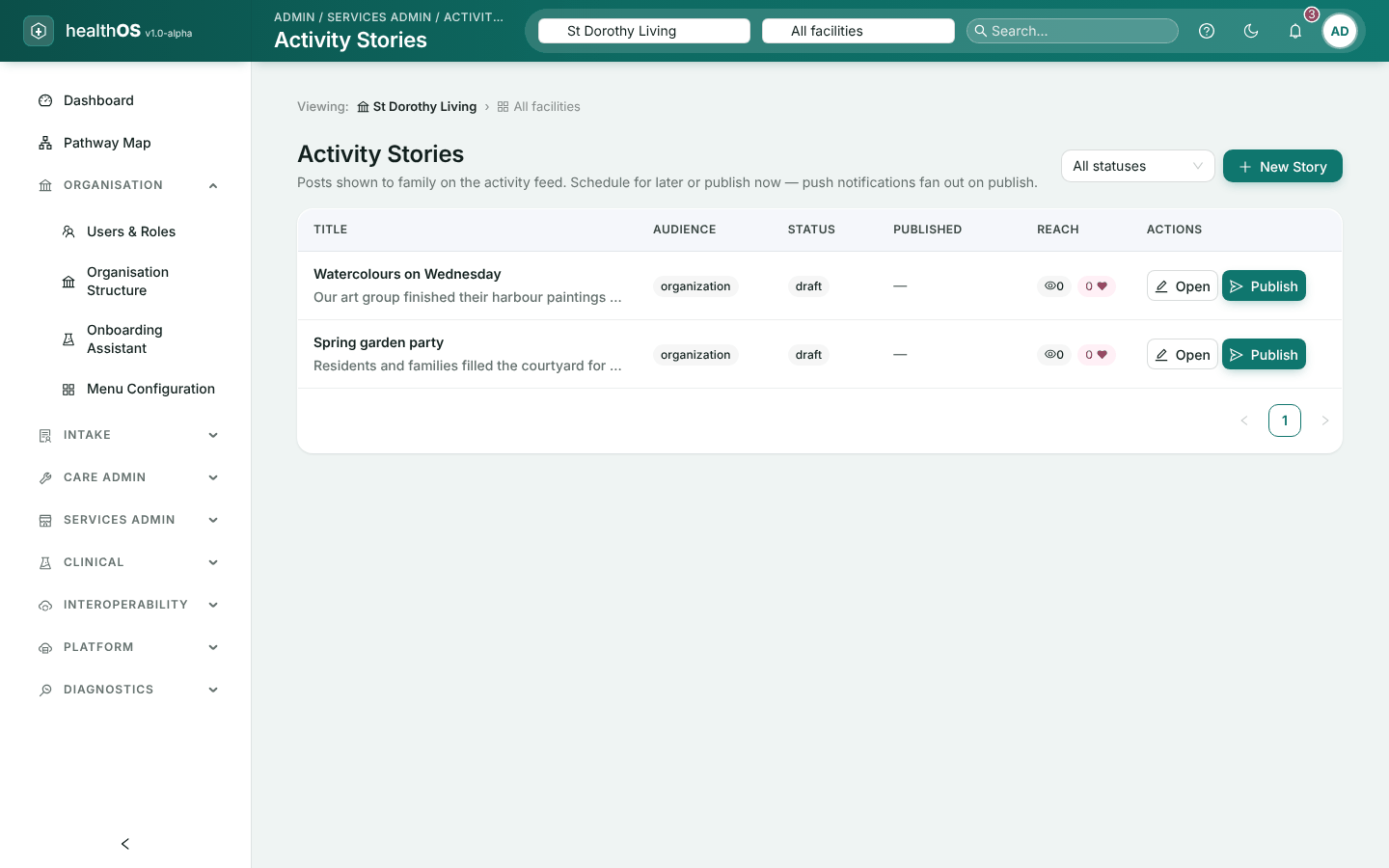
Activity Stories are photo and video posts for families, shown in the activity feed of HealthOS Connections and the mobile app. Publishing one sends families a notification.
Write it
Choose New Story, give it a title and text, and choose who sees it: the whole organisation, one facility (and everything under it), or one resident’s family.
Set the expiry
Set Expires if it should disappear on a date. Do this before publishing: a published story cannot be changed.
Save as draft
Choose Save as draft.
Add photos and videos
Open it and choose Add photo / video. Each file can be up to 25 MB.
Publish
Choose Publish now. The message says how many notifications were sent.
- Consent first. Only share photos of residents who have consented to them.
- Publish at records when a story is meant to go out. Publish it yourself at that time.
- Archive takes a published story off the feed.
- Who can change a story. Any staff member can write one. Once written, only its author or a manager can edit, publish, archive or delete it.
Still stuck? Email support@healthos.net.au