Finance
Pay worked out under the award from what the care worker app recorded, and a Support at Home month end prepared from the visits delivered, lodged with Services Australia and reconciled to the payment.
Where things are
- Under Workforce: Timesheets & UKG and Pay Rules.
- Under Billing: Finance Overview, Invoice Run and Price Lists.
- Support at Home month end, with the other Services Australia screens under Government Services.
 4:07
Travel and cancellations
The care worker records the kilometres as they check out: from the last client or home, and with the client in the car. What is charged for them follows Travel charged on a visit in Budget Management, Settings, priced per kilometre from the item you chose. Until you choose, travel is not charged.
A cancellation by the client inside the notice window on their price list is charged on the terms you entered there: a share of the visit’s price or a flat fee. A cancellation by the worker or by you is never charged. Time the worker marks as not chargeable on check-out is left off the client’s bill and still paid to the worker. See Travel and cancellations in the set-up guide.
The award rule set
Pay is worked out from an award rule set. On Pay Rules, under Award rule sets:
Start one
Choose New from SCHADS template. It is the Social, Community, Home Care and Disability Services award’s structure, with only what has been checked against the award filled in.
Fill it in
Enter each value from the current award, with the clause it comes from: casual loading, weekend and public holiday rates, overtime, minimum shifts, broken shifts, rest between shifts, sleepovers and the vehicle allowance, and Shift loadings as the award defines them. Set when it is In force from.
Have it reviewed
Someone other than the last person to edit it chooses Mark reviewed, names the award version they checked it against, and confirms. Draft timesheets are priced from it when next built or edited.
Until a rule set is reviewed, timesheets show their hours and no pay. Editing a reviewed set sends it back for review. Under Worker pay terms, choose a care worker and New pay terms for their classification level, pay point, Base hourly rate from the current pay guide and any guaranteed hours. A new version closes the old one the day before it starts.
Timesheets
Build them
On Timesheets & UKG, pick the pay period (Last week, This week, Last fortnight or your own dates) and choose Build / refresh timesheets. Each worker’s timesheet is built from the shifts, breaks, visits and kilometres the worker app recorded.
Review each one
Open a timesheet to see its time by activity, its award pay, its shifts and its visits, with whether each check-in was at the client’s address. Correct a shift’s times where needed, and Resolve each exception with what was done about it.
Approve
Choose Approve once the exceptions are resolved. To change an approved timesheet, choose Reopen and give the reason, which is kept in its audit trail.
Sending pay
The Payroll sync tab sends approved, priced timesheets to Xero Payroll AU. Choose Preview to see who will be sent and who is left out, then send them to Xero as drafts for your pay run (Send, with the number of timesheets, to Xero as drafts). In Mock mode it records what would be sent and sends nothing. Xero pays each pay category at its earnings rate, so each rate’s multiplier must match the reviewed award rule set. Sync history lists every batch; sending a period again asks why, because hours already in Xero would be paid twice.
For UKG, choose Export to UKG: it makes the punches file and the pay code edits file for UKG’s data import, with the pay codes and file layout set under Pay codes & file layout. UKG export history keeps each export with its files, and a timesheet already exported only goes again by Re-export, with a reason. For any other payroll system, talk to us: it is tested with you before your first pay run.
Support at Home month end
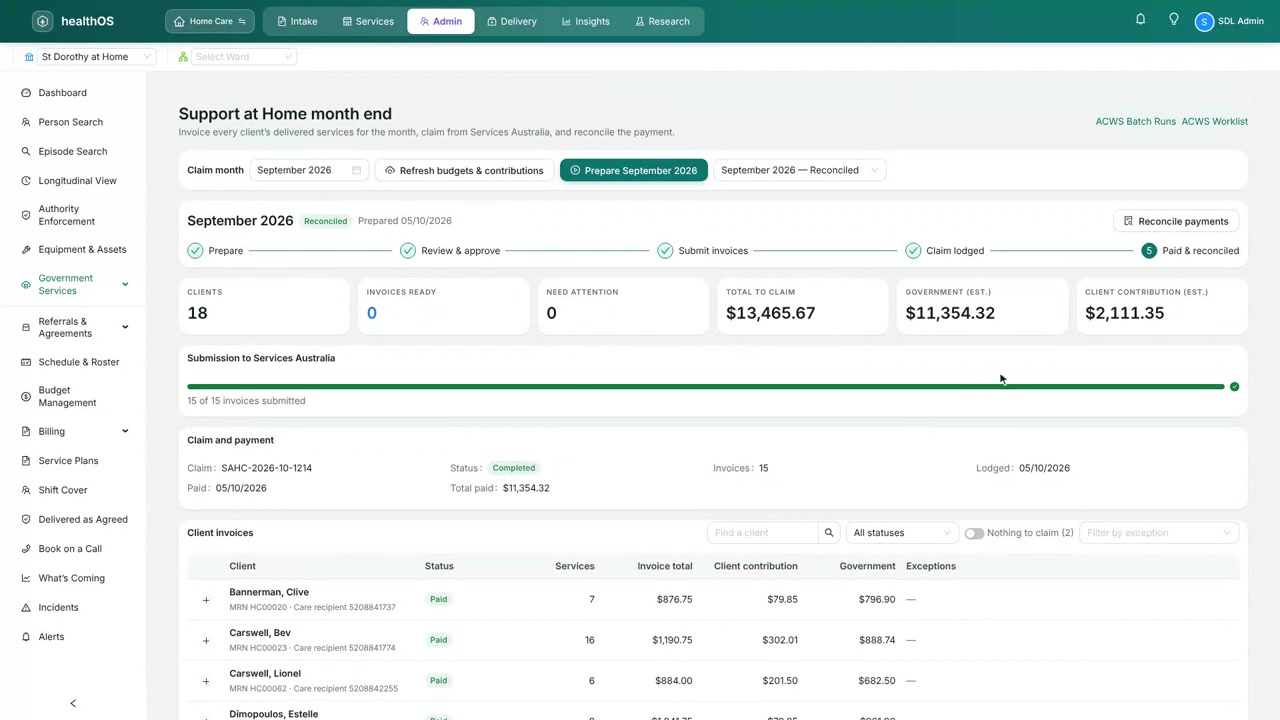
Support at Home month end invoices every client’s delivered services for the month, claims from Services Australia through Aged Care Web Services, and reconciles the payment. Its steps run across the top: Prepare, Review & approve, Submit invoices, Claim lodged and Paid & reconciled.
Prepare
Pick the Claim month. Choose Refresh budgets & contributions to read every client’s quarterly budget and contribution rate from Services Australia, then Prepare the month. Each client gets a draft invoice built from the services delivered to them that month.
Review and approve
The totals show the invoices ready, those that need attention, the total to claim, and the government’s and the clients’ estimated shares. Filter to the exceptions and fix what each one names. Leave off a single line, or Exclude a whole client with a reason: their services stay available for a later run. Then choose Approve all ready, or Approve clients one at a time. If services change, Re-prepare builds the drafts again from the latest services.
Submit
Choose Submit batch and confirm. Each invoice is submitted, then the provider claim is lodged; this runs in the background, and progress appears on the page. An invoice that fails stays approved and goes again on the next submit.
Reconcile
Once Services Australia has paid, choose Reconcile payments. The page shows the claim and what was paid against it.
Cancel run discards a run’s drafts before it is submitted.
Billable and paid hours
The Billable vs paid hours report sets, worker by worker, the hours billing charged for against the hours their timesheets pay on those days: client time, other time on shift and travel. Choose a range of up to three months. Paid, not billed is usually a timesheet not yet built for the period, or a visit checked out by someone else, so check the timesheets before payroll.
Invoices and the family’s share
A completed visit becomes a billable line. On Invoice Run, choose the period, then Capture completed visits if any are missing. Preview by payer shows what each payer will be invoiced: the client for fee for service and private top-ups and their contributions, a brokering provider for the clients it brokers to you, and Commonwealth Home Support Programme fees. Then choose Generate drafts to check them first, or Generate and issue. An issued invoice takes the next number in the series and can then only be corrected with a credit note. To leave a visit off, Void its billable line and say why it is not billable.
The client and their family see the invoice in HealthOS Connections, the family portal, beside the schedule, who visited and the budget. The person who pays can choose Share with family to ask named family members to contribute a set amount each, and see who has paid.
Still stuck? Email support@healthos.net.au