Coordinating care
From the My Aged Care referral to a signed service agreement, then the day’s visits: who goes where, what happens when someone calls in sick, and what the field tells the office.
Where things are
- Referrals & Agreements: Referrals, My Aged Care, Budgeting Tool and Quotes & Agreements.
- Schedule & Roster: the day grid, the week’s shifts, rescheduled visits and the roster generator.
- Shift Cover, Incidents, and under Workforce, Leave & Reallocation and Shift Swaps.
- Field Messages for what care workers send the office.
 2:03
Referrals
Home Care Referrals holds your My Aged Care referrals beside brokered and direct ones. My Aged Care referrals arrive through the government's provider system; see The My Aged Care screen for syncing and importing them.
Open it
Choose Open to read the referral, or Quote to start a quote for the person straight away.
Accept it
When the person goes ahead, choose Accept. HealthOS lodges the Support at Home entry event with Services Australia and makes the client record active.
The quote and the budget
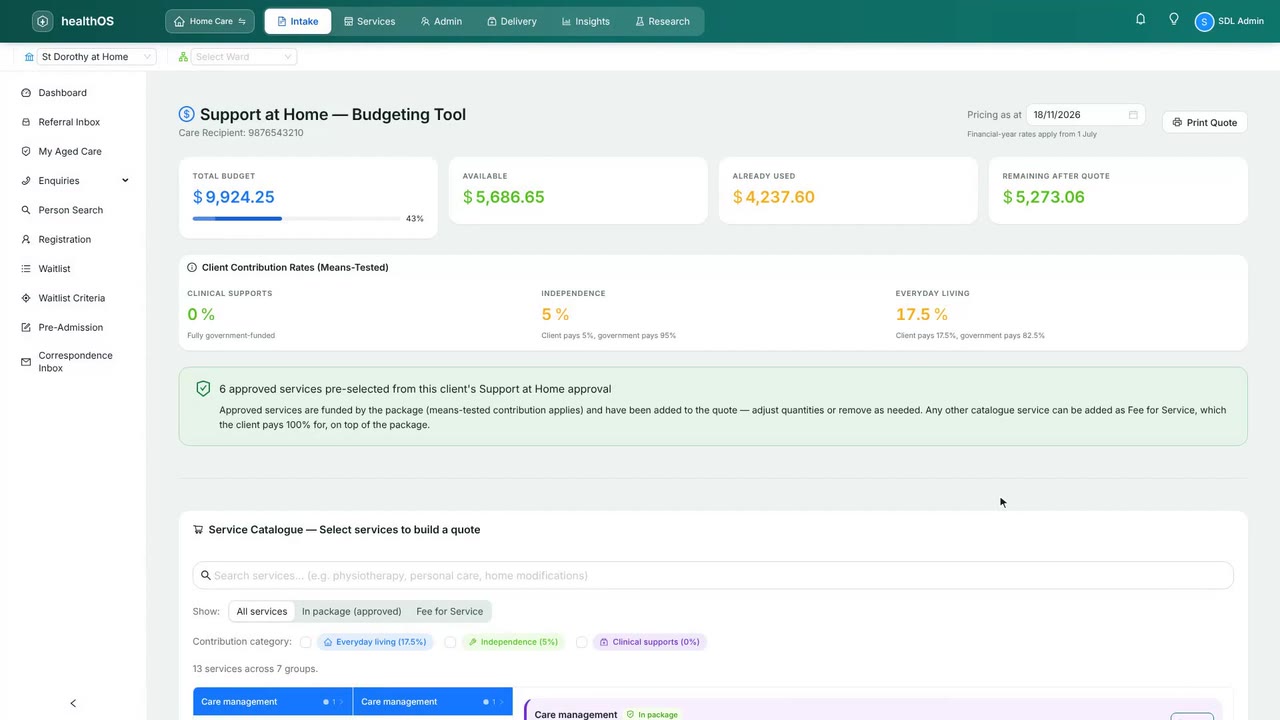
A quote starts from what Services Australia holds for the person: their classification, their budgets and what is left, their contribution rates and the services they are approved for.
- From a referral or a client: on Quotes & Agreements, choose New quote and pick the client. The Budgeting Tool opens with their approved services already added, priced from their price lists.
- For someone who is not yet a client: open Quote from ACWS, enter their care recipient id, surname and date of birth, and choose Look up in ACWS. Services Australia releases the record only when all three match. Start the quote adds them as a client, or brings their record up to date.
In the Budgeting Tool, change quantities, or add a service from the catalogue. An approved service is paid from the package, with the client’s contribution; any other service is added as fee for service, which the client pays in full. The totals show what the government pays, what the client pays and what is left of the budget. A rate above the government cap needs a reason before the agreement can be made. Choose Print Quote or Email Quote to give it to the family.
Each client’s record shows their Support at Home budget as Services Australia holds it today; choose Fetch from ACWS to read it again. Budget Management shows every client’s quarterly budget, highest risk first, with what is spent, committed and projected to the end of the quarter.
The service agreement
Make it
When the family agrees, choose Generate Home Care Agreement in the Budgeting Tool. The quote is saved as the client’s service plan and the agreement is drafted from it.
Send it
On Quotes & Agreements, open it and choose Open the agreement to send and sign. The client or their family signs it online in HealthOS Connections, from one emailed link.
If the link has not been used
Choose Resend link. The old link stops working. With no email address on file, copy the new link and share it, or choose Sign in person: the signer types their full name and you tick I witnessed the agreement being signed.
Once it is signed, the service plan is active and the visits can be scheduled.
The day grid and roster
Schedule & Roster has a tab for each way of looking at the work:
- Today, This Week, Upcoming and Past Visits: the visits as lists.
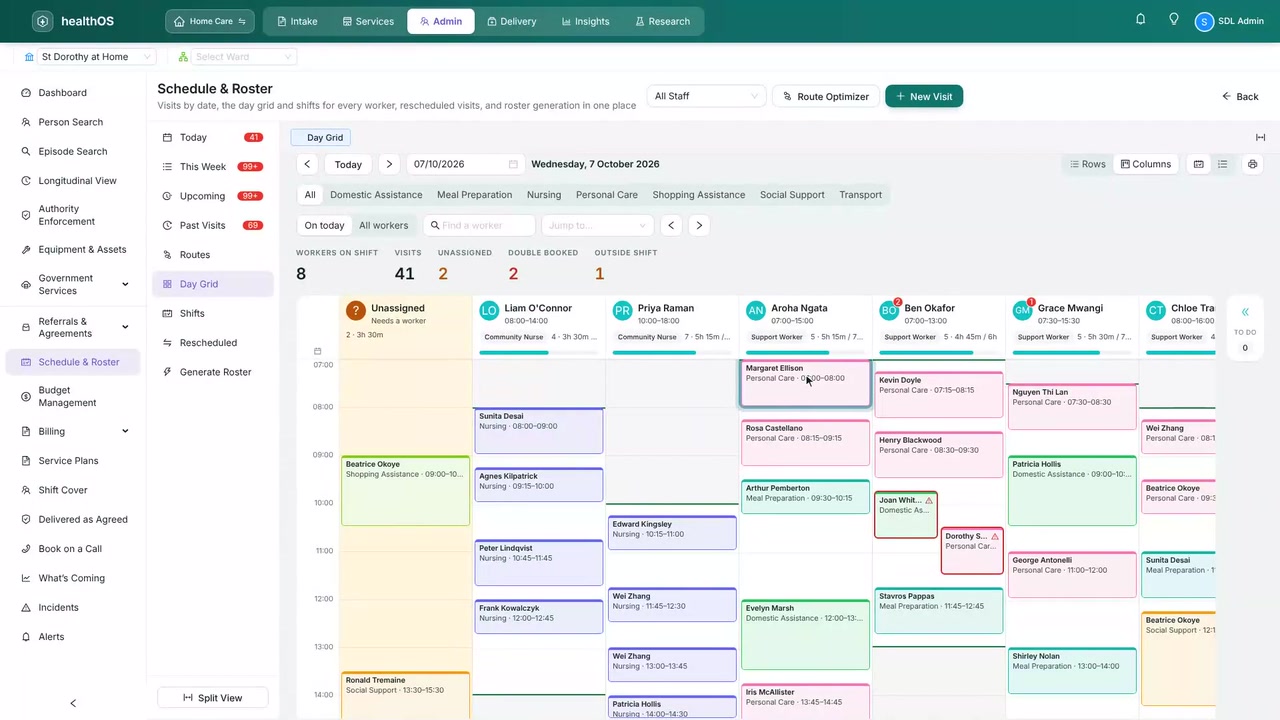
- Day Grid: every worker’s day, their rostered shift and the visits booked in it, with anything unassigned, double booked or outside a shift picked out. Workers can be shown as columns or as rows. Drag a waiting service request from the side panel onto a worker to book the visit; it is refused if it would double book them.
- Shifts: the week’s roster. Generate from availability fills the week from each worker’s availability.
- Rescheduled: the Reschedule history of every visit moved, with who moved it and why.
- Generate Roster: proposes a worker for each visit over a date range. Accept, swap or skip each suggestion before it is saved. A worker who does not hold the credentials a service needs is left out.
 3:09
Moving a visit
On the Day Grid, drag a visit to another worker or time, or drag its end to change how long it runs. You can also click a visit and choose Reschedule. The Reschedule visit dialog opens filled in with the new slot. Under Check before rescheduling it lists any clash or a time outside the worker’s shift. Enter the Reason, such as Client request, and choose Reschedule. The reason stays in the reschedule history, so the next person can see why the visit moved.
Open shifts
Shift Cover sends a shift that needs covering to every worker cleared for it. The first to accept gets it, and it goes straight onto their schedule.
Describe the shift
Under A shift that needs covering, enter the Day, From and Until, the Service, Where it is and Why is it open? Under Must hold, choose what a worker must hold to see it at all. Set Client asked for only if the client asked for a female or a male worker. Add the Rate per hour, How urgent it is and Answer within (hours).
Send it
Choose Send it out. Workers see it under Open shifts in the worker app, and get an alert if they turned alerts on.
See who can take it
Each shift lists Who can take this and Why the rest cannot, grouped by reason, so a missing detail you can fix shows up as one line. Withdraw takes back a shift nobody has taken yet.
Swaps
A care worker can offer a visit to a colleague, or swap it for one of theirs, from the worker app. Once a colleague accepts, it waits on Shift Swaps under To decide, with Can the colleague take it? showing whether they pass every check, including their credentials.
Choose Approve, then Approve and reassign: the visit moves to the colleague, and eligibility is checked once more as you approve. Choose Decline to leave the visit with the worker who asked. Either way you can add a Note for the workers (optional). Past decisions are under Swap history.
Sick calls and leave
Leave & Reallocation holds leave requests from the worker app and sick calls. A sick call from the app is recorded straight away, and the worker’s visits in those days are flagged for you to move. Approve or decline a leave request; when you approve, you can flag the worker’s visits in those days for reallocation at once.
For a call that came in by phone, choose Record leave or a sick call. Then choose Reallocate visits. HealthOS suggests who could take each visit, checked against availability, leave, clashes, travel and the client’s preferences: choose Split across workers (suggested) or Give all to one worker, change any visit by hand, or Post to shift cover for a visit nobody can take. Each move goes into the visit’s reschedule history with your reason.
Incidents
A care worker reports an incident from the visit, or from the app’s Incident tab. Incidents lists every report; filter to the reportable ones to see what needs attention first.
When the worker’s answers suggest a reportable incident, HealthOS drafts a Serious Incident Response Scheme notification. Open the incident: the notification card shows its priority, a countdown, and when it is Due to the Commission by: 24 hours from becoming aware for a Priority 1 incident, 30 days for Priority 2. The draft is not submitted. Choose Open SIRS draft, confirm the type and priority, and choose Submit to Commission when it is right.
Messages from the field
Field Messages shows what care workers send the office: key safes, access, running late, something to arrange. Each message shows the client the worker chose, if they chose one. Choose Reply to the worker; the reply reaches their phone. Close conversation when it is dealt with. Clinical observations belong in a progress note, since nothing reads these messages as part of the client’s record of care.
 3:03
Still stuck? Email support@healthos.net.au