Medicare Online claiming: installation and authentication
Getting access to HealthOS, the values Services Australia issues, and your PRODA B2B device: activation, key refresh and renewal.
About this guide
HealthOS is a hosted web application. "Installing" HealthOS for Medicare Online and ECLIPSE claiming therefore means: HealthOS provisions your organisation on the hosted platform; your organisation obtains its registrations from Services Australia and PRODA; and your administrator connects the two by activating a PRODA B2B device in HealthOS. Nothing is installed on staff workstations.
This guide covers installation and access (sections 2 to 4) and authentication — of your staff to HealthOS and of HealthOS to Services Australia (sections 5 and 6). Day-to-day claiming is in the companion HealthOS User Manual — Medicare Online, ECLIPSE and DVA Claiming.
| Software product | HealthOS, registered with Services Australia as HealthOS_Prod_MCOL_v1.0 (the dhs-productId every transmission carries) |
| Vendor | HealthOS Pty Ltd, ABN 81 697 460 889 |
| Guide version | 1.0 |
To find a subject, press Ctrl+F (Cmd+F on a Mac) and type a word or phrase, or use Word's Navigation Pane / a PDF reader's bookmarks.
Contents
- About this guide
- 1. Support and contact details
- 2. How HealthOS is delivered
- 3. Requirements
- 4. Installation (onboarding) steps
- 5. Authenticating staff to HealthOS
- 6. Authenticating HealthOS to Services Australia (PRODA B2B)
- 7. Troubleshooting installation and authentication
- Appendix A. Configuration record
1. Support and contact details
| HealthOS support email | support@healthos.net.au |
| Implementation / onboarding contact | support@healthos.net.au |
| Medicare Online and ECLIPSE web services (eBusiness Service Centre) | 1800 700 199 |
| PRODA support (Services Australia) | 1800 700 199, PRODA@servicesaustralia.gov.au, servicesaustralia.gov.au/proda |
| Medicare provider enquiries | 132 150 |
| ECLIPSE enquiries | ECLIPSE.enq@servicesaustralia.gov.au |
When reporting a problem, give your organisation, what you were doing, the message shown, and any Transaction ID displayed.
2. How HealthOS is delivered
| Aspect | HealthOS |
|---|---|
| Delivery | Software as a service — a web application operated by HealthOS |
| Hosting | Microsoft Azure, Australia East region (data held in Australia) |
| Your organisation's site | A web address for the staff portal, with the admin portal at the same address followed by /admin/ |
| Upgrades | Applied centrally by HealthOS; every user is always on the current version. The product name and version sent to Services Australia on every message are those on the Notice of Integration |
| Connection to Services Australia | Made by the HealthOS server over HTTPS, authenticated with your organisation's PRODA B2B device. Workstations never connect to Services Australia |
| Tenancy | Each organisation's data is separated from every other organisation's at the database level; PRODA and claiming settings are held per organisation |
| Scheduled work | HealthOS collects Medicare/DVA processing and payment reports every morning and ECLIPSE remittance advices hourly, for each organisation in vendor or production mode |
3. Requirements
3.1 Workstations and browsers
- A current, supported version of Microsoft Edge, Google Chrome, Mozilla Firefox or Apple Safari. Minimum versions: Edge/Chrome 107, Firefox 104, Safari 16.
- JavaScript enabled; cookies and local storage allowed for the HealthOS address (the session token is held in the browser).
- Pop-ups allowed for the HealthOS address, so claim documents (Statement of Claim and Benefit, Lodgement Advice, DB4, OEC report) open for printing.
- A printer available to the browser for claimant documents.
- Screen resolution of at least 1366 × 768; 1920 × 1080 recommended for the claiming screens.
There is no software, plug-in, certificate or card reader to install.
3.2 Network
- Outbound HTTPS (TCP 443) from workstations to your HealthOS address. No inbound connection to your site is needed.
- No firewall rule to Services Australia or PRODA is needed at your site: those calls are made from the HealthOS platform.
- If your network uses a filtering proxy, allow your HealthOS address (and, if single sign-on is used, your identity provider such as login.microsoftonline.com).
3.3 What your organisation needs from Services Australia
| Item | Where it comes from | Used for |
|---|---|---|
| PRODA organisation registration and its RA number | Registering your organisation in PRODA (servicesaustralia.gov.au/proda) | Identifies your organisation as the issuer of every PRODA token |
| A PRODA member who can manage B2B devices | Your PRODA organisation | Registering and renewing the HealthOS B2B device |
| A B2B device for HealthOS, its device name and device activation code | PRODA, section 6.2 | Authenticating HealthOS to Services Australia |
| Minor ID / Location ID for the claiming location | HealthOS, when your organisation is set up: each location gets its own Minor ID under HealthOS's Services Australia prefix, FSX (for example FSX00003). Your organisation then registers the location for Medicare Online with Services Australia's form HW027 (PRODA RA number and Minor ID) | Sent on every message; the prefix of every Transaction ID |
| Medicare provider numbers for each practitioner and location | Services Australia (Medicare provider registration) | Servicing, referring and payee providers on claims |
| DVA Facility ID (hospitals lodging DVA in-hospital claims) | DVA / Services Australia | IHCW private-DVA claims |
| Health fund agreements (ECLIPSE hospitals) | Each fund | In-patient and in-hospital claims through ECLIPSE |
HealthOS supplies the values that belong to the software, with your Minor ID, when your organisation is set up: the X-IBM-Client-Id (generated for HealthOS by Services Australia's Health Systems Developer Portal), the product name (HealthOS_Prod_MCOL_v1.0) and the product version.
4. Installation (onboarding) steps
4.1 Overview
| Step | Who | What |
|---|---|---|
| 1 | Your organisation | Register in PRODA (RA number); confirm provider numbers and Minor ID with Services Australia |
| 2 | HealthOS | Provision your organisation on the platform, its facilities, the Medicare Online / ECLIPSE and PRODA connectors in your licence, and your first administrator account |
| 3 | Your administrator | Create users and assign roles; set sign-in and session policy |
| 4 | Your PRODA member | Register the HealthOS B2B device in PRODA and copy the activation code |
| 5 | Your administrator | Run the Medicare / ECLIPSE Guided Setup and activate the device |
| 6 | Your administrator | Refresh the health fund list and check the MBS items |
| 7 | Your administrator | Confirm the connection test passes and make a first verification |
4.2 Step 2 — provisioning by HealthOS
HealthOS staff create your organisation on the hosted platform: its facilities and organisation structure, the HealthOS modules you use, the eclipse (Medicare Online / ECLIPSE) and proda connectors in your organisation's licence, and an administrator account for your nominated administrator. HealthOS then gives you:
- your staff portal address (and the admin portal at that address followed by /admin/),
- the administrator's username and how to set the password (or the single sign-on arrangement),
- the X-IBM-Client-Id, product name and product version to enter in the Guided Setup.
4.3 Step 3 — users, roles and sign-in policy
- Sign in to the admin portal as the administrator.
- Organisation → Users & Roles: create an account for each staff member and assign roles. Claiming staff need a role with access to the patient chart and to PAS → Billing & Claims (for example Finance Officer). Configuration of PRODA, Medicare Online / ECLIPSE, health funds and MBS items is done by an administrator in the admin portal.
- Platform → Authentication & Identity: configure single sign-on if used (for example Microsoft Entra ID), and the session policy:
- Inactivity timeout — idle sessions sign out automatically; 15 minutes by default, configurable up to 120. - Enforce MFA for administrators — administrator accounts must sign in through single sign-on with multi-factor authentication. - Require MFA for all accounts — extends that to every account (only switch on once single sign-on is configured). - Account inactivity — accounts not used for 45 days (by default) are disabled automatically.
4.4 Step 4 — register the B2B device in PRODA
See section 6.2, steps 1 to 4.
4.5 Step 5 — Medicare / ECLIPSE Guided Setup
See section 6.2, steps 5 to 7, and section 6.3 for checking the result.
4.6 Step 6 — reference data
- Care Admin → Health Funds → Get Participants loads the current health fund list from Services Australia (GPRW).
- Care Admin → MBS Items — check the schedule is current (User Manual section 16.1).
- Record practitioners' Medicare provider numbers (User Manual section 16.3).
4.7 Step 7 — confirm it works
- In the admin portal, PRODA settings → Test Authentication shows Authentication Test Passed; Eclipse / Medicare Online settings → Test Connection succeeds.
- In the staff portal, open a patient's chart → Intake → System: Intake — Coverage & Eligibility and run a Patient Verification (User Manual section 5). A Transaction ID beginning with your Minor ID is shown.
5. Authenticating staff to HealthOS
5.1 Signing in
- Open your organisation's HealthOS address.
- Enter Username and Password, or choose your organisation's single sign-on button (for example Microsoft).
- Where your organisation requires multi-factor authentication, password sign-in is refused with "Your organisation requires multi-factor authentication. Please sign in with Microsoft single sign-on." (administrators: "Administrator accounts must sign in with Microsoft single sign-on…"). Use the single sign-on button.
5.2 Sessions and access
- A signed-in session is bound to one organisation; every request is checked against it, and data from other organisations is never visible.
- The session signs out after the inactivity period set in section 4.3.
- What a user can see and do is set by their roles. Every call made to Services Australia is recorded with the user, time and Transaction ID and can be reviewed on PAS → Billing & Claims → Online Claiming → Transactions.
- Staff never sign in to PRODA to claim; HealthOS authenticates to Services Australia on the organisation's behalf (section 6).
6. Authenticating HealthOS to Services Australia (PRODA B2B)
6.1 How it works
HealthOS uses PRODA B2B unattended authentication for every Medicare Online and ECLIPSE web service:
- Your organisation registers a B2B device for HealthOS in PRODA.
- HealthOS activates the device once, using the one-time device activation code: it generates an RSA key pair on the server and registers the public key with PRODA. The private key never leaves HealthOS; it is stored encrypted (AES-256-GCM) in your organisation's configuration and cannot be viewed by any user.
- For each call, HealthOS signs an assertion with the device key (issuer: your RA number; audience: the Medicare Online service, https://medicareaustralia.gov.au/MCOL), exchanges it at PRODA for an access token, caches the token until shortly before it expires, and sends it with the request together with the X-IBM-Client-Id, the product identifier (dhs-productId) and your Location ID (dhs-auditId).
- HealthOS refreshes the device key automatically before it expires (section 6.4).
For more information about PRODA see PRODA (Provider Digital Access) - Services Australia: https://www.servicesaustralia.gov.au/proda-provider-digital-access
6.2 Registering and activating the B2B device
In PRODA (a PRODA member of your organisation who can manage B2B devices):
- Sign in to PRODA (https://proda.humanservices.gov.au), select Organisations and choose your organisation.
- In the B2B Devices drop-down choose Register New B2B Device.
- Enter a device name (for example HealthOS-B2B-Device) and a description, and choose Register Device. The name must be unique in your organisation; record it exactly.
- Copy the device activation code PRODA displays (Copy to Clipboard). It works once and, in production, expires 1 day after it is issued (7 days in Services Australia's vendor test environment), so complete steps 5 to 7 straight away.
In the HealthOS admin portal (an administrator):
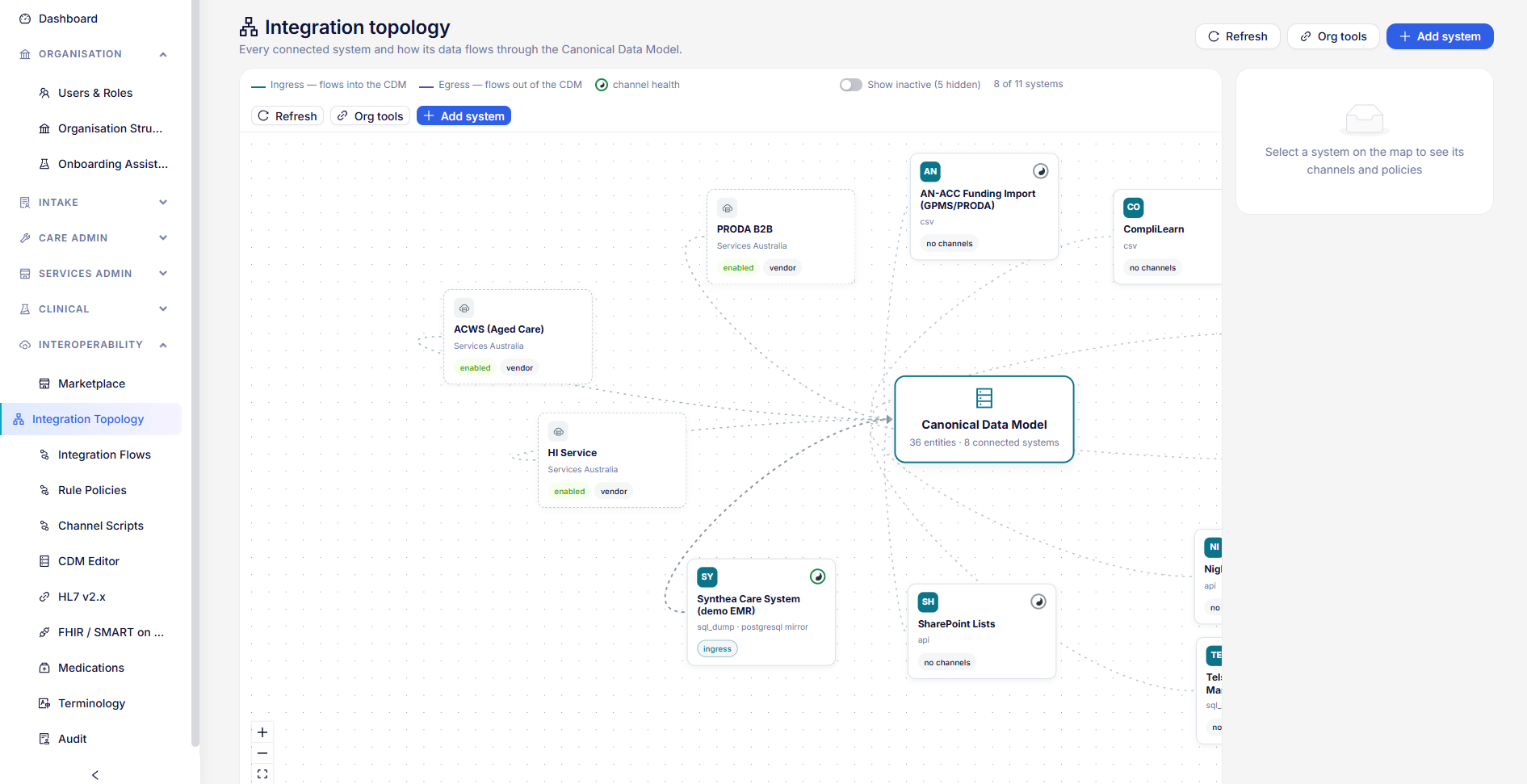
- Open Interoperability → Integration Topology and select the PRODA or Eclipse / Medicare Online endpoint. In the Government gateways — Services Australia & Dept of Health panel choose Medicare / ECLIPSE Guided Setup.
- Complete the four steps:
| Step | Field | Enter |
|---|---|---|
| Developer Liaison | Developer ID | Your Minor ID / Location ID (e.g. FSX00000) — written as the PRODA client ID, the Eclipse Minor ID and the Location ID |
| Organisation name | Your organisation as registered with Services Australia | |
| PRODA B2B device | Mode | Production for live claiming (Vendor is Services Australia's test environment; Mock makes no external calls) |
| RA number | Your PRODA organisation's RA number | |
| B2B device name | The name from step 3 | |
| Device activation code | The code from step 4 | |
| Claiming API base URL (production only) | From the production onboarding pack | |
| Developer Portal | X-IBM-Client-Id | Supplied by HealthOS |
| Product name / Product version | Supplied by HealthOS — must match the Notice of Integration | |
| Review & apply | — | Check the values and their sources, then choose Apply |
- Apply runs four steps and shows the outcome of each: Save PRODA configuration, Save Eclipse configuration, Activate PRODA B2B device, Test connection (PRODA token + ping). On success: "Medicare Online / ECLIPSE claiming is configured".
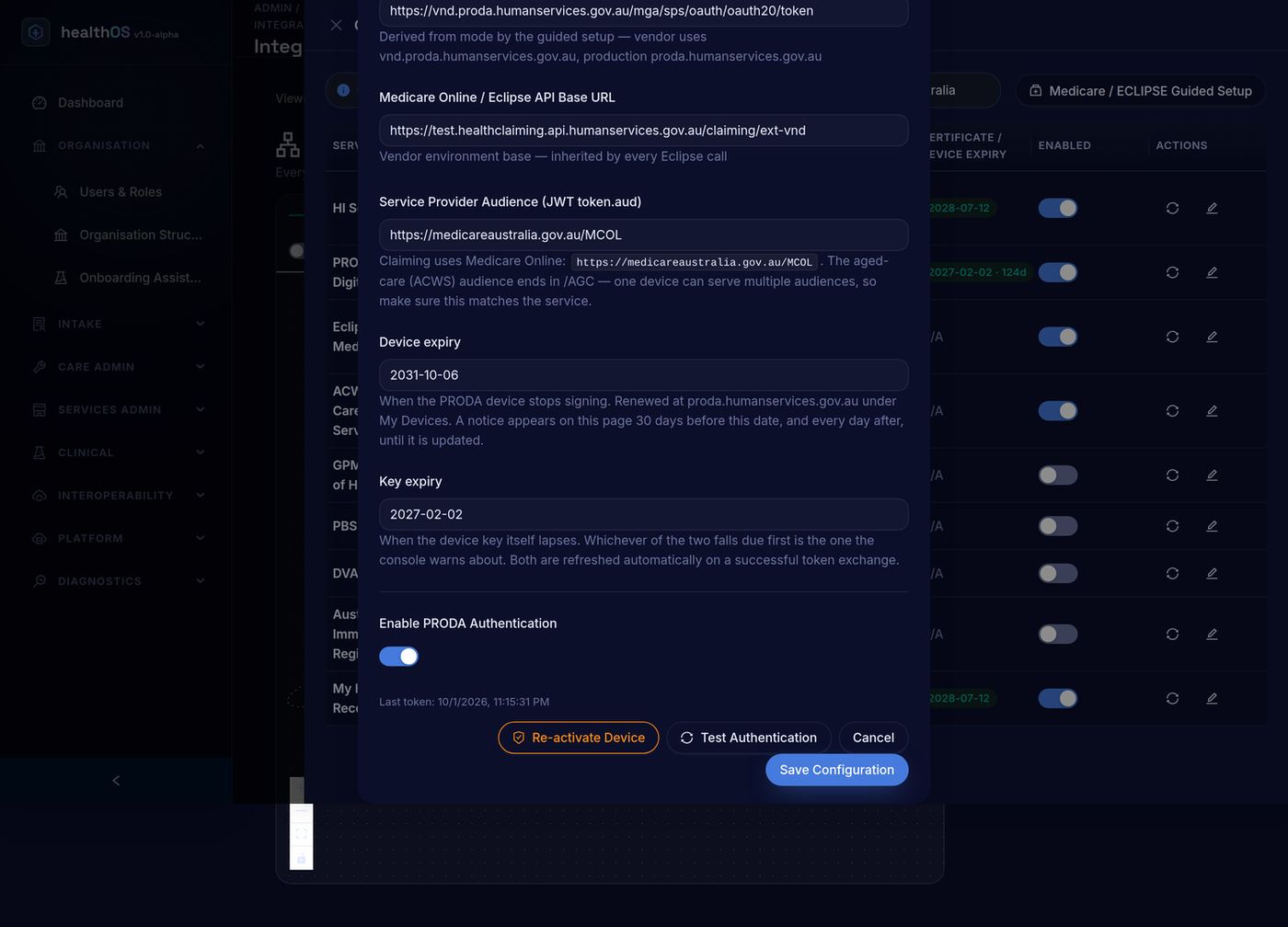
The mode sets the PRODA token endpoint, the device activation address, the claiming address and the token audience together:
| Mode | PRODA token endpoint | Claiming API |
|---|---|---|
| Vendor | vnd.proda.humanservices.gov.au | test.healthclaiming.api.humanservices.gov.au/claiming/ext-vnd |
| Production | proda.humanservices.gov.au | From the production onboarding pack |
| Mock | none | none (simulated responses) |
6.3 Checking the configuration
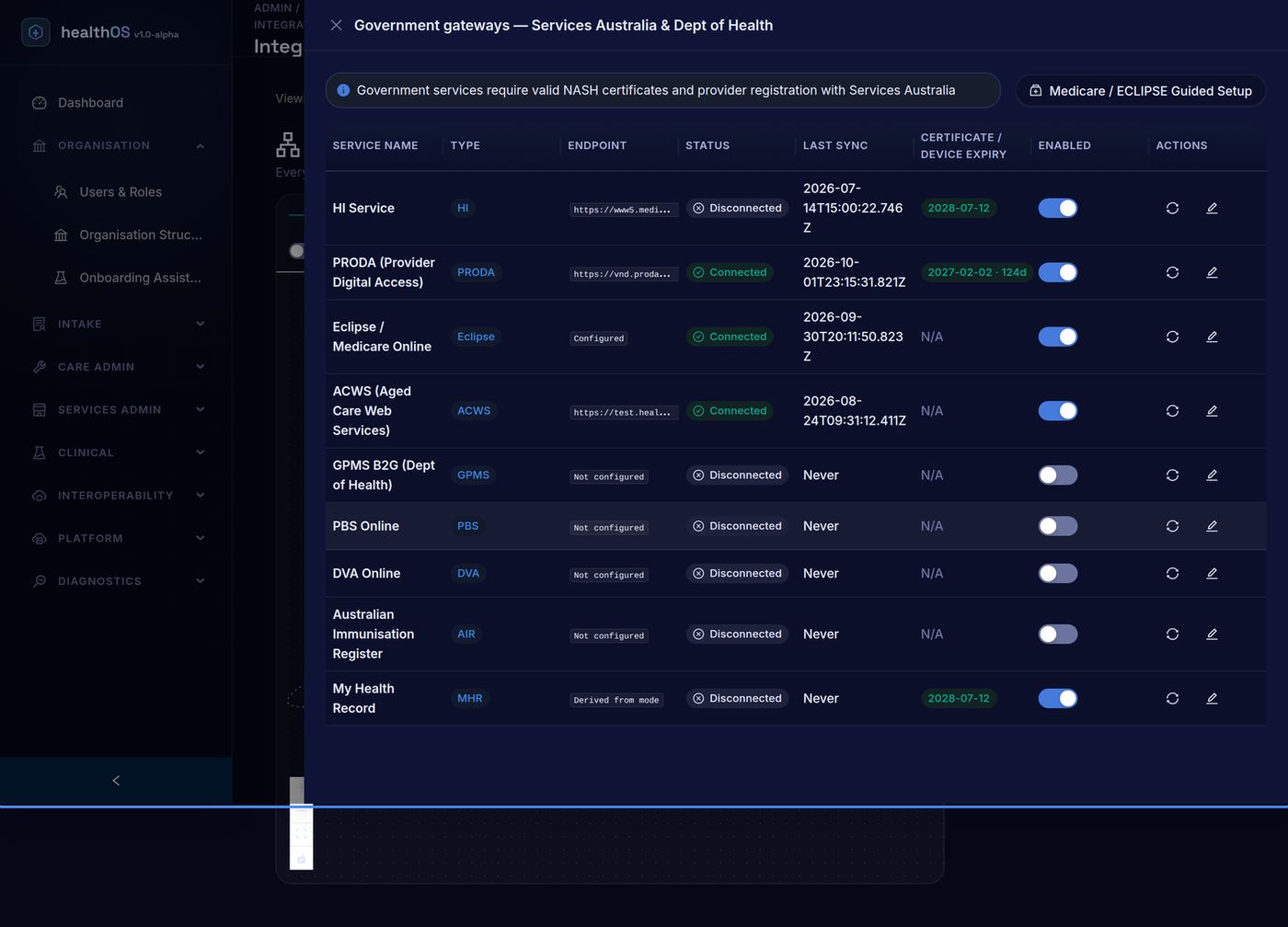
- The Government gateways panel lists PRODA and Eclipse / Medicare Online with status (Connected), last sync and the device expiry with days remaining.
- The PRODA row's edit action opens PRODA B2B Authentication Configuration. Test Authentication obtains a token and reports Authentication Test Passed or the reason it failed; "Last token" shows when HealthOS last authenticated. The activation code is never displayed.
- The Eclipse / Medicare Online row's edit action shows the values inherited from PRODA (mode, RA number, B2B device and whether it is activated, key expiry, API base URL), the X-IBM-Client-Id, Minor ID / Location ID, product details and the NOI number and dates. Test Connection checks the full path to Services Australia.
6.4 Device key refresh and device renewal
| Date | What happens | Who acts |
|---|---|---|
| Key expiry | HealthOS rotates the key automatically within 7 days of expiry, on the next transmission: a new key pair is generated and the public key registered with PRODA, authorised by the current key. Both expiry dates are updated from PRODA's answer. A failed rotation leaves the current key in use | Nobody (automatic) |
| Device expiry | The device must be renewed in PRODA before this date | Your PRODA member renews it in PRODA; your administrator saves the new Device expiry in the PRODA settings |
Notification. From 30 days before the earlier of the two dates, the admin portal's Government gateways panel shows "PRODA device expires in N days — renew the Device in PRODA", naming the device and the date. Within 7 days it becomes an error-style alert; after the date it reads "PRODA device has EXPIRED — re-activate the device in PRODA". It cannot be dismissed and appears every time the panel is opened until the device is renewed or the key refreshed. The aged care (ACWS) console in the staff portal shows the same banner with a Refresh key now button.
If the key or device has expired, claiming stops with an authentication error, because an expired key cannot sign a refresh. Generate a new device activation code in PRODA and re-activate: enter it in the Guided Setup's Device activation code ("Enter a new activation code to re-activate the device"), or in the PRODA settings' Device Activation Code and choose Re-activate Device.
6.5 Changing or revoking the device
- To move to a new device (for example after a PRODA administrator change), register the new device in PRODA and activate it in HealthOS with its name and activation code. The new key replaces the old one for your organisation.
- To stop HealthOS claiming for your organisation, switch off Enable PRODA Authentication in the PRODA settings, and deactivate the device in PRODA.
7. Troubleshooting installation and authentication
| Symptom / message | Likely cause | What to do |
|---|---|---|
| Activate PRODA B2B device — Activation failed | Activation code expired, already used or mistyped; RA number or device name not as registered in PRODA | Check the RA number and device name; generate a new code in PRODA and apply again |
| Test connection (PRODA token + ping) fails | Device not activated; wrong mode; X-IBM-Client-Id or product details not as registered | Check each value in the review step; contact HealthOS support with the message |
| "Vendor mode required" on claiming widgets | PRODA not enabled, or in mock mode | Enable PRODA Authentication and set the mode |
| "PRODA device expires in N days" notice | Device or key within 30 days of expiry | Renew the device in PRODA and save the new date (section 6.4) |
| "PRODA device has EXPIRED" / authentication errors on every claim | Key or device expired | Re-activate with a new activation code (section 6.4) |
| Password sign-in refused — multi-factor authentication required | Organisation requires MFA for the account | Use the single sign-on button |
| Signed out unexpectedly | Inactivity timeout reached | Sign in again; the administrator can change the period (section 4.3) |
| Claim documents do not open | Browser blocked the pop-up | Allow pop-ups for the HealthOS address |
| Transaction ID does not begin with your Minor ID | Developer ID / Minor ID entered incorrectly | Correct it in the Guided Setup |
Appendix A. Configuration record
Keep a record of the values used for your organisation (never record the activation code — it is single-use).
| Setting | Value |
|---|---|
| HealthOS staff portal address | |
| Mode | |
| Organisation name | |
| RA number | |
| B2B device name | |
| Minor ID / Location ID | |
| X-IBM-Client-Id | (held by HealthOS) |
| Product name and version | |
| NOI number, issue and expiry date | |
| Device expiry | |
| Date activated / by whom |
Still stuck? Email support@healthos.net.au